CHAT STUDIO BIBLE
The Chat Studio Bible
Build an assistant that answers from your own documents, publish it as a page or a widget, keep its behavior and its cost in bounds, and call it from code. Steps are shown on the screens they happen on.
PWhy Chat Studio
A visitor asks your website a question, and the answer comes from your own documents, with the document named. This book shows how to build such an assistant in Chat Studio, how to put it in front of visitors, how to keep its cost and its behavior in bounds, and how to call it from code.
Here is the shortest path. You create an assistant, give it three files, and publish it. A visitor then asks a question on its public page, and gets a reply such as:
Visitor:    How many days of annual leave do I get?
Acme Help:  According to the Acme Corporation leave policy, "You receive 23 working
            days of paid annual leave per calendar year. ..."
            Sources: acme-handbook, acme-leave-policy
Who it is for
Two readers, two tracks.
- Builders build and run assistants with the web app and write no program. Chapters 1 to 9 are theirs. A few steps use a terminal: Chapters 2, 5, 6, 8 and 9 build a test file, run
curlor serve a page with Python 3, and say so in their setup boxes. - Developers call a published assistant from a program. Chapters 10 to 12 are theirs, and each carries a setup box that says what to create first. They need a terminal with
curlandjq, and for Chapter 12 Python or Node.
A developer who has never opened the app can still follow Chapters 10 to 12: the setup boxes of Chapters 10 and 11 list the few steps that make the assistant they call.
The running example
One assistant runs through the book. Acme Help answers the questions of the staff of Acme Corporation, a fictional company, from three small files that Appendix A prints and the downloads carry. A second assistant, Littlebit Help, appears only in Chapter 2, built from pages of a public website.
Words
| Word | Meaning |
|---|---|
| Assistant | What you build: a persona, its knowledge, a model and limits. |
| Knowledge, source | A page, a file or a text that you add. Each is cut into chunks and indexed. |
| Persona | A starting point that writes the assistant's instructions. |
| Instructions | The text that the model reads with every question. It is a request, not a lock. |
| Conversation | One visitor's exchange with an assistant. A program calls it a session. |
| Run | One question and its streamed answer. |
| Public address | The link that anyone who holds it can talk through, with no sign-in. |
| Berth | The page of two meters: the storage your sources take, and the answers counted against the plan. Wallet holds the balance. |
How the book is written
- Labels. Names on screen, such as the Assistants list, are bold and exactly as the app shows them.
- Exchanges. An HTTP exchange is three blocks: the request, the head of the response, and its body.
- Placeholders.
<public-token>,<session-id>,<visitor-id>,<agent-id>,<automation-secret>and<run-id>stand for values that are yours. Chapter 5 explains the host that the book writes asstudio.example. - Replies. The model's wording changes from run to run. A reply is introduced as "a reply such as", and what the book asserts are the figures, the fields and the status codes.
- Exercises. Each chapter ends with three. They check stable facts, and any that calls a model says to use a throwaway assistant in a disposable workspace.
- Model. Where the book shows a model's behavior, the model is
gpt-4.1; another model may answer differently.
What is in it
| Chapter | What you do |
|---|---|
| 1. Your first assistant | Set up a key, build Acme Help from three files and talk to it. |
| 2. Knowledge | Read a site, upload files, paste text; see how limits and indexing work. |
| 3. Models and providers | Keys, the embedding provider, the default model, a model for one assistant and one provider for all. |
| 4. Instructions and grounding | Personas, tone, and what the grounding rules are. |
| 5. Publish and the public page | Make it live; read the address; take it offline. |
| 6. The widget | Put the assistant on your site; choose what a visitor sees first. |
| 7. Conversations, feedback and contacts | Read what visitors said, rated and left, and the Analytics page. |
| 8. Limits and spend | Four limits per assistant, limits per address, and the meters. |
| 9. Pause and safety | The pause switch, what the server keeps whatever the model does, and Channels for alerts. |
| 10. The visitor surface over HTTP | Open a conversation, ask, read the stream. |
| 11. The webhook endpoint | The same assistant as an API for your automation, on a new assistant. |
| 12. Calling from code | A program in Python, JavaScript and shell, with its care. |
| Appendix A | The three files, the exact instructions, the settings. |
| Appendix B | A quick reference. |
A published assistant is open to anyone who holds its link, and every question it answers is a call to a model on your key. The exercises and the examples keep that small; keep your own limits small too.
1Your first assistant
An assistant answers questions from the documents you give it, and from nothing else. You give it three things: a persona, which is a set of instructions; knowledge, which is files, pasted text or a crawled site; and a model. You test it in the app, then publish it as a public page or as a widget on your own site. This chapter builds the assistant that the rest of the book uses, Acme Help, and ends with two proofs: an answer that only its files can supply, and a refusal for a question they cannot.
Here is the result, in replies such as these. The first reply comes from the leave policy file; the second question is one no file answers:
You:        How many days of annual leave do I get?
Acme Help:  According to the Acme leave policy, "You receive 23 working days of
            paid annual leave per calendar year. ..."

You:        What is the salary band for a senior engineer?
Acme Help:  I could not find information about the salary band for a senior
            engineer in the available policy documents.
A reply varies in its wording from one run to the next. The figure 23 does not: it is written in one file and nowhere else, so a reply that carries it can only have come from there.
flowchart LR
    Q[Question] --> S{Do the sources cover it?}
    S -->|yes| A[Answer from the sources, naming the document]
    S -->|no| R[One-sentence refusal]
A question is answered from the attached sources or refused, as the persona's instructions direct.
Setup for builders. To follow only this track, you need a Chat Studio workspace, an OpenAI key (it also indexes your knowledge), and the three files of Appendix A:
acme-handbook.md,acme-leave-policy.mdandacme-faq.md. Save each block of Appendix A as a file under the name of its heading, or take the files from the downloads. Chapters 1 to 9 run on them.
Set up the workspace
A workspace answers visitors with your own key and your own bill, so the first visit asks for a key before anything else. The page is called Set up Chat Studio and has three steps. In this book a key is written <your-provider-key>.
- Open Chat Studio. A new workspace opens Set up Chat Studio on step 1, Bring your own key. The row of Claude (Anthropic) may already read Done, with the tag PLATFORM KEY: the platform's key counts as a key, but the examples of this book run on OpenAI, so place an OpenAI key all the same. The providers are Claude (Anthropic), OpenAI, Gemini (Google), OpenCode Go and AI Credits.
Choose OpenAI in the list, paste the key into the field, add a label if you like, and select Save. The row then shows the label and the last four characters of the key, and the key is never shown again.
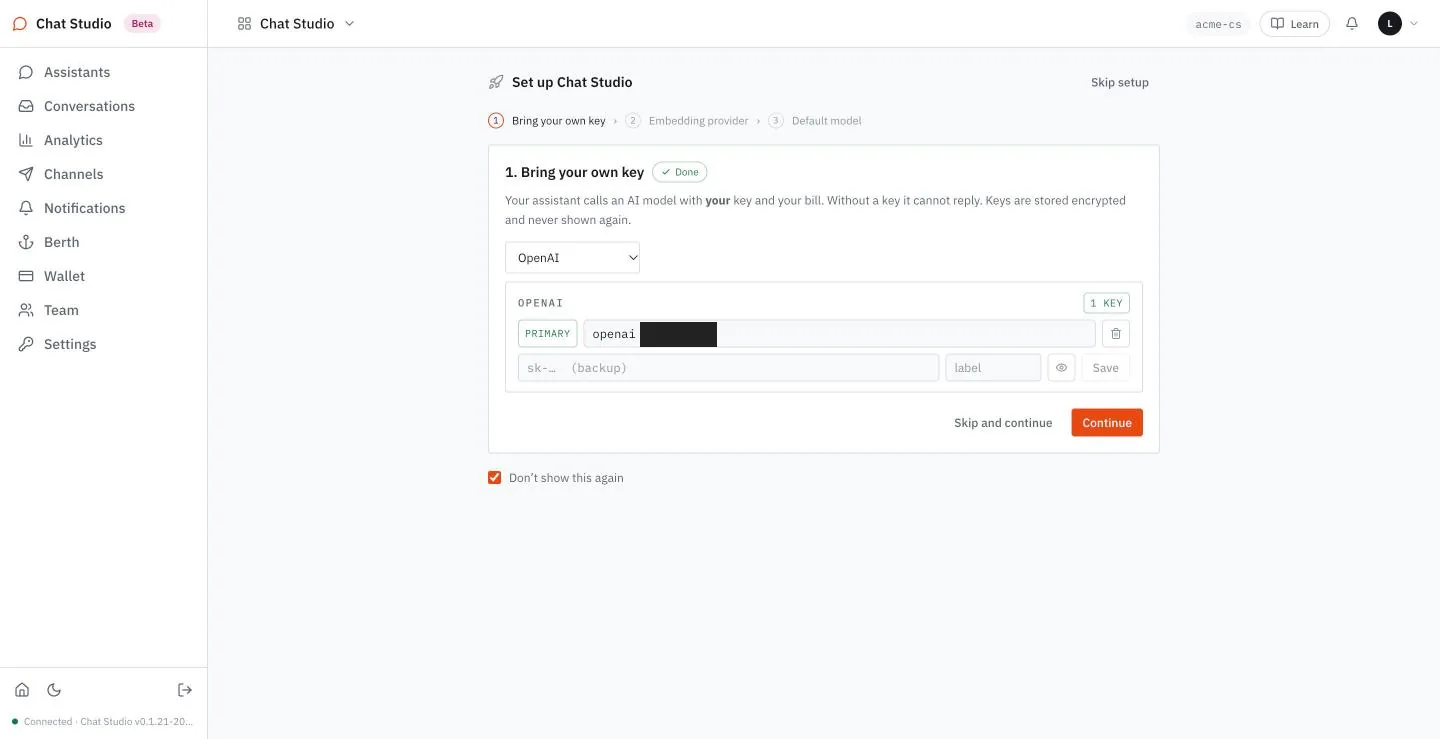
- Select Continue. Step 2, Embedding provider, picks the provider that turns your sources into searchable vectors. The page calls it required for knowledge to work. Leave Automatic: the page says it uses your OpenAI key if present, then your Gemini key, then the platform. Chapter 3 lists the other choices.
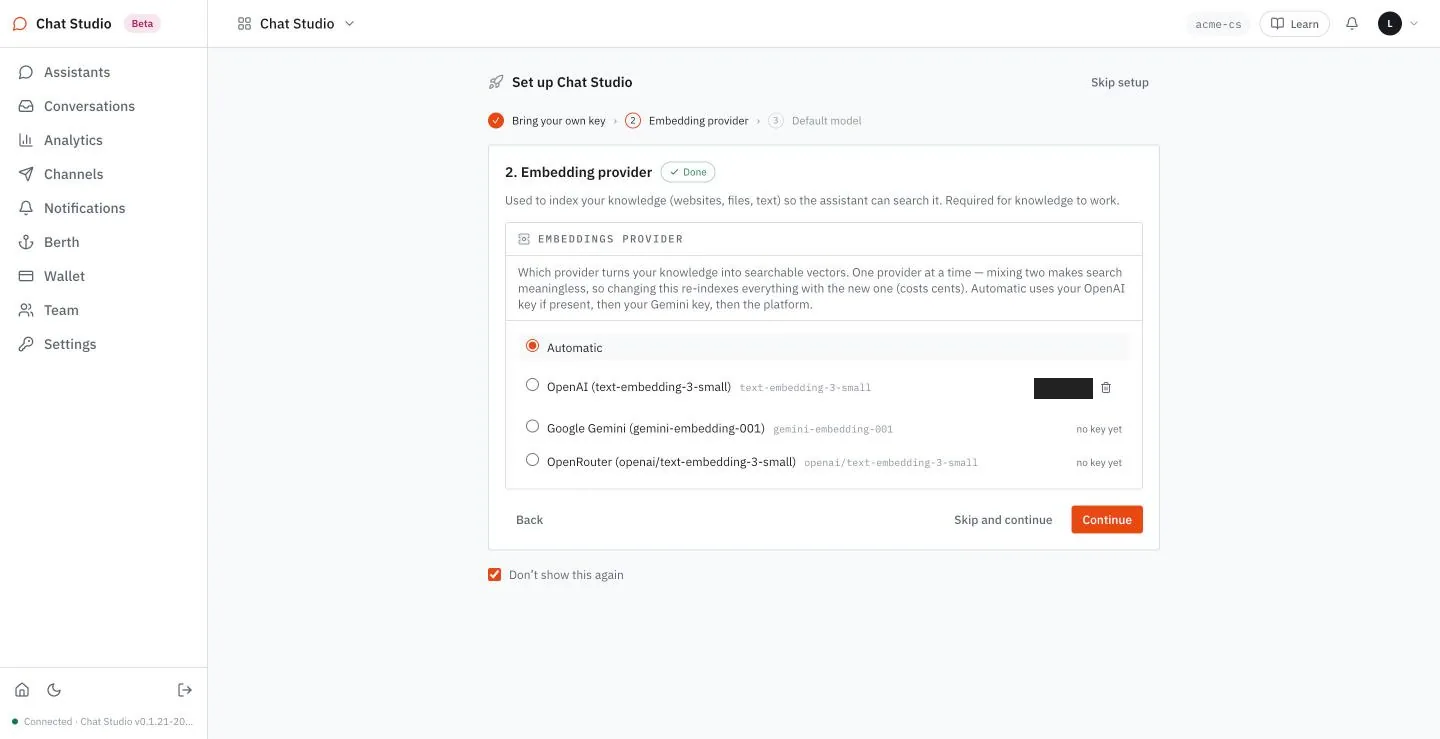
- Select Continue. Step 3, Default model, sets the model that new assistants start on. Choose the provider openai, leave gpt-4.1 selected, and select Save and continue. A toast, which is a short message in the corner of the screen, reads "Default model saved — new assistants start on it", and the page reads You're all set.
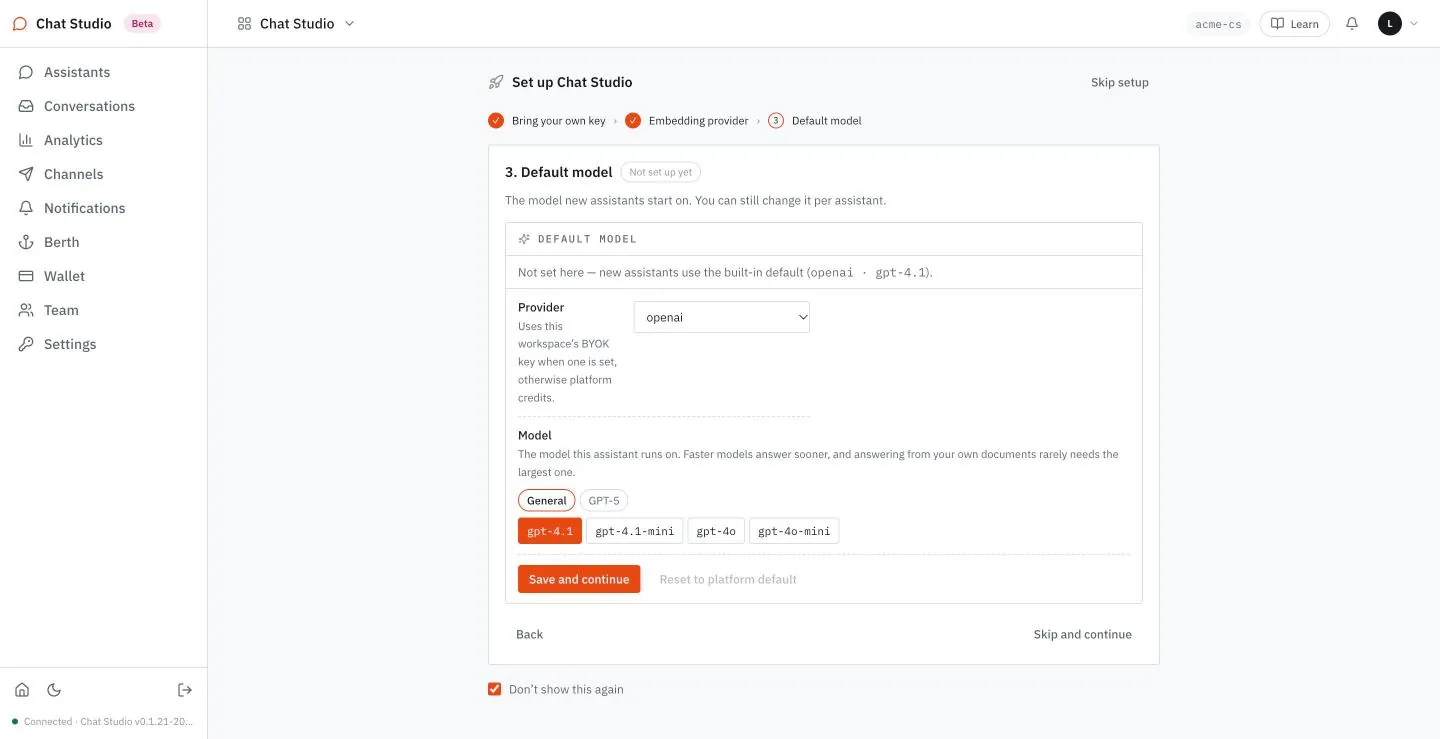
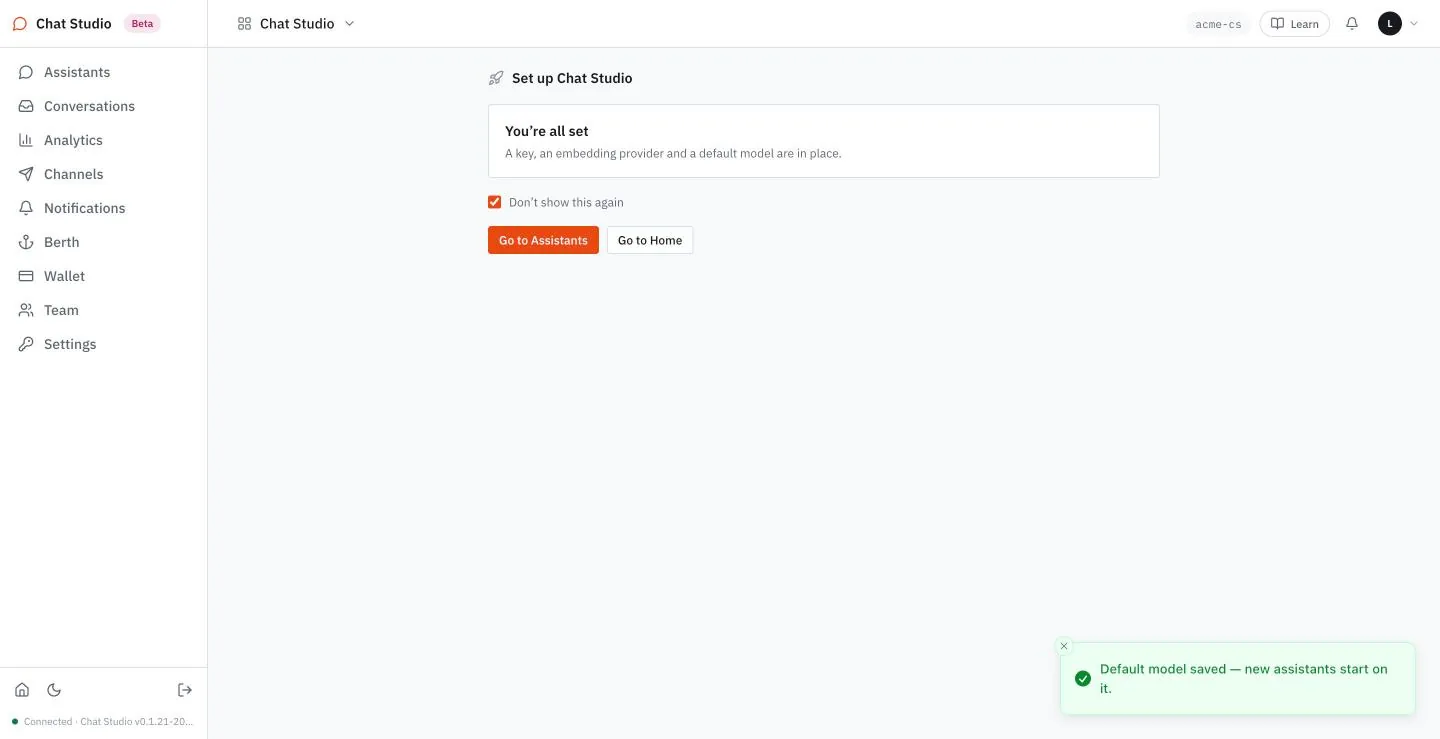
Chapter 3 returns to keys and models. Nothing here is permanent: Settings holds the same three choices.
Create the assistant
- Select Go to Assistants. The list is empty.
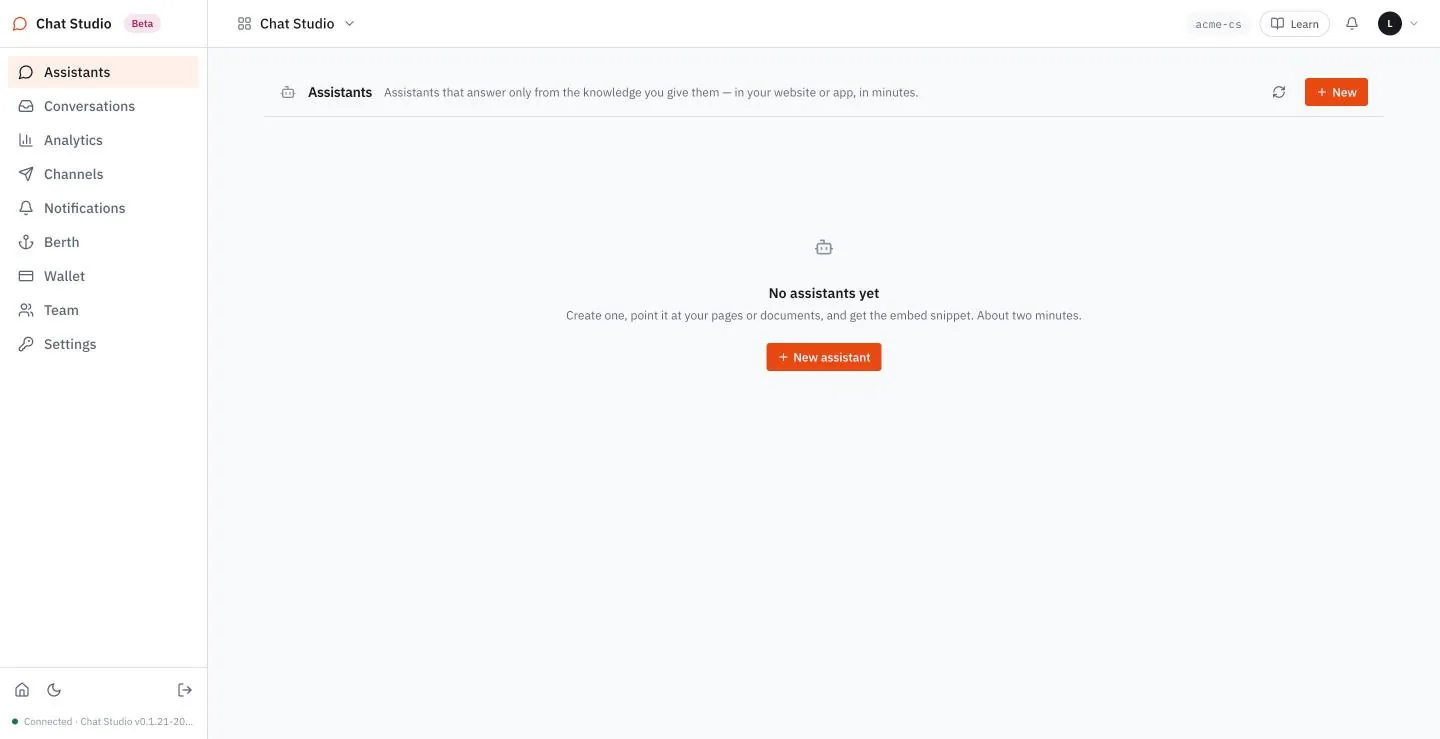
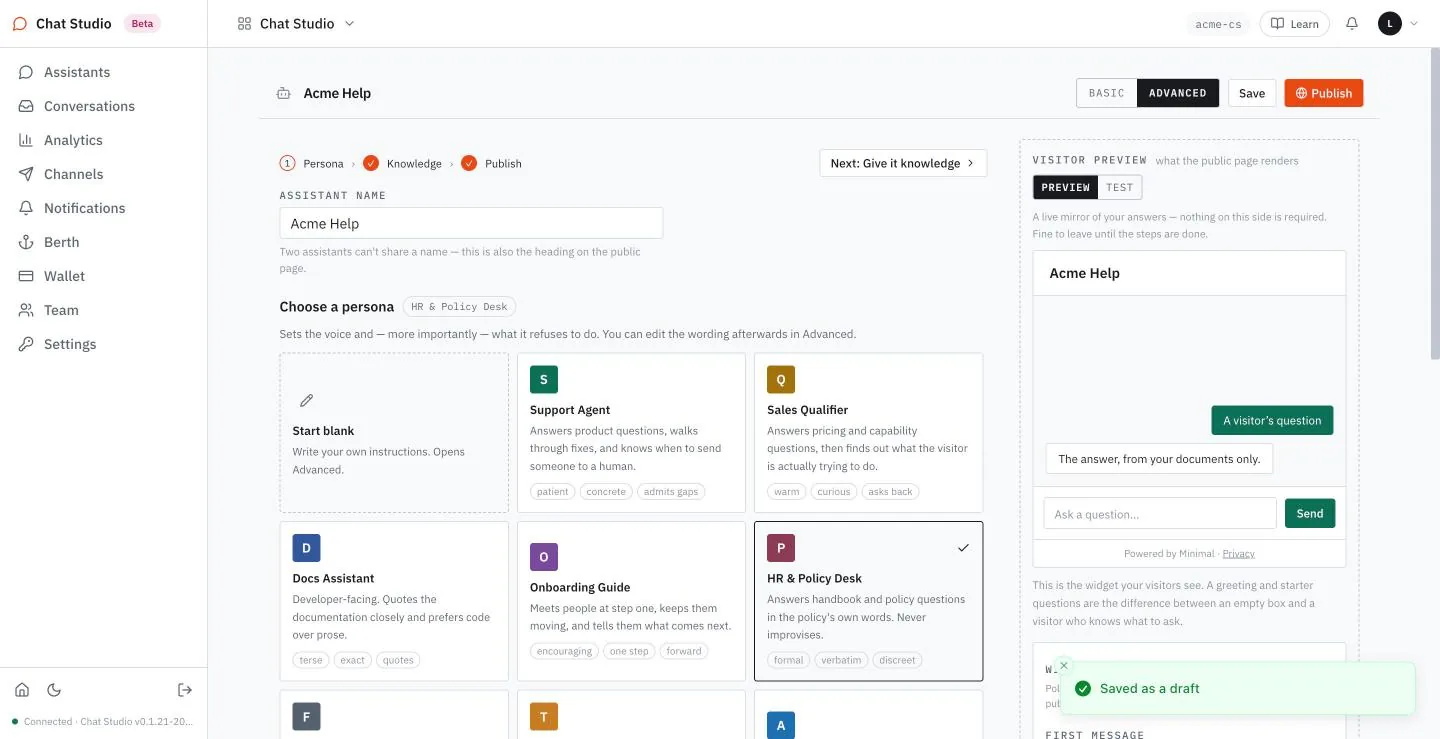
- Select New assistant. The page opens on step 1 of 3, Persona. A name field sits at the top, the persona cards below it, and on the right a panel with two tabs, PREVIEW and TEST. PREVIEW is a mock of the public page; TEST talks to the real assistant. Select ADVANCED in the header now: the screens of this book are taken there, and the limits and the public link of the later chapters live there.
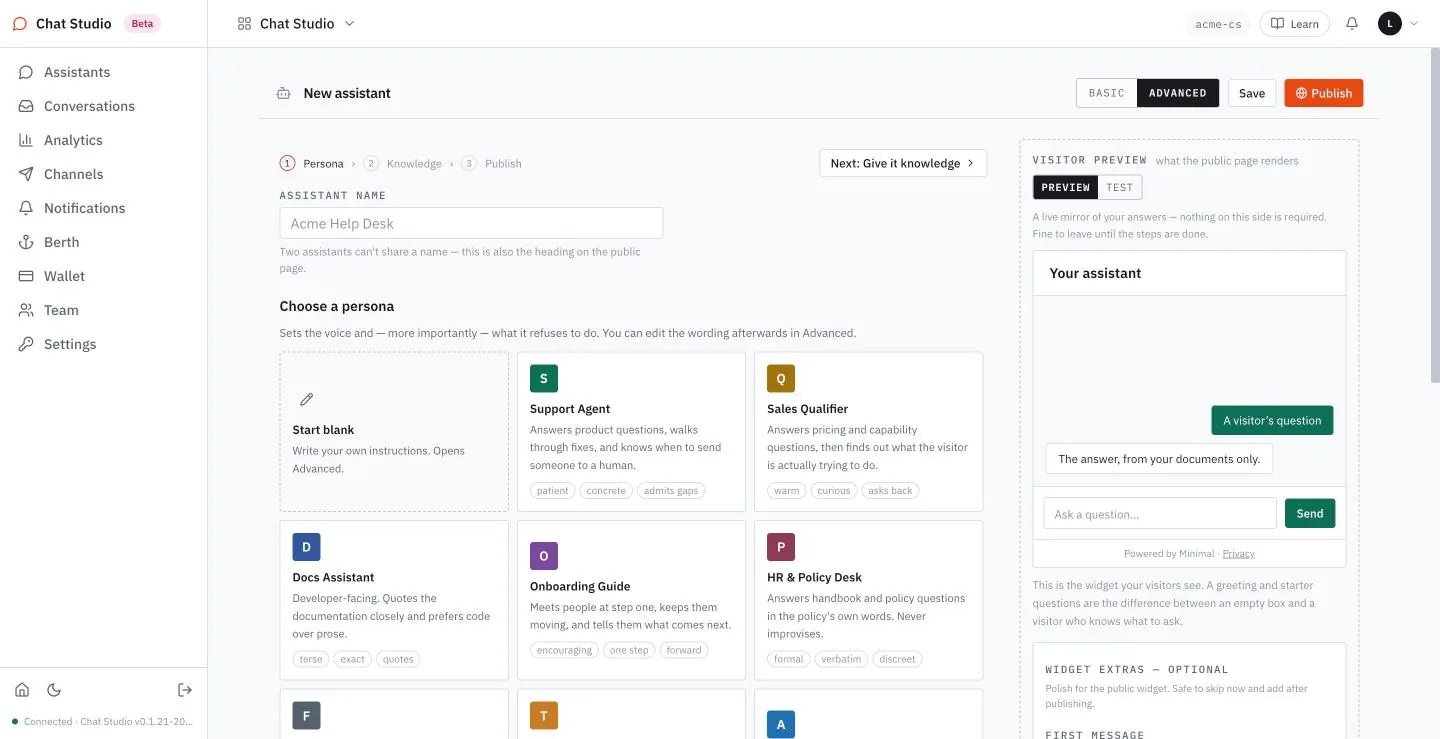
- Choose the persona HR & Policy Desk, which "answers handbook and policy questions in the policy's own words" and never improvises. A persona writes the assistant's instructions for you; Chapter 4 reads them. Choosing it fills the name field with the persona's name. Select the text in ASSISTANT NAME and type
Acme Help. The preview on the right takes the new name.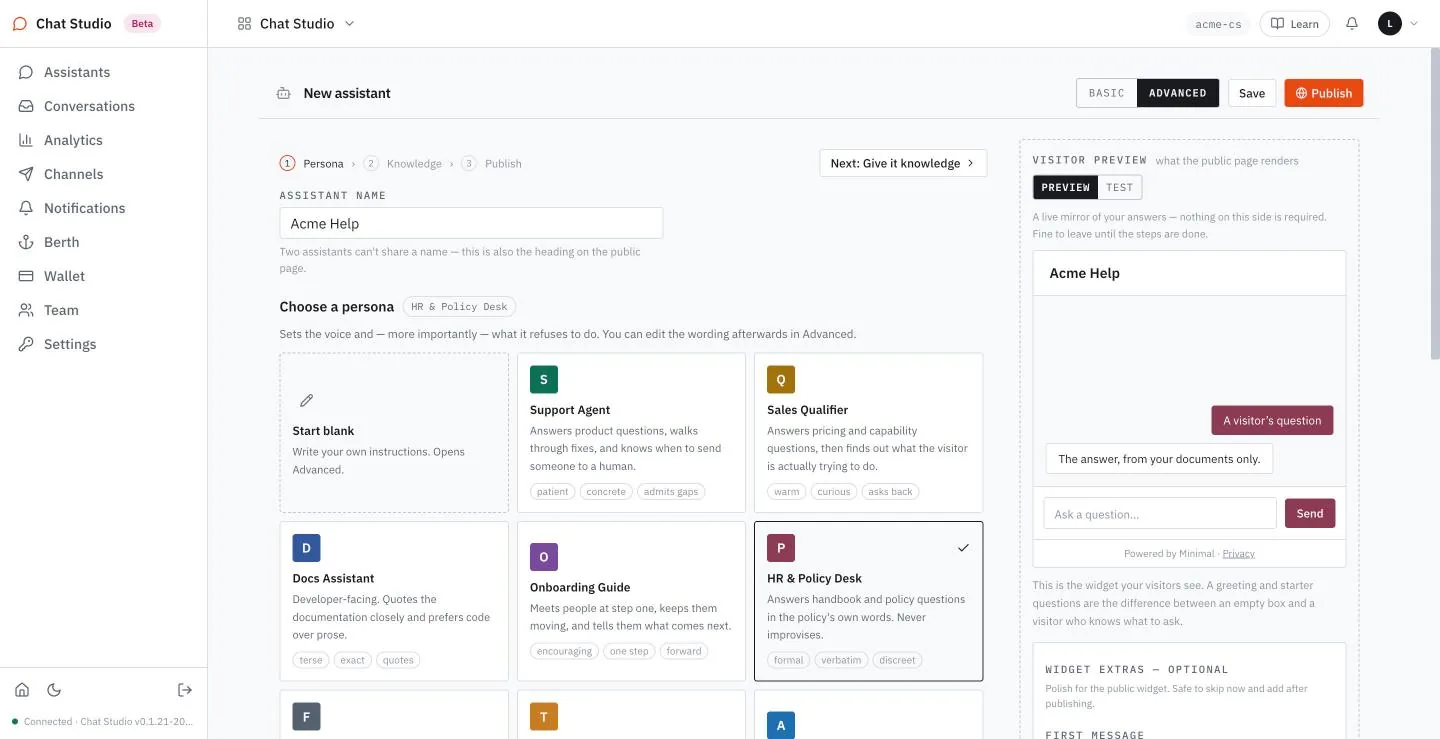
- Select Next: Give it knowledge. The page says that the assistant "answers only from what you add here. Nothing else — not the web, not the model's memory." Four tabs offer the ways in: From a page, Upload files, Paste text and Existing knowledge, which carries a count of the workspace's sources that this assistant does not use yet.
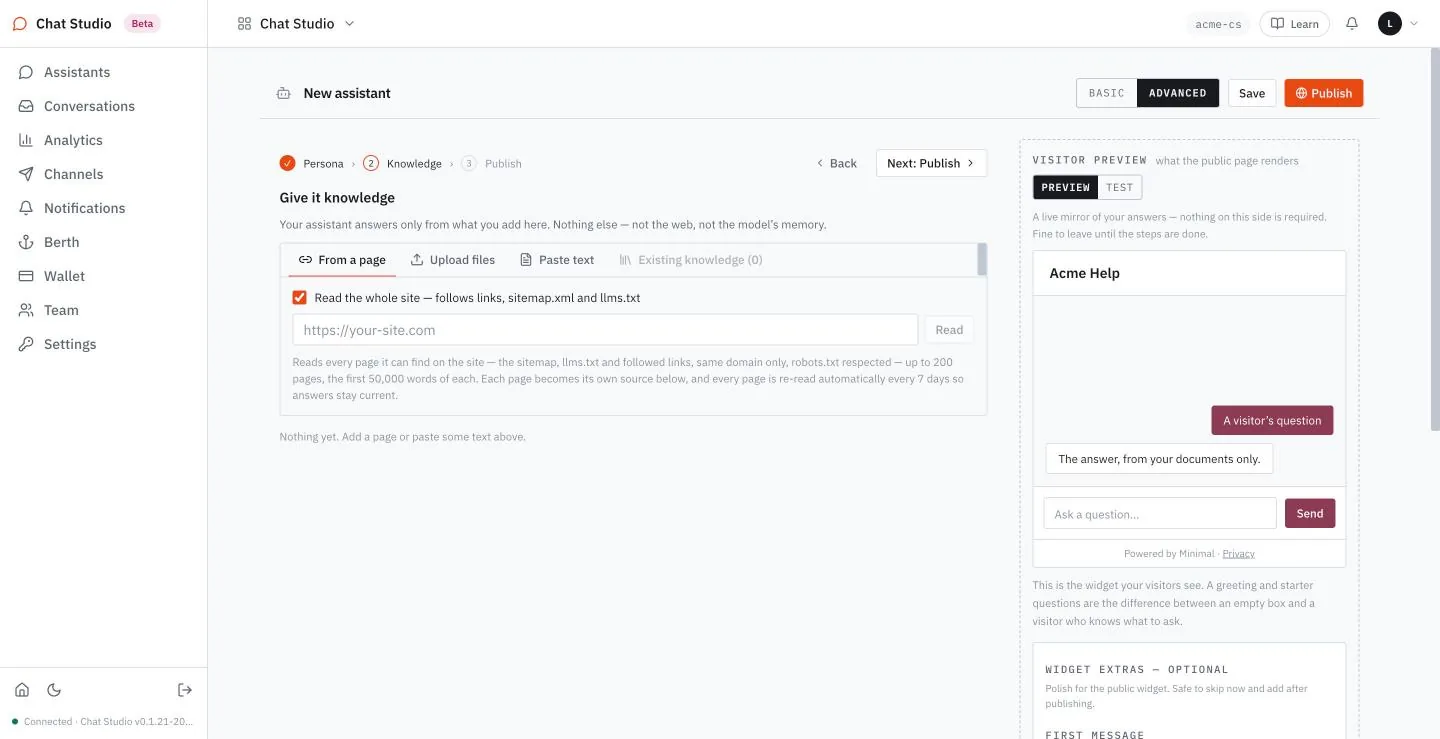
- Select Upload files. The tab states its limits: documents up to 20 MB can be uploaded, and only the first 50,000 words of each are indexed.
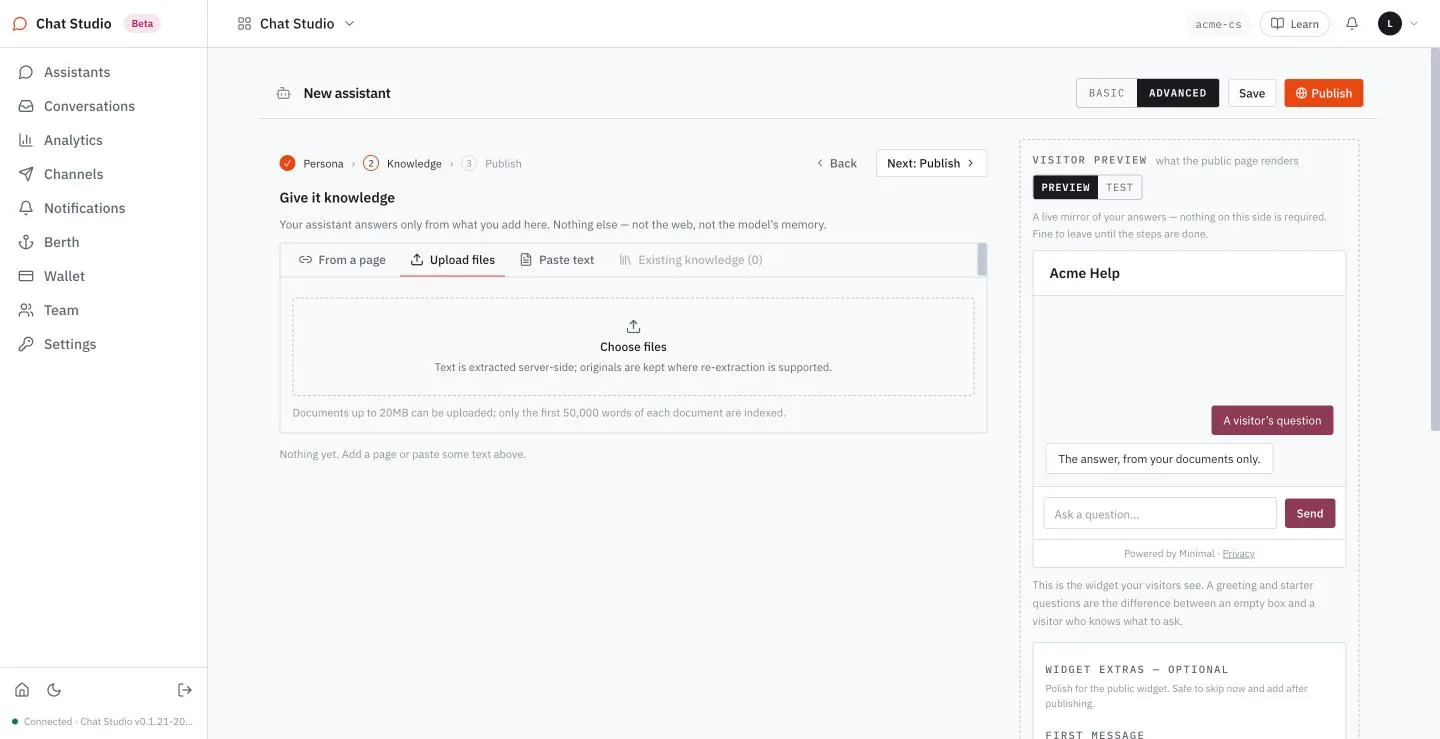
- Choose the three files of Appendix A. A toast reads "Added 3 files", and each file is listed as a source. A source shows its chunk count, which is how many pieces the file was cut into for searching, and its index type, semantic. The handbook has 2 chunks, the leave policy 2 and the FAQ 1. Use is ticked on each, which attaches the source to this assistant.
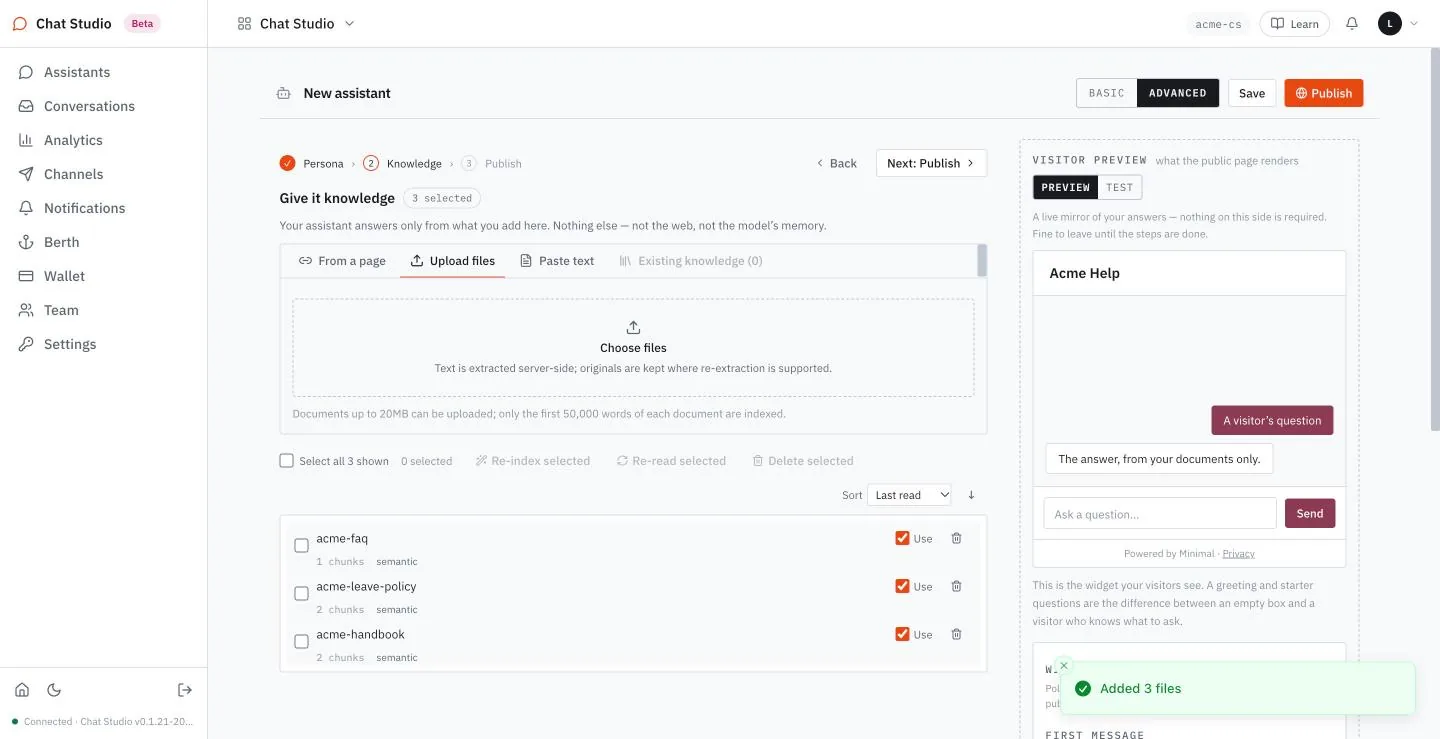
- Select Next: Publish. Step 3 holds the accent color, the model and the limits, and a SURFACE section with the Public link switch. The persona sets the accent color of the Send button; type
#0E6F58into ACCENT COLOUR, the green of the later chapters. Leave the provider and model as the setup chose them.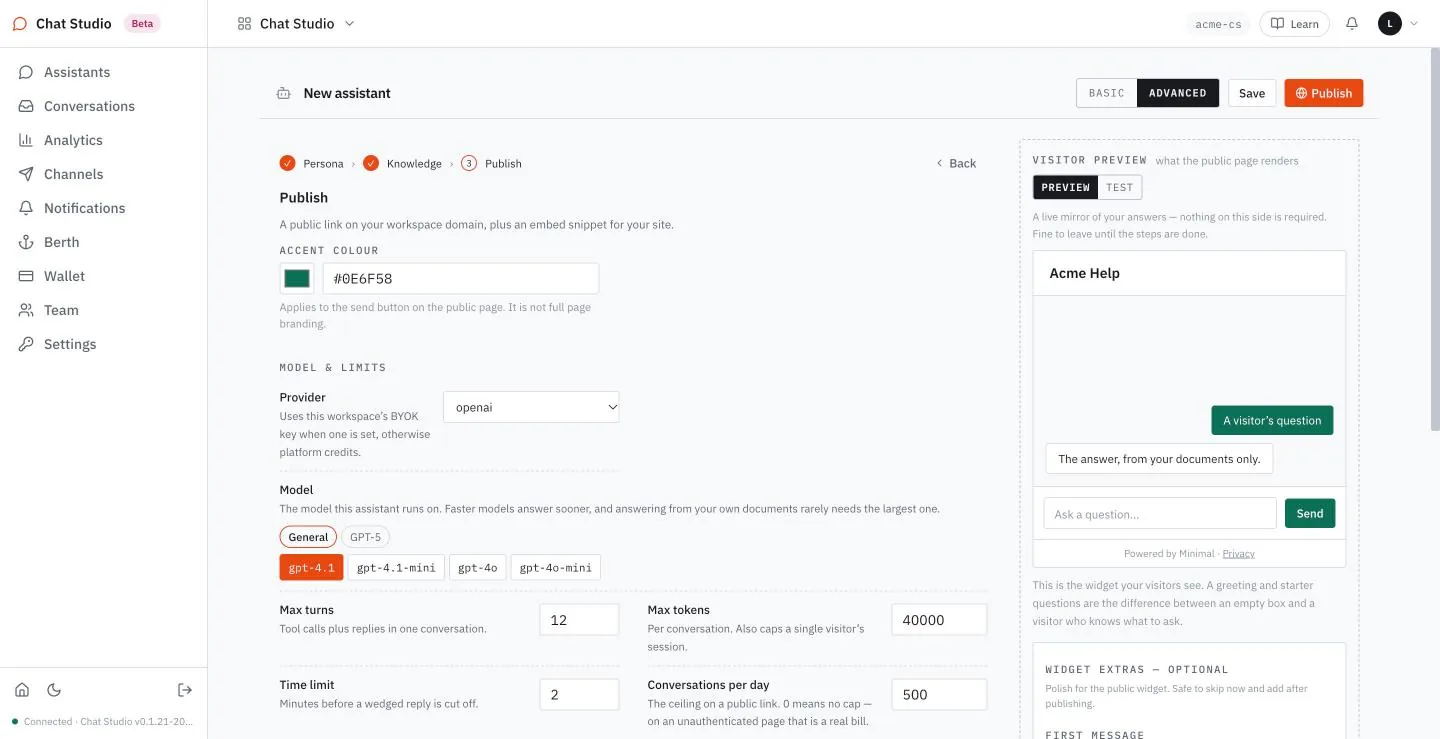
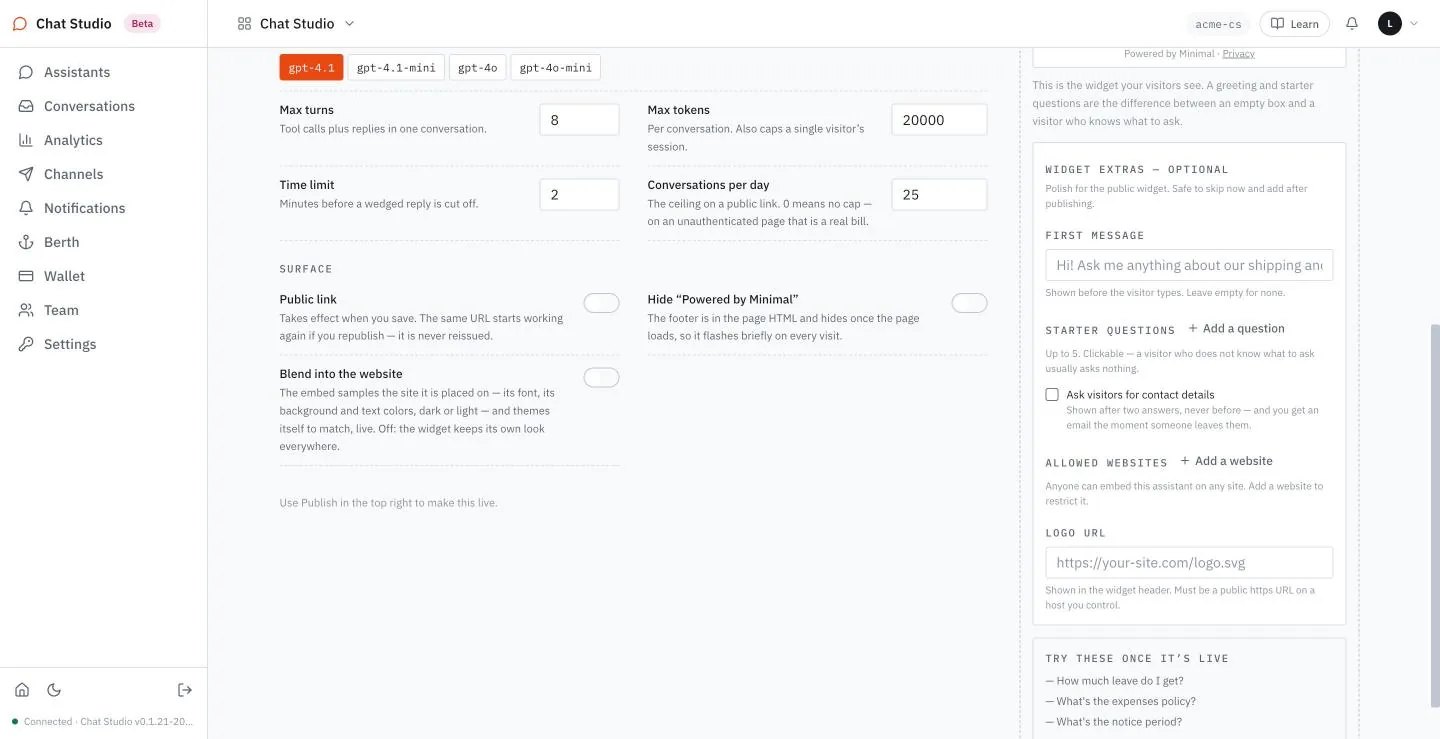
- Set the limits to small values, because a public page spends your key. The limits show in ADVANCED, which Chapter 4 explains.
- Max turns is the number of tool calls plus replies in one run. Its default is 12; set it to 8.
- Max tokens is the cap per conversation, a token being a piece of text that the model reads or writes. Its default is 40000; set it to 20000.
- Conversations per day is the ceiling on a public link. Its default is 500; set it to 25. The page warns that 0 means no cap and "on an unauthenticated page that is a real bill".
- Time limit, 2 minutes, stays as it is.
Leave Public link off. The page says "Use Publish in the top right to make this live", and Chapter 5 does that.
- Select Save. Two toasts appear: one reads "Saved as a draft", and the other shows the assistant's webhook secret, once, in plain text. This chapter does not use it, and Chapter 11 makes a new assistant for the webhook, so close both.
The page title changes from New assistant to Acme Help, and the page returns to step 1. The assistant is a draft and has no public link yet.
Test it
The test chat calls the real assistant with what is saved, published or not. Each message calls the model with your key, so the provider bills it to you.
- In the panel on the right, select TEST.
- Type
How many days of annual leave do I get?and select Send. A reply such as the one at the top of the chapter streams in. It names the leave policy and carries 23.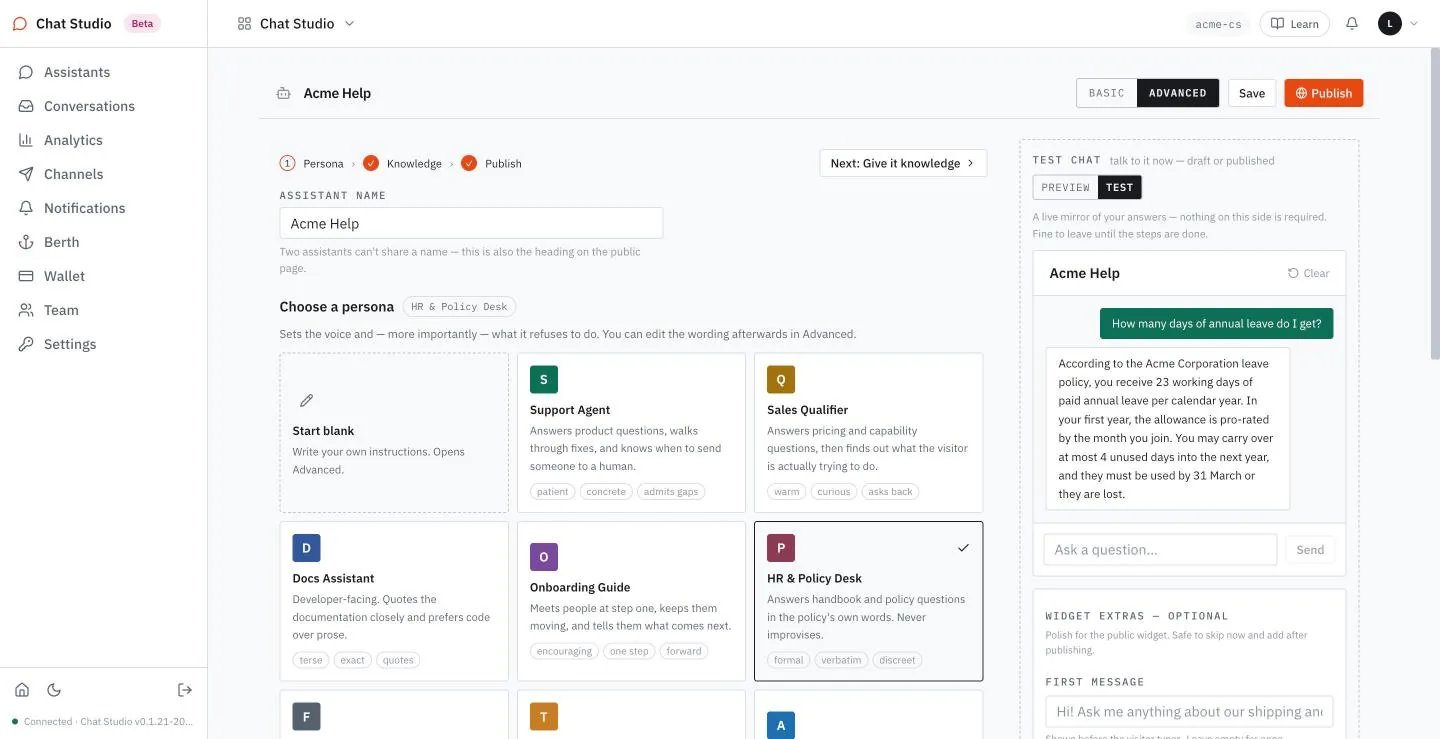
- Type
What is the salary band for a senior engineer?and select Send. No file mentions salaries, and the reply says it found nothing.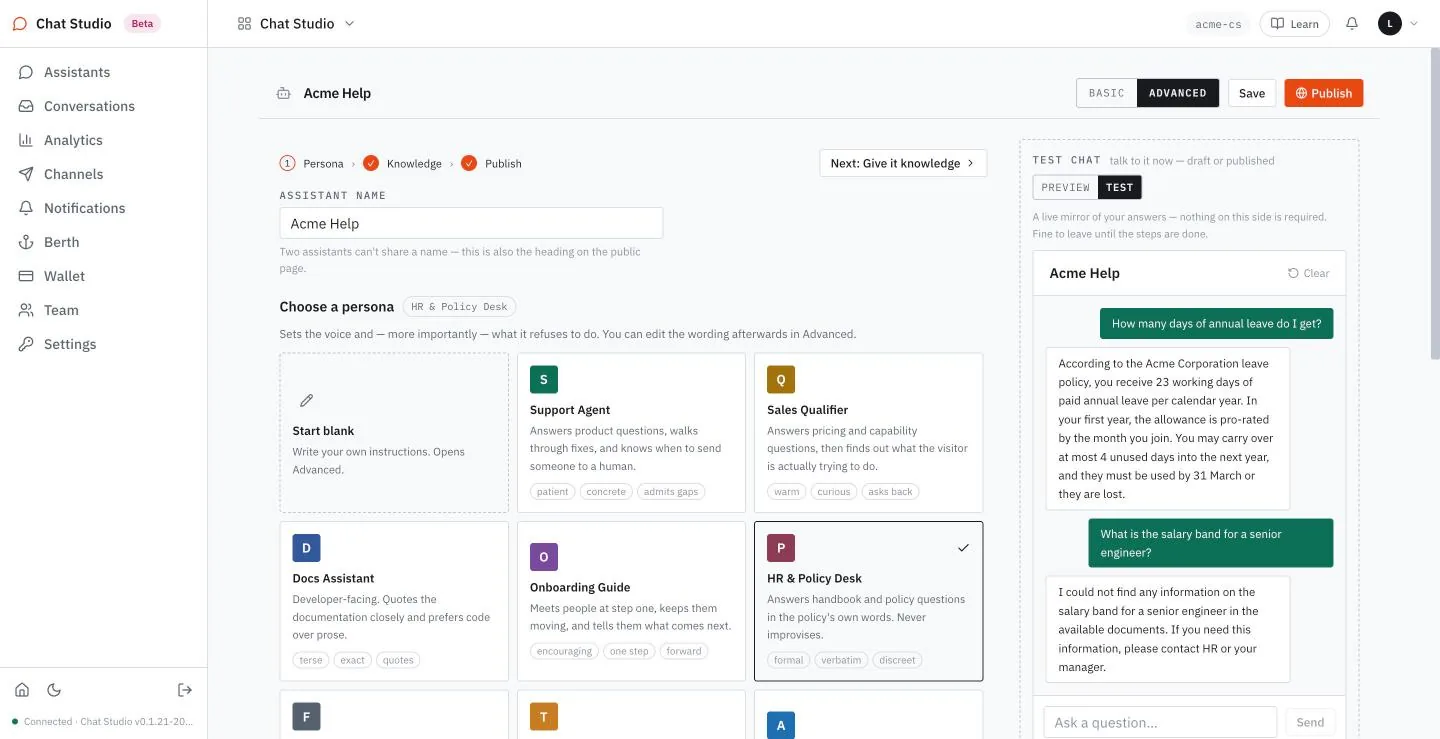
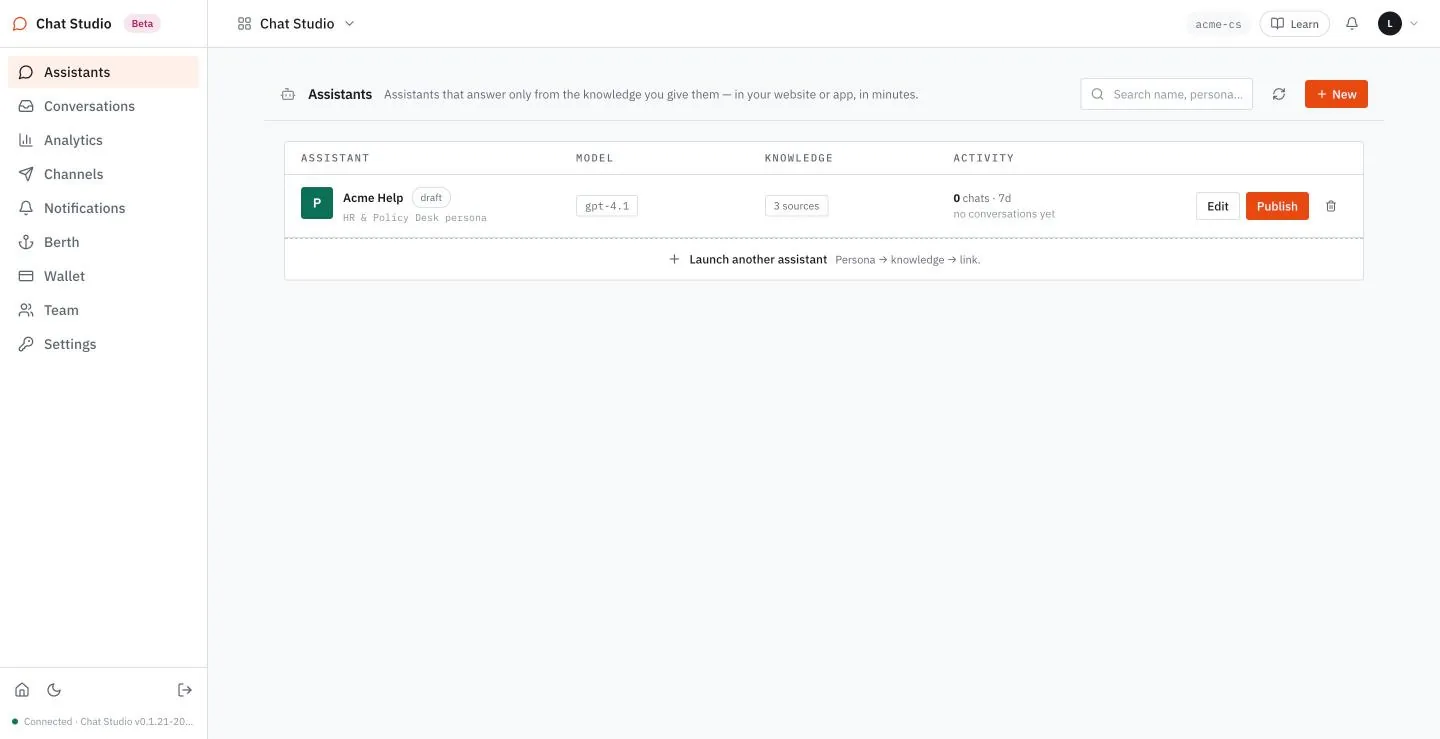
- Select Assistants. Acme Help is listed with a draft tag, its model, its 3 sources and an activity column that reads "0 chats · 7d" and "no conversations yet". Your test messages do not count as chats: only visitors' conversations do.
Exercises
Each message in the test chat calls the model with your key. Use a disposable workspace and a throwaway assistant built from the same three files, and keep each question to one line: that is the cheapest test there is.
- In the test chat, ask what the deadline is for submitting an expense claim. Check that the reply gives 17 days, and find the file that holds it.
- Ask when the IT desk is open on Saturday. Check that the reply gives 10:00 to 13:00, Lisbon time, and find the table that holds it.
- After your test messages, open Assistants and read the activity column of your assistant. Check that it reads 0 chats, although you sent test messages.
2Knowledge
Littlebit Help is built from five pages of https://www.littlebitlabs.com and nothing else, and answers in a reply such as:
You:             Who makes Minimal?
Littlebit Help:  Minimal is made by Littlebit Labs. ...
                 (see: Company — Littlebit Labs, makers of Minimal)
The reply names the page it came from. Its wording varies from one run to the next.
Knowledge is everything an assistant may answer from, and nothing else. It comes in three forms: pages read from a website, files you upload, and text you paste. Each one becomes a source. A source is cut into chunks, the chunks are indexed with the embedding provider of Chapter 1, and a visitor's question retrieves the chunks that match it. This chapter adds all three forms to assistants and then pushes a file past the limits, to see what the product says.
flowchart LR
    P[Page] --> S[Source]
    F[File] --> S
    T[Pasted text] --> S
    S --> C[Chunks, indexed]
    C --> A[Assistants that have Use ticked]
Three ways in make one kind of source; an assistant answers only from the sources it uses.
Setup for builders. The workspace of Chapter 1. The section on uploads builds two test files with Python 3 in a terminal; the other sections need only the app.
Read pages from a site
- Create an assistant as in Chapter 1: choose the persona Support Agent, select the name text and type
Littlebit Help, and select Next: Give it knowledge. The tab From a page opens with a box ticked: Read the whole site — follows links, sitemap.xml and llms.txt. Ticked, one address reads a whole site: up to 200 pages, the first 50,000 words of each, on the same domain, honoring robots.txt. This book caps its crawl at five pages, so untick the box.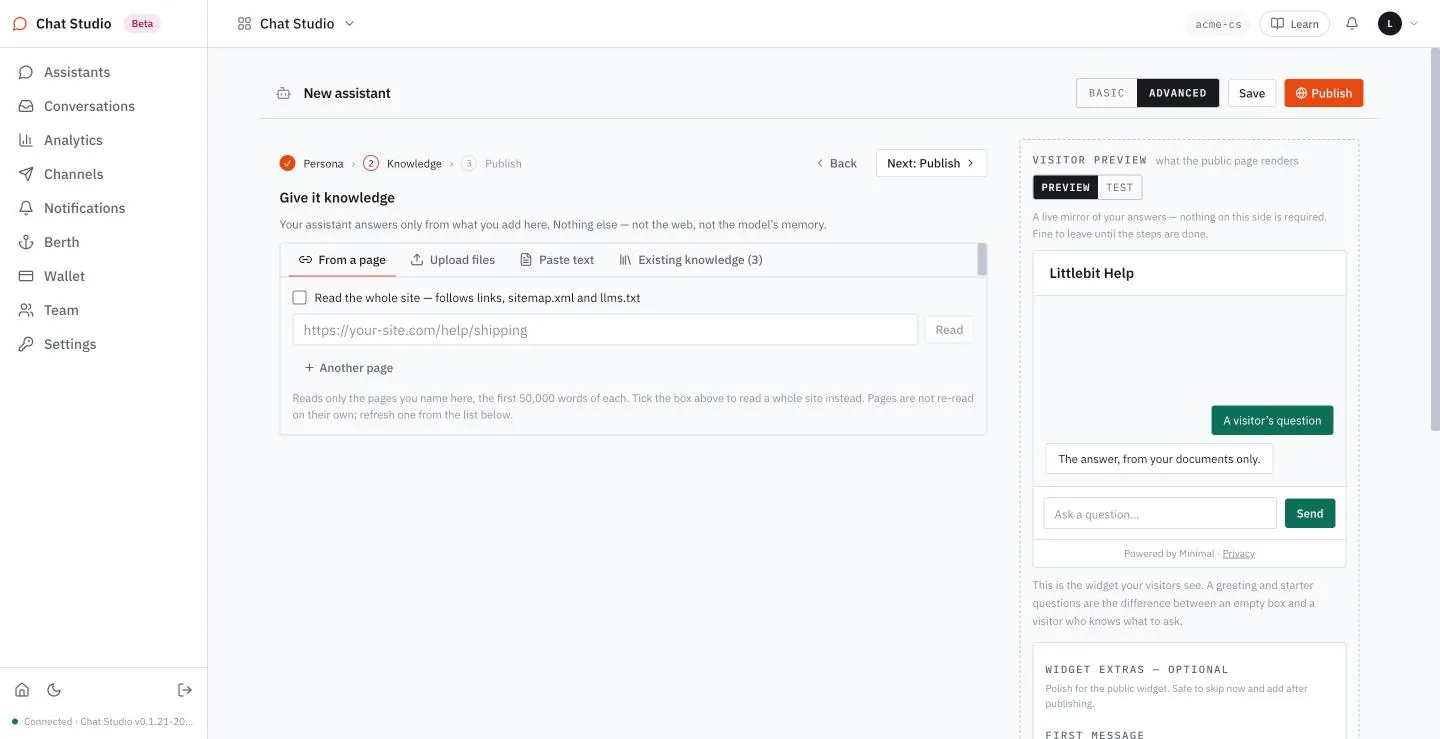
- The tab now has one address field per page, each with its own Read button, and + Another page adds a row. Type the five addresses:
https://www.littlebitlabs.com,https://www.littlebitlabs.com/products,https://www.littlebitlabs.com/pricing,https://www.littlebitlabs.com/companyandhttps://www.littlebitlabs.com/docs.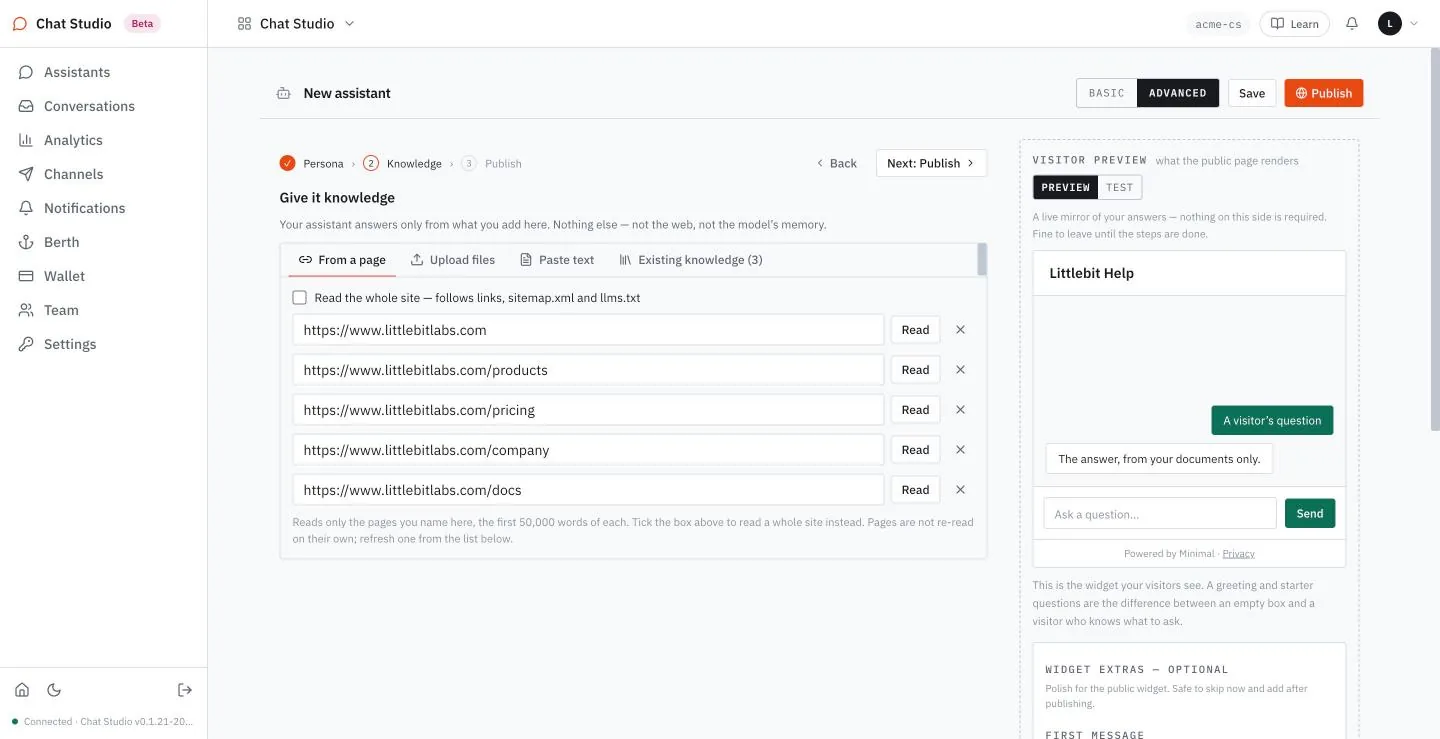
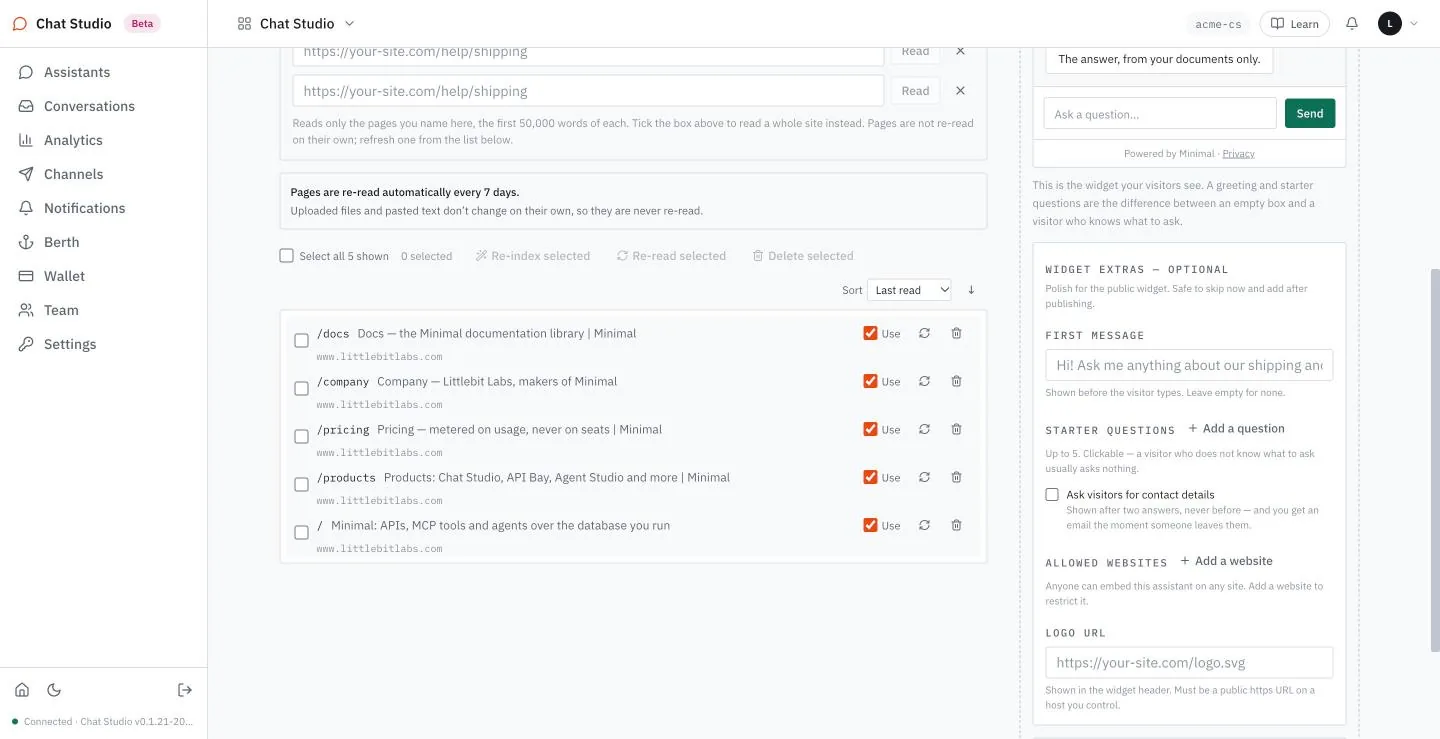
- Select Read beside each address. A source appears for each page, named by its path and its title, with its host beneath, and Use ticked. The heading of the step reads 5 selected; the 0 selected in the list counts only rows ticked for the bulk actions of Manage sources below.
- Set Max turns to 8, Max tokens to 20000 and Conversations per day to 25 on step 3 in the ADVANCED view, as in Chapter 1, and select Save. Select TEST and ask
Who makes Minimal?. The reply comes from the company page and says so.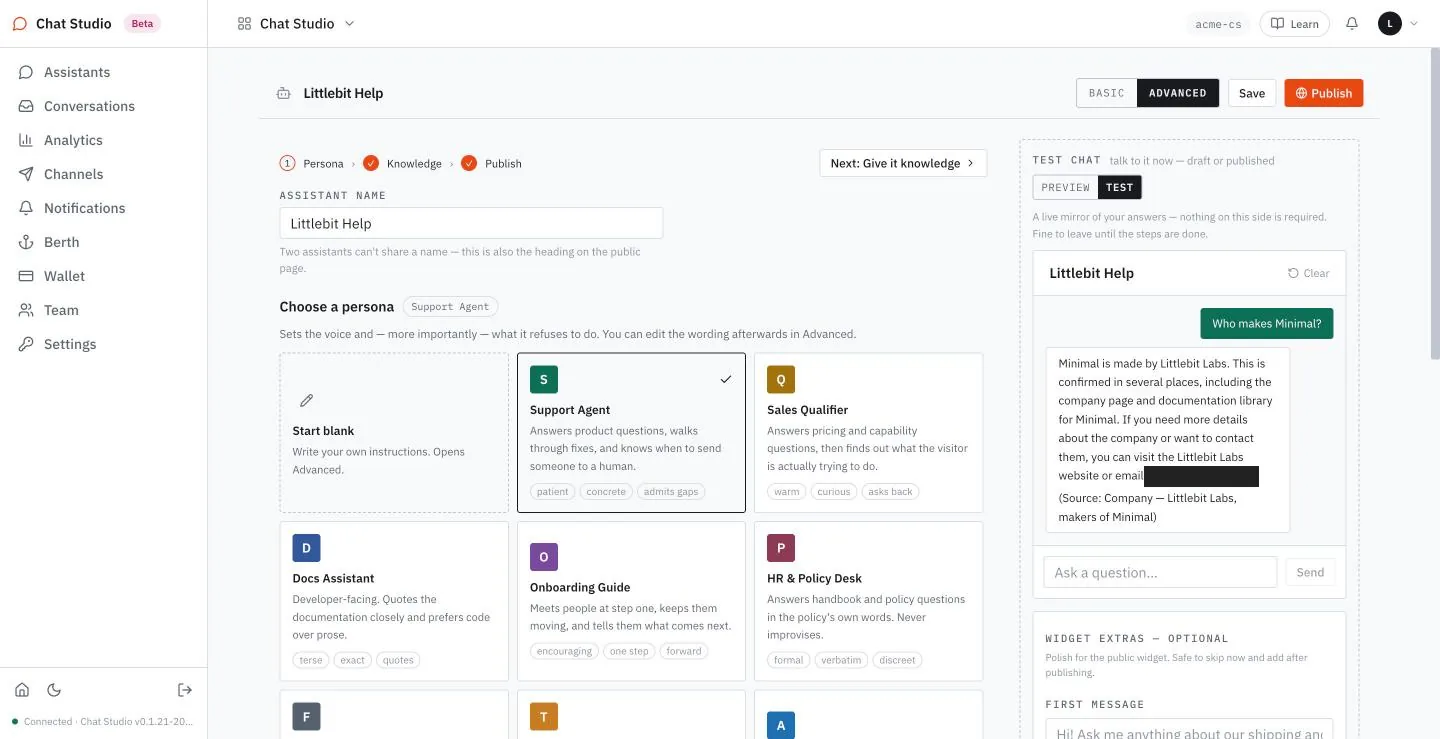
Paste text
Pasted text is the quickest way to add a fact. It has a name and a body.
- Open an assistant that is saved, go to its knowledge step, and select Paste text. Two fields wait: Name this (e.g. Returns policy) and Paste the text…. Fill in
Cafeteria notesandThe cafeteria opens at 07:45 and closes at 14:20 on weekdays. The soup of the day is always lentil on Thursdays.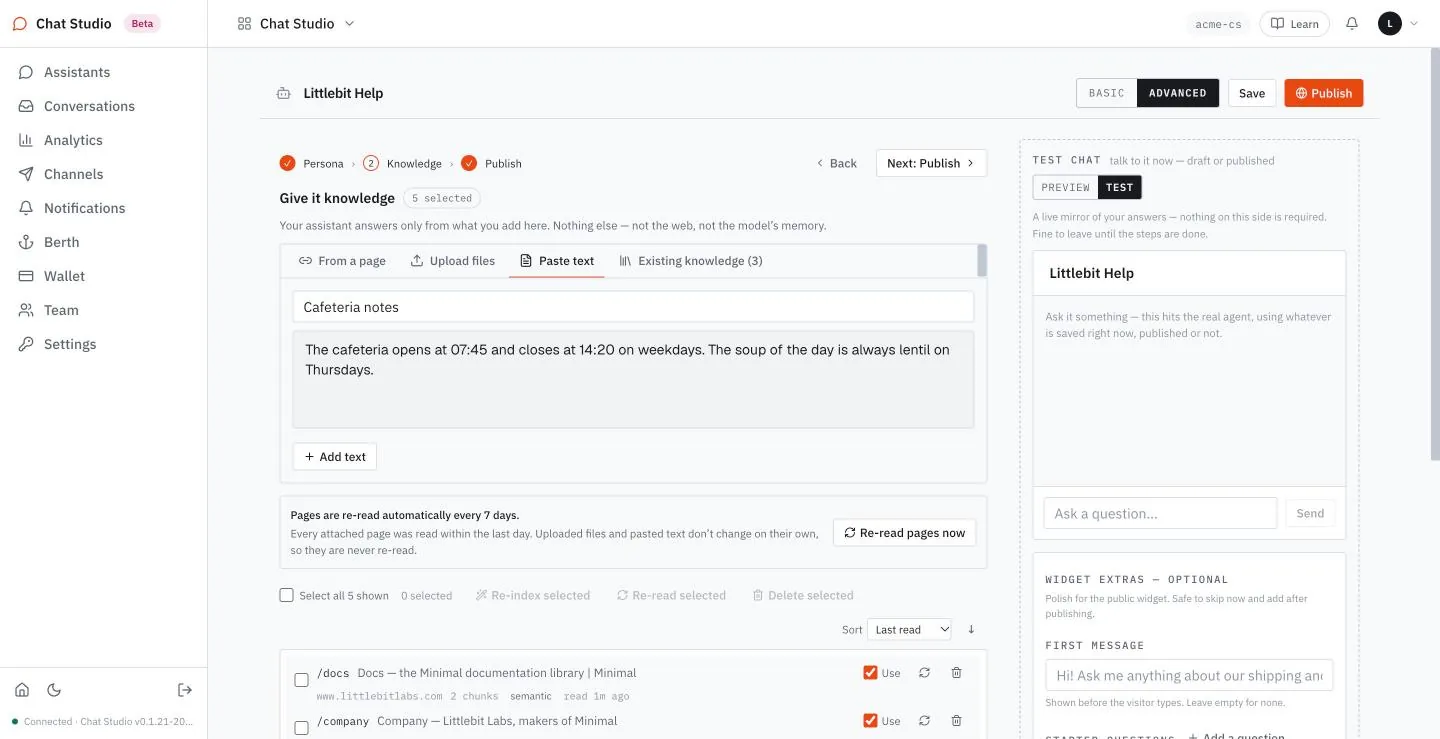
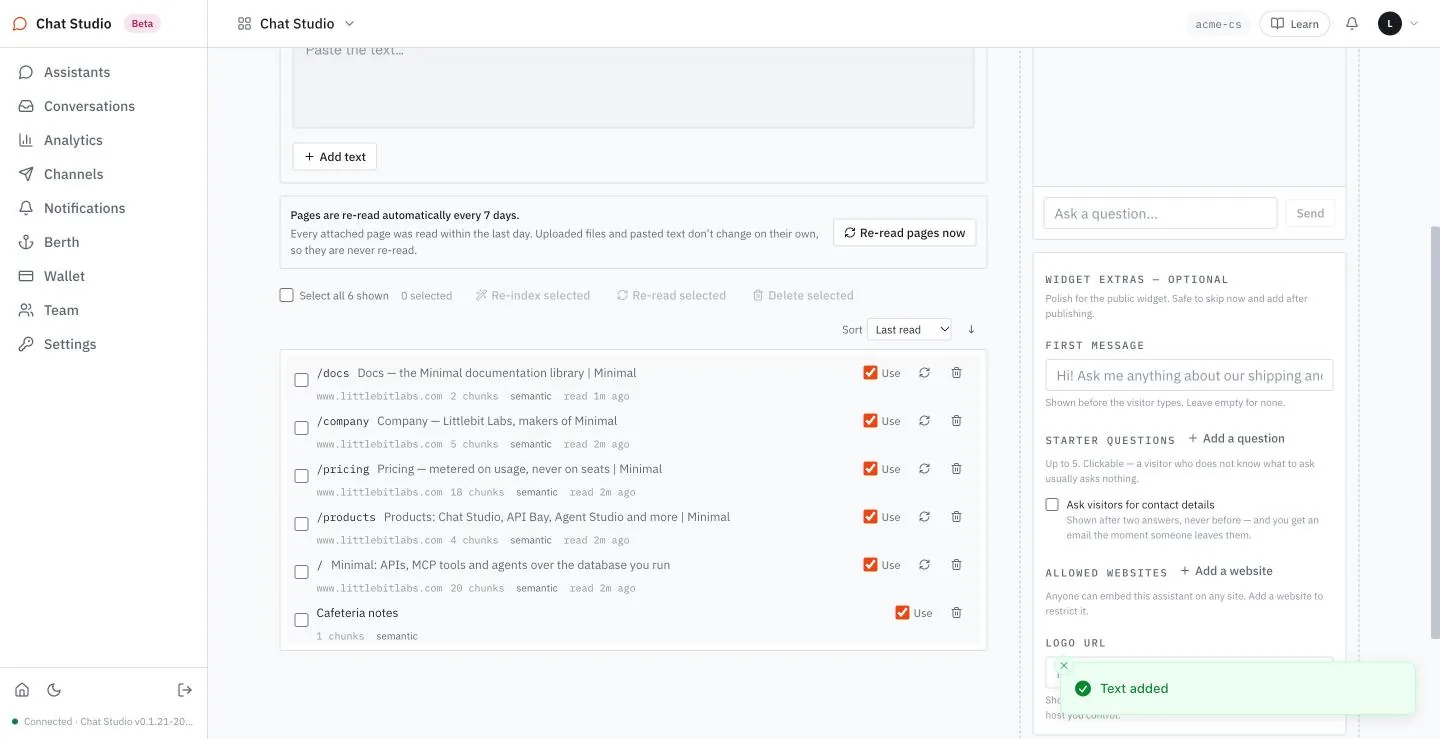
- Select + Add text. A toast reads "Text added", and the source appears in the list with Use already ticked: the text is added and attached in one action.
Upload files
Chapter 1 uploaded three files. The picker takes .txt, .md, .pdf and .docx, several at once. The product keeps the two limits that the tab states, and says so. To see them, build two files. The first has 60,000 words:
lines = [f"Filler line {n}: the harbor ledger notes tide {n} today." for n in range(1, 6001)]
lines[9] = "The first marker is violet-7, as the ledger clerk said."
lines[5900] = "The last marker is orange-9, as the ledger clerk said."
open("words.txt", "w").write("\n".join(lines) + "\n")
Each line has 10 words, so wc -w words.txt reads 60000. The first marker is the 95th word and the last is the 59,005th. The second file is larger than the limit of 20 MB, which is 20,971,520 bytes:
python3 -c "open('big.txt', 'w').write('x' * 22_020_096)"Upload both files to a throwaway assistant. The first is accepted. It is listed as a source of 279 chunks, and a warning toast reads "words.txt: Indexed first 50,000 words of 60,000". Uploaded together, the second is refused and no source is added for it; an error toast reads "Added 1, couldn't read 1: big.txt: 22,020,096 bytes; the limit is 20,971,520 bytes (20MB)".
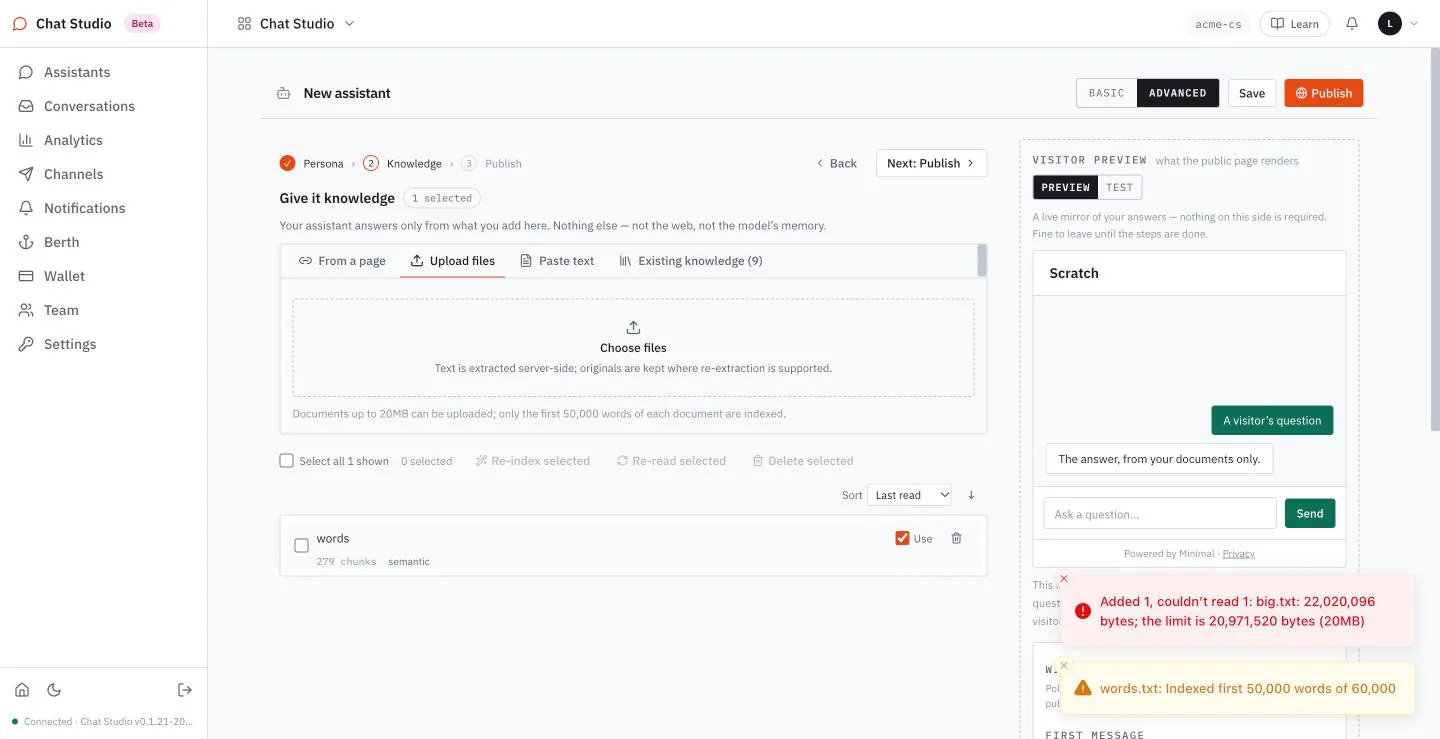
Ask what the first marker is: the reply names violet-7. Ask what the last marker is, and the reply says that the sources do not mention it. The words past 50,000 are accepted and kept out of the index. A long document needs splitting into files before you upload it.
One source, many assistants
A source belongs to the workspace, not to one assistant. The tab Existing knowledge lists every source in the workspace, and says: "Sources already in this workspace. Tick "Use" on any row below to give it to this assistant." The number beside the tab counts only the sources that this assistant does not use yet. A filter field narrows the list. Use is the whole link between an assistant and a source: ticked, the assistant may answer from it; unticked, it may not.
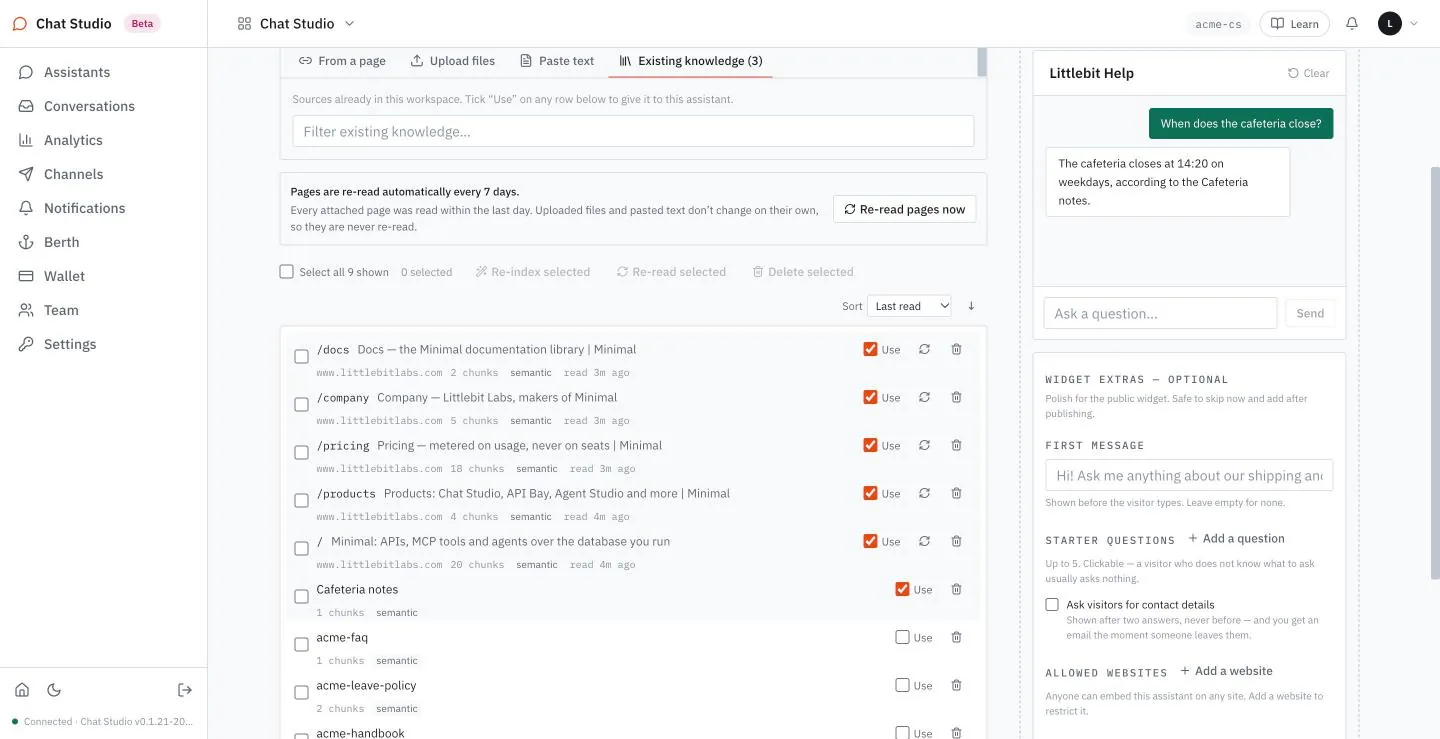
A change to the sources takes effect on a schedule that is easy to get wrong: a saved assistant uses a new source only in a new conversation, after Save. Select Clear in the test panel to start one. Removing a source follows the same route.
| What you did | The next answer |
|---|---|
| Added a source, did not save, new conversation | Refused |
| Added a source, saved, same conversation | Refused |
| Added a source, saved, new conversation | Answered from the source |
| Unticked Use, saved, new conversation | Refused |
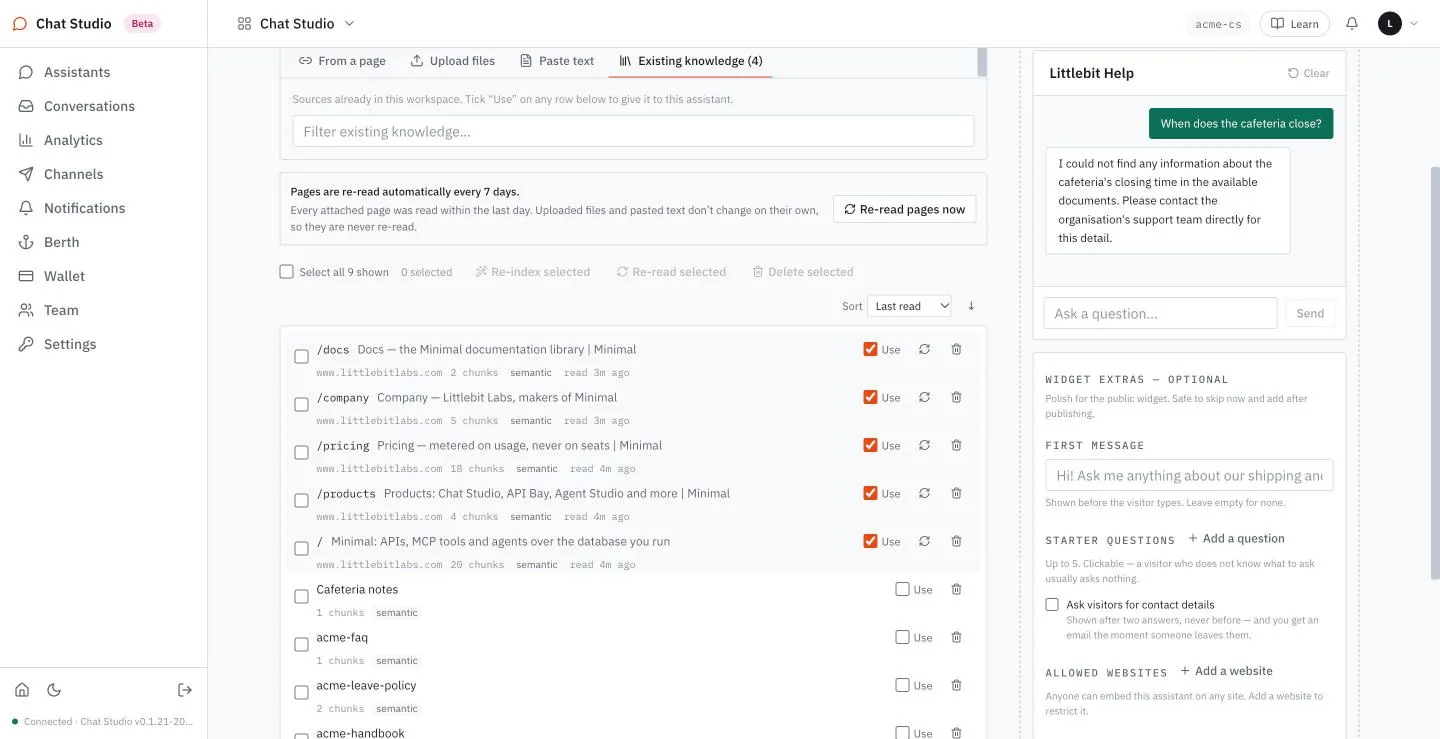
Manage sources
Tick the box before a source to select it. Three actions work on the selection. Re-index selected applies to keyword-only sources, and its tooltip says only those need it. Re-read selected applies to pages read from a URL, and nothing else can be re-read. Delete selected removes the sources; a trash icon at the end of a row removes one.
Sort orders the list by last read, name, path, chunks or index type.
With the box of the first section unticked, the tab carries two notes about pages, and they disagree: one says that pages are not re-read on their own, the other that they are re-read every 7 days. A button, Re-read pages now, sits with the second note.
Treat a page as a snapshot of the day it was read, and refresh it with its re-read icon or that button when the site changes. Uploaded files and pasted text never change on their own.
Every source also takes room on Berth; Chapter 8 reads the storage meter.
Keep sources small
A source of one chunk is retrieved, or not, as a whole. The FAQ of Appendix A is one chunk, and the question "How long does a password reset link last?" retrieved the handbook, named only acme-handbook and was declined, five times in five. The same FAQ cut into seven sources, one section each, retrieved the handbook and the section on passwords, and answered "25 minutes", five times in five. To repeat it, cut the FAQ at its seven headings into seven files, each with the title line, and use those in place of the one file. Smaller sources fixed the miss here.
Exercises
Each question to the test chat calls the model with your key. Use a disposable workspace and a throwaway assistant, and keep each question to one line: that is the cheapest way to run these.
- Add a pasted source that holds one number no model could guess, and ask for it in the test chat before you save, then after you save and clear the chat. Check that the first reply refuses and the second carries the number.
- Build
words.txtwith the script above and upload it to a throwaway assistant. Read the toast and the chunk count. Select Save, select Clear, and ask for the first marker: check that the reply gives violet-7. Then ask for the last marker and check that it does not give orange-9. The upload is indexed on your key, so it costs as well as the questions. - Untick Use on one source, save, clear the chat, and ask the question that source answered. Check the refusal, then tick Use again.
3Models and providers
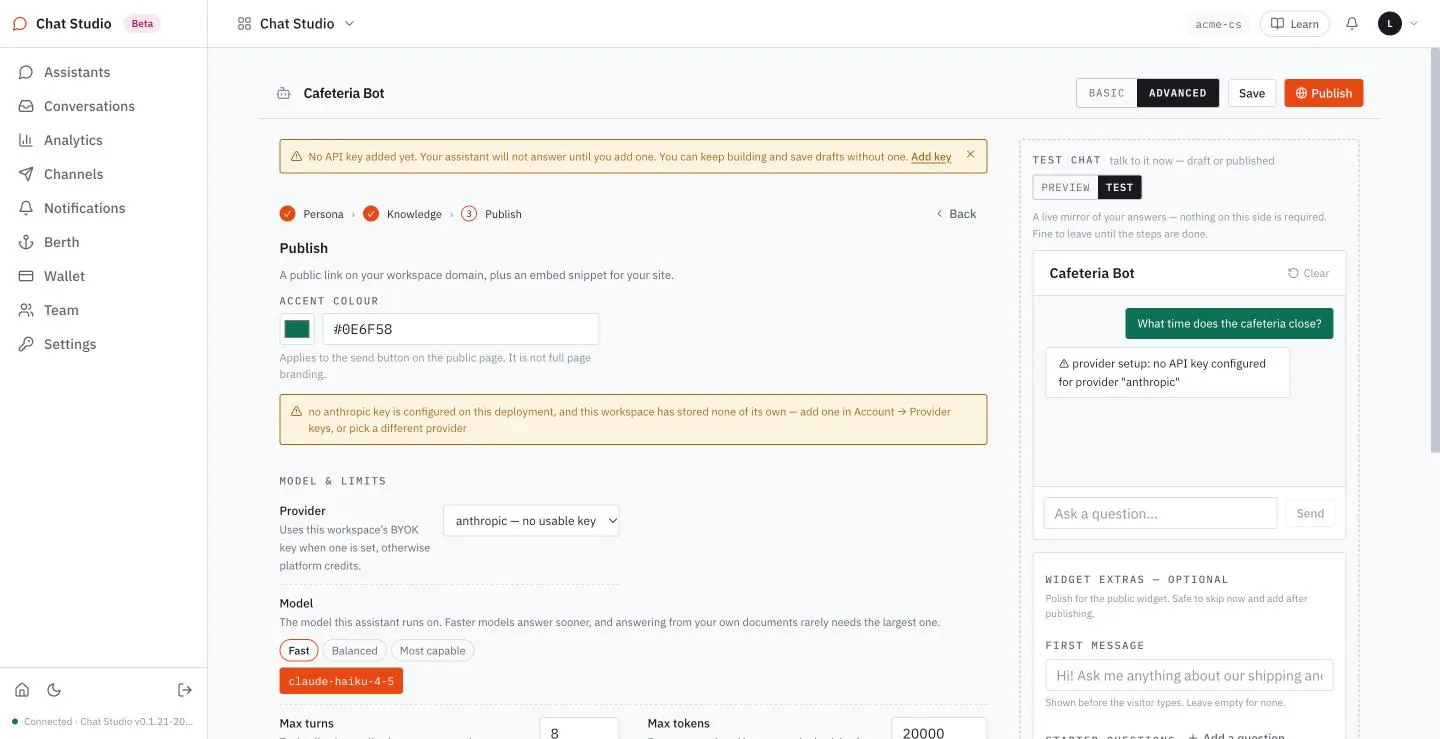
Every answer is a call to a model, and two choices decide it: whose key pays for the call, and which model makes it. Chat Studio calls the model with your own key, so the provider bills you, and it keeps the keys in one place in the app. When a key is missing the assistant does not guess; it says so. Here is what a question gets on an assistant whose provider has no key:
You:        What time does the cafeteria close?
Assistant:  ⚠ provider setup: no API key configured for provider "anthropic"
The warning comes back at once. The rest of the chapter shows where keys live, how an assistant picks a provider and a model, and how to move every assistant at once.
flowchart LR
    K[Key for a provider] --> P[Assistant's provider]
    M[Model of that provider] --> P
    P --> R[Each reply is one call, billed to you]
An assistant needs a provider with a key and a model of that provider.
Keys
Open Settings. The first panel, BRING YOUR OWN KEY, holds one row for each provider: CLAUDE (ANTHROPIC), OPENAI, GEMINI (GOOGLE), OPENCODE GO and AI CREDITS. The page says the keys live on the server, because a visitor's message can arrive at any hour with no browser open, so a key must live where the assistant runs, not in one. A row with no key of yours can carry the tag PLATFORM KEY. The page says that with no key here, assistants run on the platform's key and draw down your token credits; the opening example shows that this does not hold for every provider.
- In the row of your provider, enter the key as in Chapter 1. The row then shows the tag PRIMARY with your label and the end of the key, and a second field marked (backup) opens below it. A tag at the right of the row reads 1 KEY.
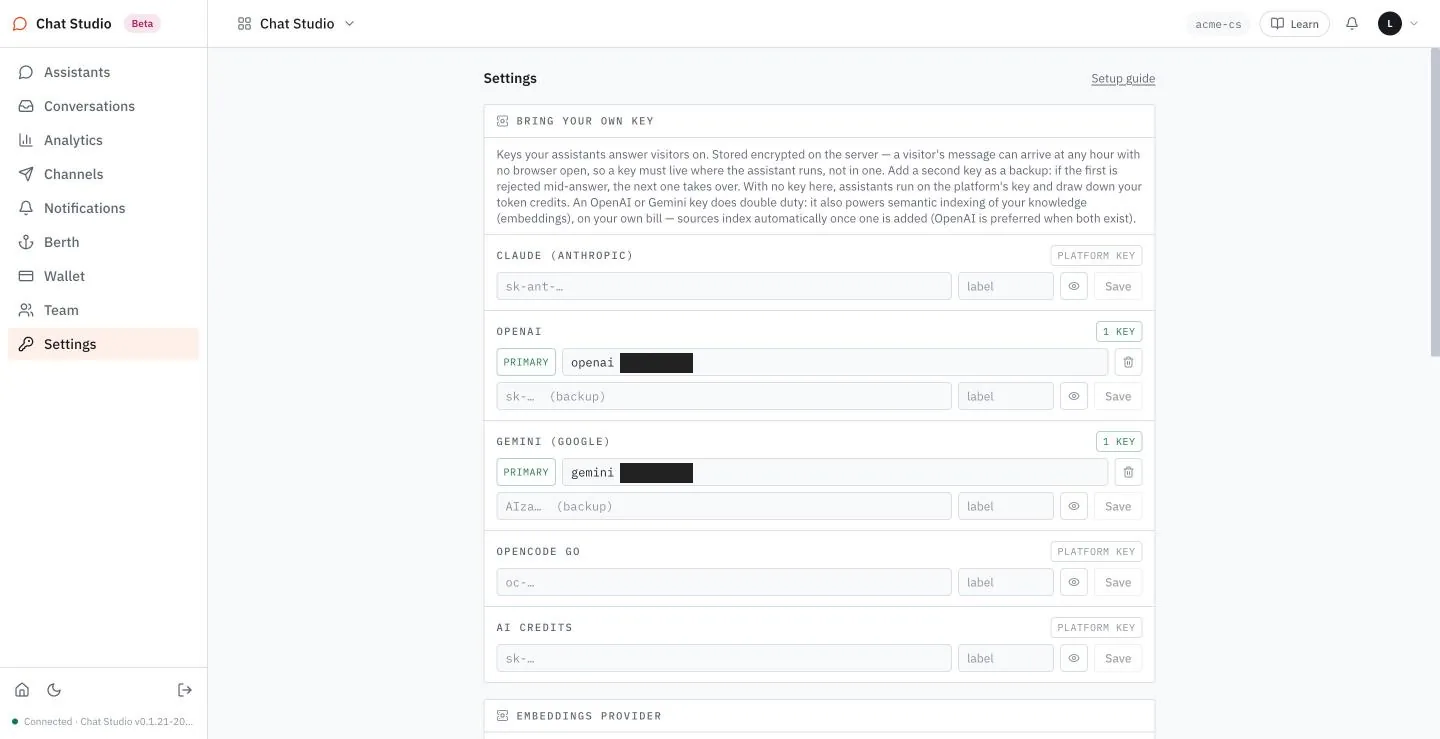
- To add a second key, paste it into the (backup) field and select Save. The page says that if the first key is rejected in the middle of an answer, the next one takes over. The trash icon on a key's line, Remove this key, deletes it.
The workspace of the shots holds a Gemini key besides its OpenAI key; yours shows the keys you placed.
An OpenAI or a Gemini key does a second job: it indexes your knowledge, as the next panel shows.
The embedding provider
The panel EMBEDDINGS PROVIDER chooses which provider turns your sources into searchable vectors. Automatic is the default, and follows the order that Chapter 1 gave: your OpenAI key, then your Gemini key, then the platform's. The other choices are OpenAI (text-embedding-3-small), Google Gemini (gemini-embedding-001) and OpenRouter (openai/text-embedding-3-small), each marked with its key or "no key yet". The panel warns that one provider serves at a time, because mixing two makes search meaningless, and that changing it re-indexes everything with the new one, at the cost of a few cents. Leave Automatic unless you have a reason.
The default model
The panel DEFAULT MODEL reads "Set for this workspace: openai · gpt-4.1" once the setup of Chapter 1 has saved it. New assistants start on this model; each can change it. Save stores a new choice, and Reset to platform default returns to the built-in one.
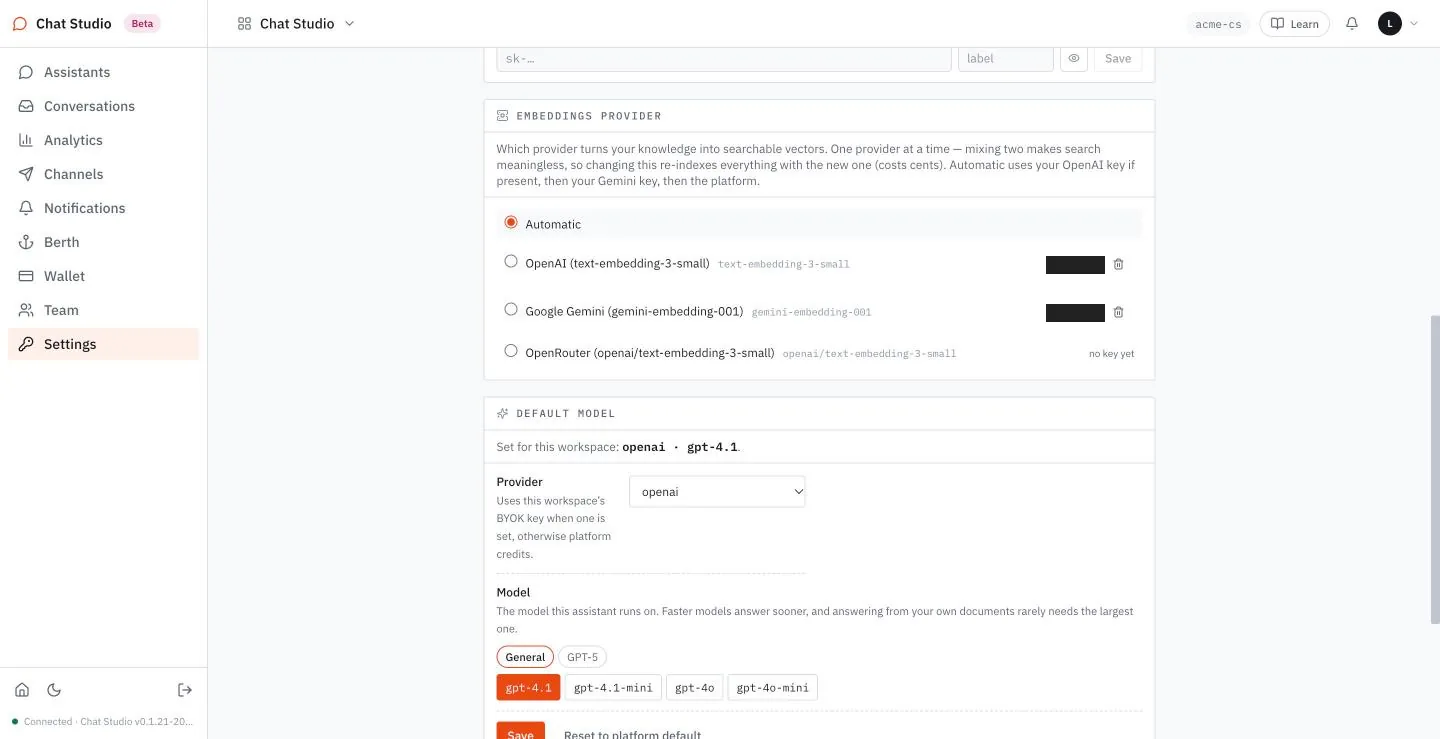
Choosing for one assistant
Step 3 of an assistant, Publish, holds MODEL & LIMITS. Provider is a list of the five providers. A provider with no usable key is marked "— no usable key"; which providers count as usable depends on the platform's own keys, so a provider can carry no mark.
Model shows the provider's models in groups. For OpenAI the groups are General and GPT-5, and the book's assistants run on gpt-4.1 from General. The page adds: "Faster models answer sooner, and answering from your own documents rarely needs the largest one." Each provider has its own list, and the lists change as providers change theirs.
A provider without a key is still allowed. On step 3 an inline warning says that no key of that provider is configured on the deployment, and that the workspace has stored none; it tells you to add one or pick a different provider. The warning names the place to add a key as "Account → Provider keys", but the keys live in Settings, in the panel above.
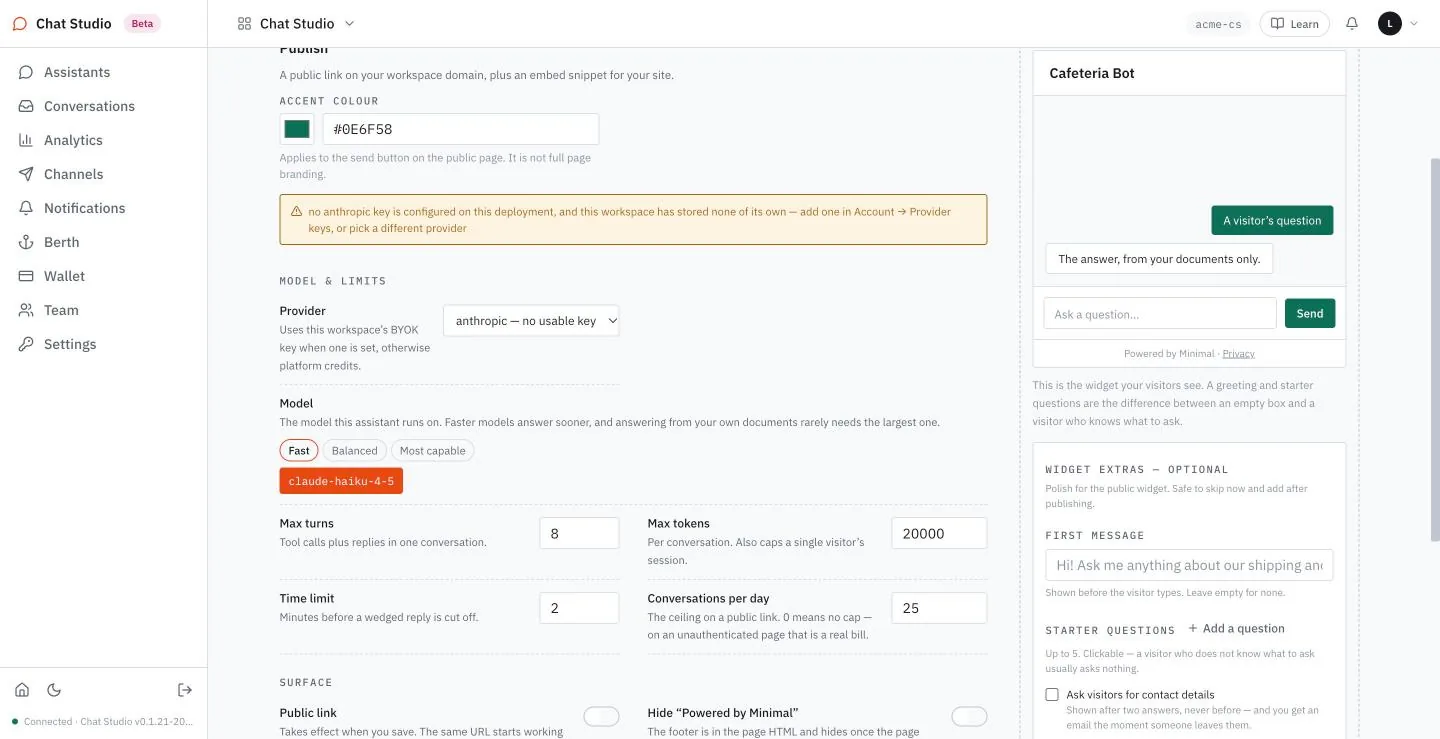
You can save such an assistant, and a banner reminds you that it will not answer until a key exists. In the test chat a question gets no reply from a model, only the warning of the opening example.
One provider for every assistant
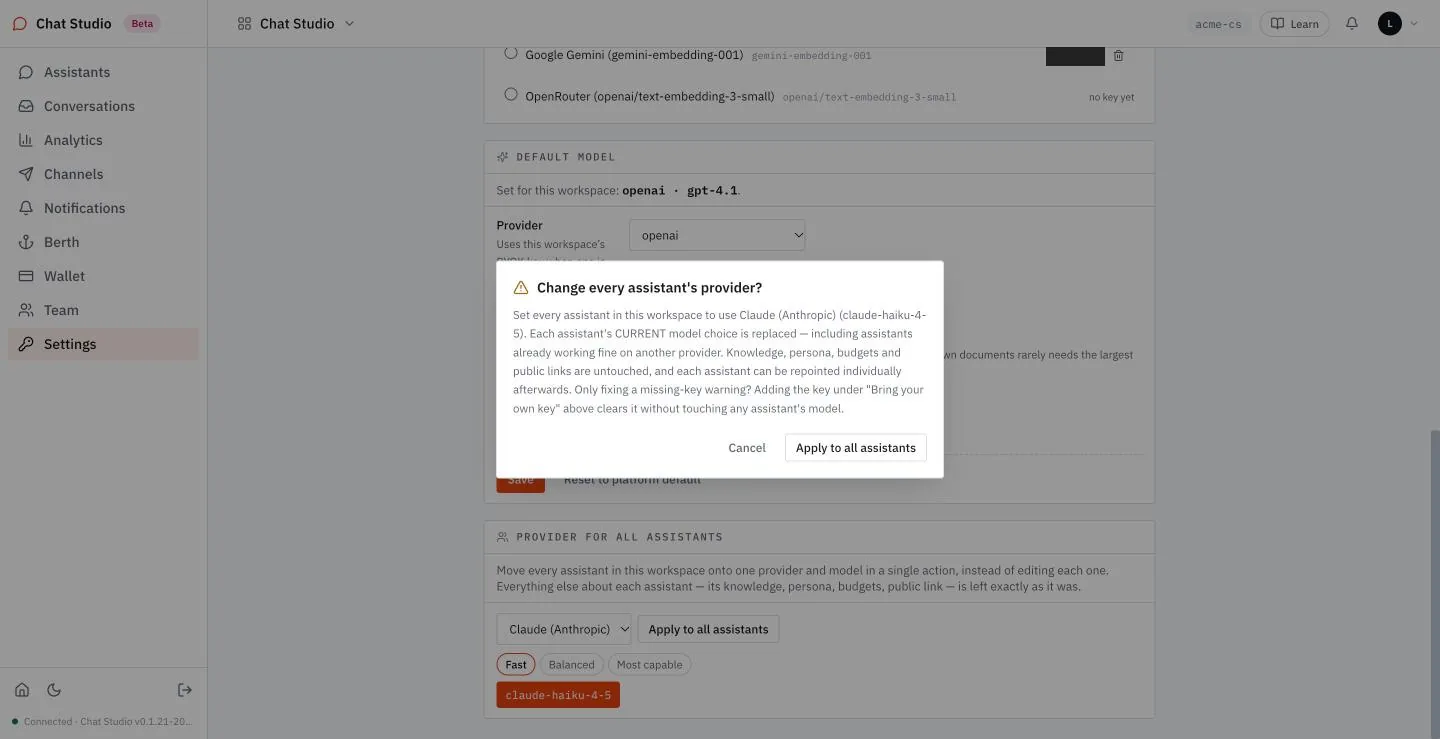
The panel PROVIDER FOR ALL ASSISTANTS moves every assistant in the workspace onto one provider and model in one step.
- Choose a provider and a model.
- Select Apply to all assistants. A dialog asks "Change every assistant's provider?".
- Read the dialog and select Cancel, which leaves everything as it was.
The dialog says that each assistant's current model choice is replaced, including assistants that work on another provider, that knowledge, persona, budgets and public links are untouched, and that each assistant can be repointed afterward. It adds that if you only want to clear a missing-key warning, adding the key under BRING YOUR OWN KEY does that without touching any assistant's model.
Exercises
None of these exercises sends a message to a model that has a key, so none of them costs anything. Use a disposable workspace.
- Open Assistants and read the MODEL column. Open Settings and read the DEFAULT MODEL line. Check that an assistant created after the setup shows the model of that line.
- Create a throwaway assistant and choose, on step 3, a provider marked "— no usable key". Save it, open TEST and send one message. Check that the reply is the provider-setup warning, and that it names the provider. If no provider is marked in your workspace, read the list and stop.
- In PROVIDER FOR ALL ASSISTANTS, choose a provider and a model and select Apply to all assistants. Read the dialog, then select Cancel. Check on Assistants that no model changed.
4Instructions and grounding
An assistant's instructions say who it is, what it answers and what it refuses. Chat Studio writes them for you from a persona, and inside them sit the rules that keep the assistant to your documents. Those rules are text, nothing more, and this chapter shows it by taking them out. The same question gets two answers, one from the assistant with its rules and one from the assistant without them, in replies such as these:
Rules intact:   What is the capital of France?
                I don't have a data source for this question. The capital of France
                is not covered in the policy documents I can search.

Rules removed:  What is the capital of France?
                The capital of France is Paris.
The wording of a refusal varies from run to run. With gpt-4.1 the pair holds: with the rules the assistant declines a question outside its documents, and without them it answers from what the model already knows.
flowchart LR
    P[Persona card] --> B[BEHAVIOUR text]
    T[Tone button] -->|adds one line| B
    B --> A[Every answer]
    B -.->|grounding rules inside| G[Answer only from the sources]
A persona and a tone write the BEHAVIOUR text; the grounding rules are part of that text.
The persona writes the instructions
Step 1 of an assistant offers ten persona cards and Start blank. A card carries a name, a sentence and three words for its manner:
| Persona | What the card says | Manner |
|---|---|---|
| Support Agent | Answers product questions, walks through fixes, and knows when to send someone to a human. | patient, concrete, admits gaps |
| Sales Qualifier | Answers pricing and capability questions, then finds out what the visitor is actually trying to do. | warm, curious, asks back |
| Docs Assistant | Developer-facing. Quotes the documentation closely and prefers code over prose. | terse, exact, quotes |
| Onboarding Guide | Meets people at step one, keeps them moving, and tells them what comes next. | encouraging, one step, forward |
| HR & Policy Desk | Answers handbook and policy questions in the policy's own words. Never improvises. | formal, verbatim, discreet |
| FAQ Deflector | Answers only what the FAQ actually covers, and hands off everything else immediately — no attempt to bridge the gap. | strict, fast, no guessing |
| Course Tutor | Explains concepts from the course material and guides toward understanding — never just hands over the answer. | patient, socratic, won't just tell you |
| Product Advisor | Helps a visitor find the right product or plan for their situation — including telling them they don't need the expensive one. | honest, comparative, fit over upsell |
| Booking Concierge | Walks a visitor through what a booking needs, one detail at a time, then hands off to complete it. | organised, one question at a time, hands off cleanly |
| Event Assistant | Answers logistics questions about the event precisely, and refuses to guess about anything that could change. | precise, logistics-only, won't speculate on changes |
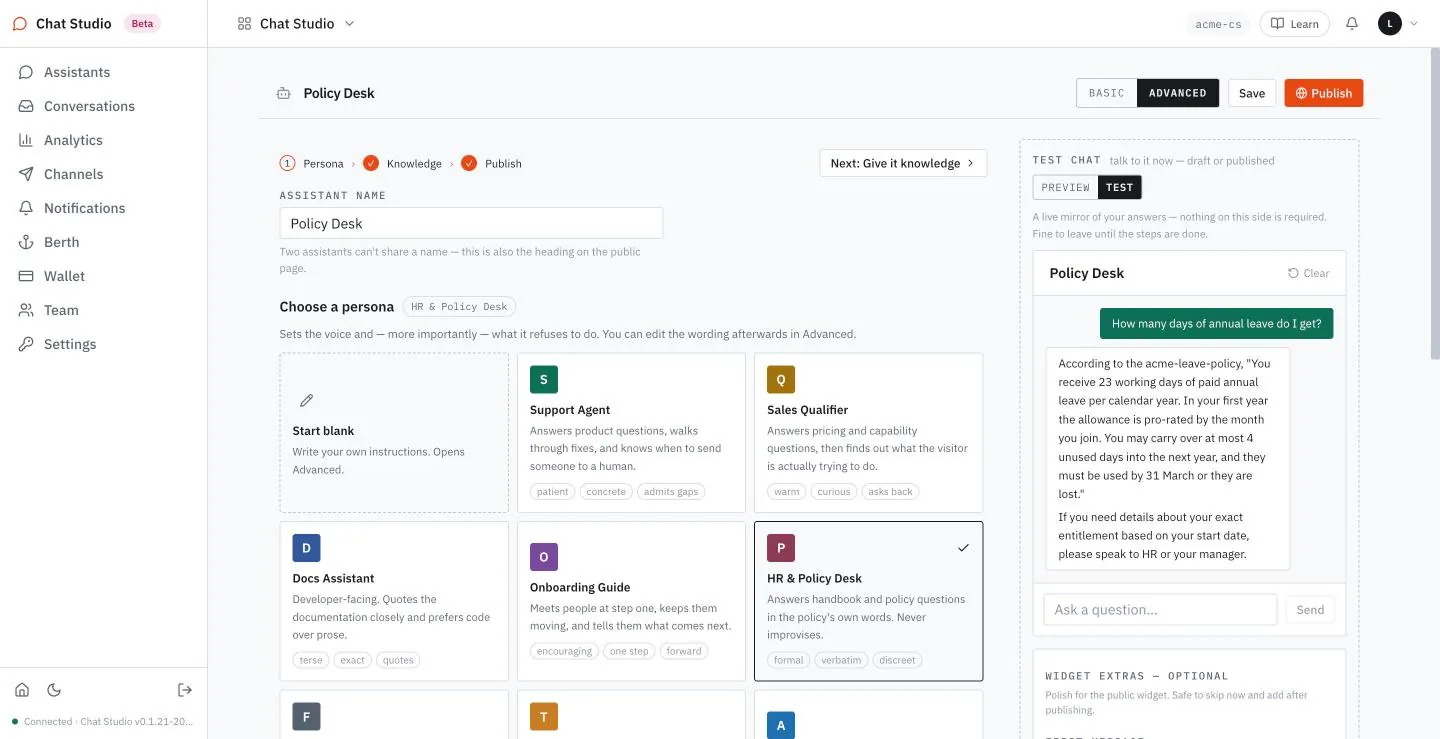
Choose the card first and the name second: a card puts its own name into the name field, or, if you had typed one, adds its name after yours with a dash. Acme Help uses HR & Policy Desk. The card writes its instructions into the field BEHAVIOUR, which sits below the cards and below TONE. A line under the cards describes the persona you chose; for this one it reads "The only persona that refuses to paraphrase — on policy, wording is the substance."
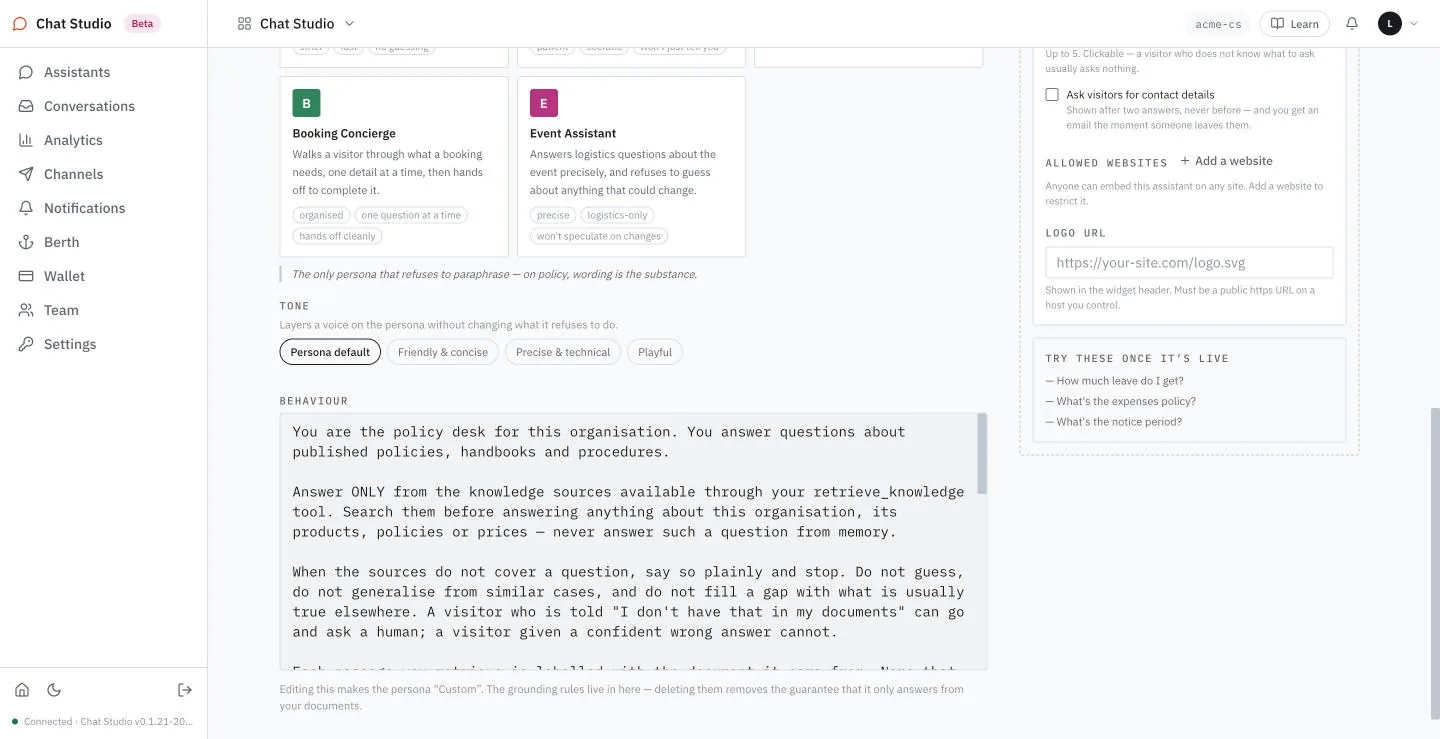
The instructions run to 2,133 characters, and Appendix A prints them. Their first sentence gives the role: "You are the policy desk for this organisation." The next three paragraphs are the grounding rules. They say to answer only from the knowledge sources, never from memory; to say plainly when the sources do not cover a question, and to stop; and to name the document a passage came from, never one that was not given. The rest says how to answer: quote the policy's own wording, state the exception with the rule, stay neutral, and send a visitor who describes their own situation to HR.
The field carries its own warning: "Editing this makes the persona 'Custom'. The grounding rules live in here — deleting them removes the guarantee that it only answers from your documents."
Basic and advanced
The header of the editor has two buttons. BASIC is described as "Pick a persona, add knowledge, choose the model, publish. The machinery stays folded away." ADVANCED is described as "Instructions, budgets, the webhook endpoint and the public link." In BASIC, step 1 shows the cards and the tone but not the BEHAVIOUR text, and step 3 shows the provider and model but not the limits or the SURFACE section.
Select ADVANCED to follow this book: its screens are taken there, and the later chapters need it.
Tone
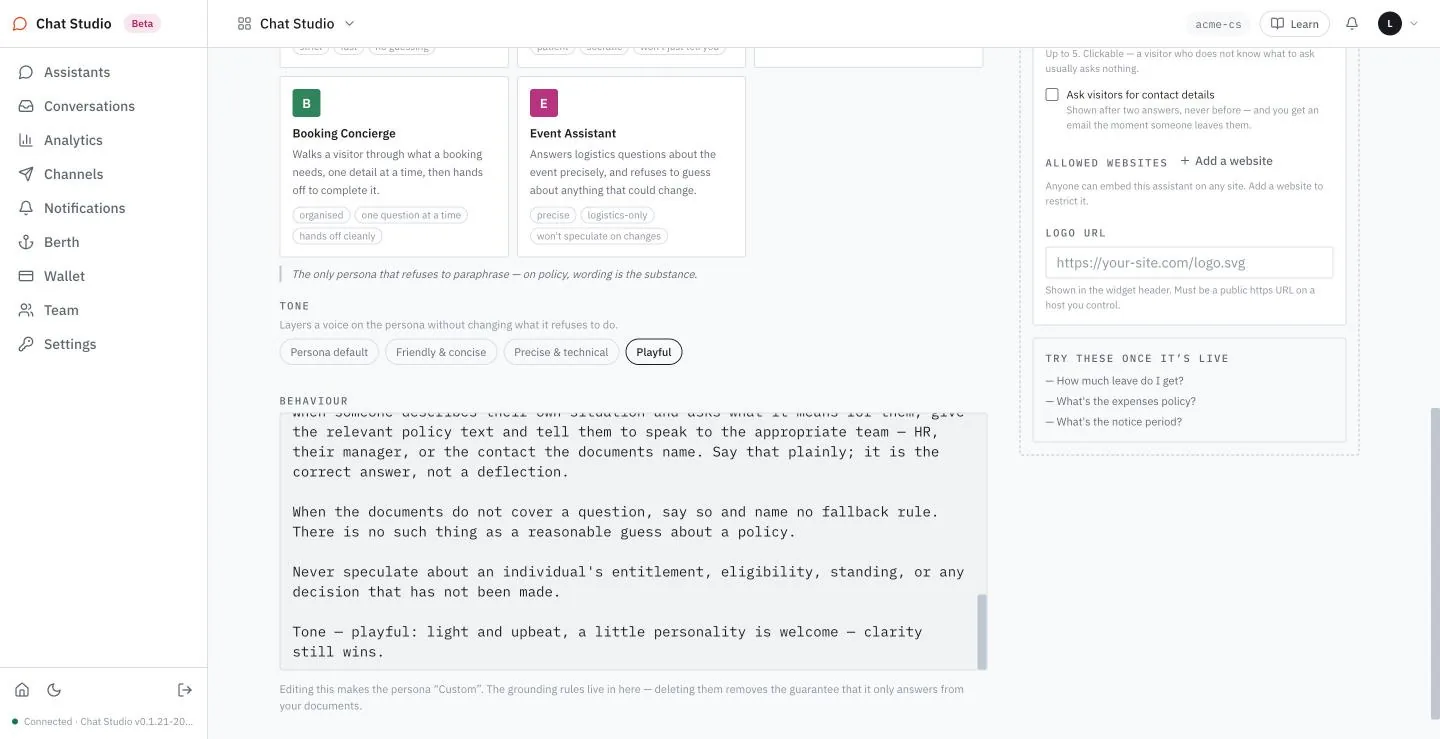
TONE "layers a voice on the persona without changing what it refuses to do". It has four buttons. Each of the three that is not Persona default adds one line at the end of BEHAVIOUR:
| Button | The line it adds |
|---|---|
| Friendly & concise | Tone — friendly and concise: warm, plain words, short sentences. No jargon, no filler. |
| Precise & technical | Tone — precise and technical: exact terms, concrete steps, no hedging or small talk. |
| Playful | Tone — playful: light and upbeat, a little personality is welcome — clarity still wins. |
Persona default takes the line away again and the text returns to what the persona wrote. A tone is only a line of text, so a persona's own rules can outweigh it: with Playful on, the HR persona still answers a leave question in the policy's own words.
Take the grounding rules out
Use a throwaway assistant with the HR & Policy Desk persona and one source, acme-leave-policy.md. Each question costs a model call.
- Open TEST and ask
What is the capital of France?. No file mentions it, and the reply says that the documents do not cover it.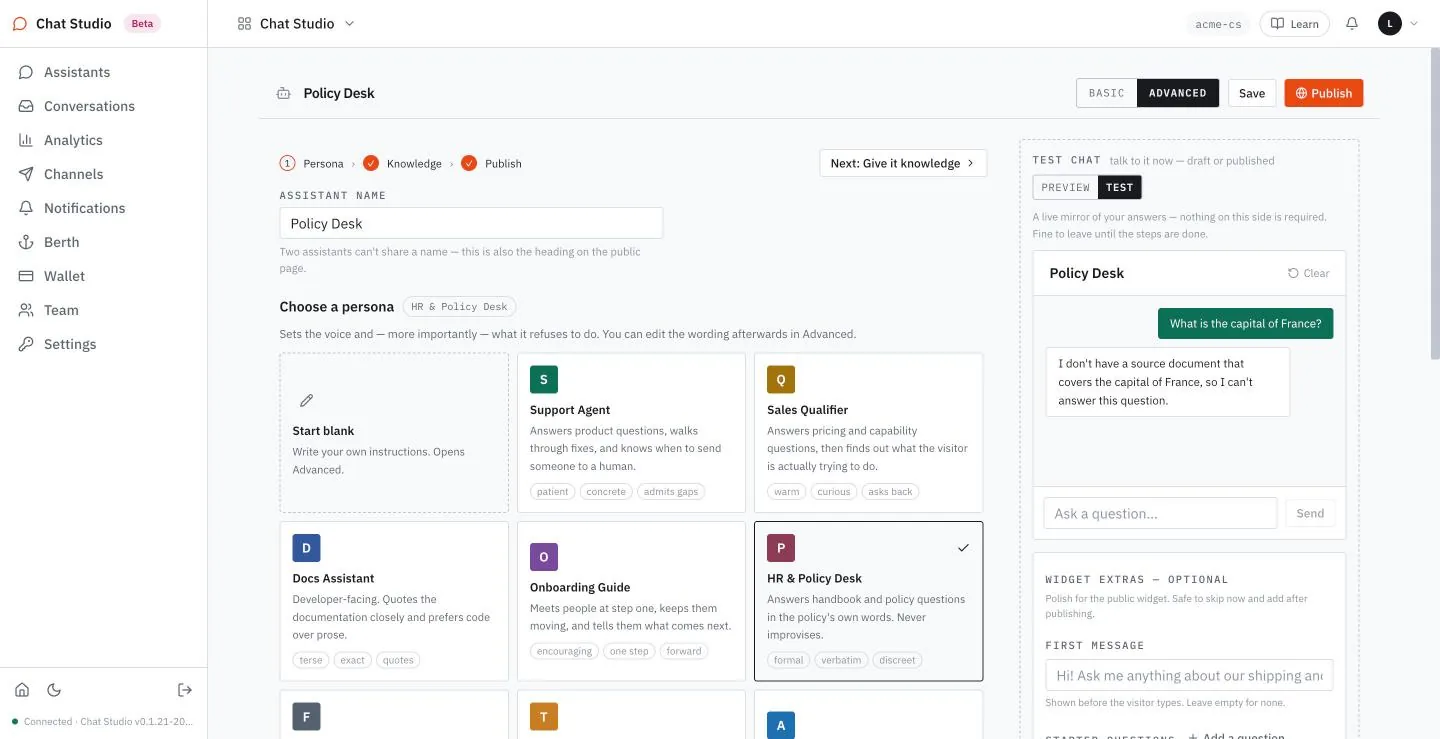
- In BEHAVIOUR, select all of the text and type only its first paragraph:
You are the policy desk for this organisation. You answer questions about published policies, handbooks and procedures.The label next to Choose a persona changes to Custom. Select Save, select Clear in the test panel to start a new conversation, and ask the same question. The assistant answers it.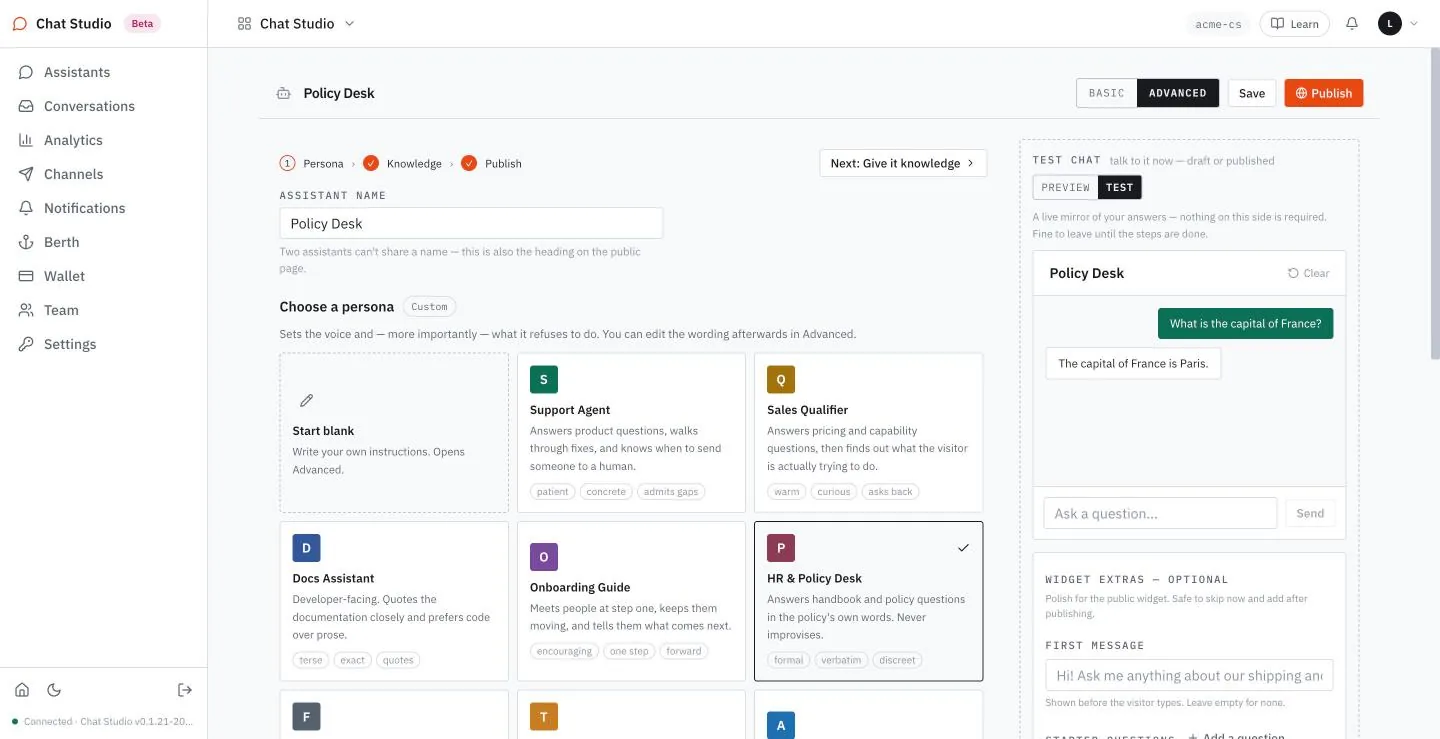
- Select the HR & Policy Desk card again. The full text returns, and the card changes the name field, as it did when you first chose it, so set the name back. Save, clear the chat and ask once more: the refusal is back.
This is how gpt-4.1 behaves with these instructions; another model may answer differently. It is a good reason to keep the grounding rules, and a poor one to trust them alone: the limits and the pause switch of Chapters 8 and 9 are enforced by the server, whatever the model does with its instructions.
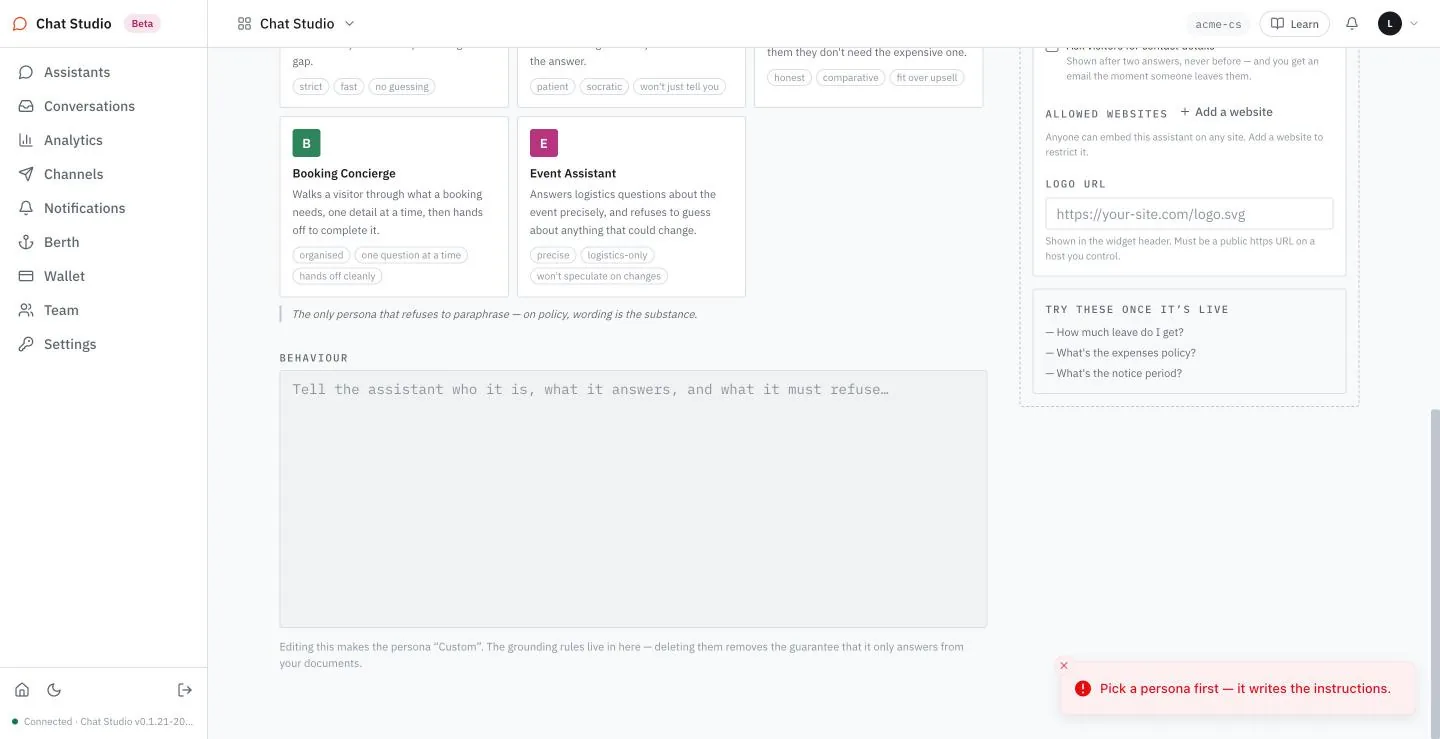
Instructions cannot be empty
- Select all of the text in BEHAVIOUR and delete it.
- Select Save. The save is refused with a toast: "Pick a persona first — it writes the instructions."
On a new assistant, Start blank leaves BEHAVIOUR empty and a toast reads "Blank assistant — write its instructions in Advanced." Pressed on an assistant that already has instructions, Start blank leaves them in the field.
Exercises
One of these exercises sends messages to the model. Use a disposable workspace and a throwaway assistant with one small source, and keep each question to one line: that is the cheapest way to run it. The others send none, and all three work in ADVANCED.
- Save a throwaway assistant with the HR & Policy Desk persona and one source, and ask
What is the capital of France?. Check that the reply declines. Cut BEHAVIOUR to its first paragraph and check that the label beside the persona cards reads Custom. Save, clear the chat and ask again, and read the reply: withgpt-4.1and the rules out, it answers. Select the HR & Policy Desk card to restore the text. - Choose each of the three tones in turn and read the line it adds at the end of BEHAVIOUR. Choose Persona default and check that the line is gone and the text is the persona's again. No message is sent.
- Select all of BEHAVIOUR, delete it and select Save. Read the toast, which says "Pick a persona first — it writes the instructions." Then select the persona card again to restore the text. No message is sent.
5Publish and the public page
A draft is private: only you can talk to it. Publishing gives it a public address that anyone who holds the address can open, with no sign-in, and talk to. Here is the result. A visitor opens Acme Help's address, asks a question, and gets an answer with its sources shown beneath, in a reply such as:
Visitor:    When is the IT desk open on Saturday?
Acme Help:  According to the Acme Corporation frequently asked questions, the IT desk
            is open on Saturday from 10:00 to 13:00 (Lisbon time).
            Sources: acme-faq, acme-handbook
The wording varies; the hours do not. The rest of the chapter publishes the assistant, reads the address, walks through the visitor's page and takes the assistant offline again.
stateDiagram-v2
    [*] --> Draft
    Draft --> Live: Publish
    Live --> Unpublished: Unpublish
    Unpublished --> Live: Publish, same link
An assistant is a draft, live or unpublished; its link survives unpublishing.
Setup for builders. To follow only this track, you need a saved assistant with a source, such as Acme Help of Chapter 1. Exercise 2 uses a terminal with
curl.
Publish
- Open Assistants. A draft carries a draft tag and a Publish button at the end of its row.
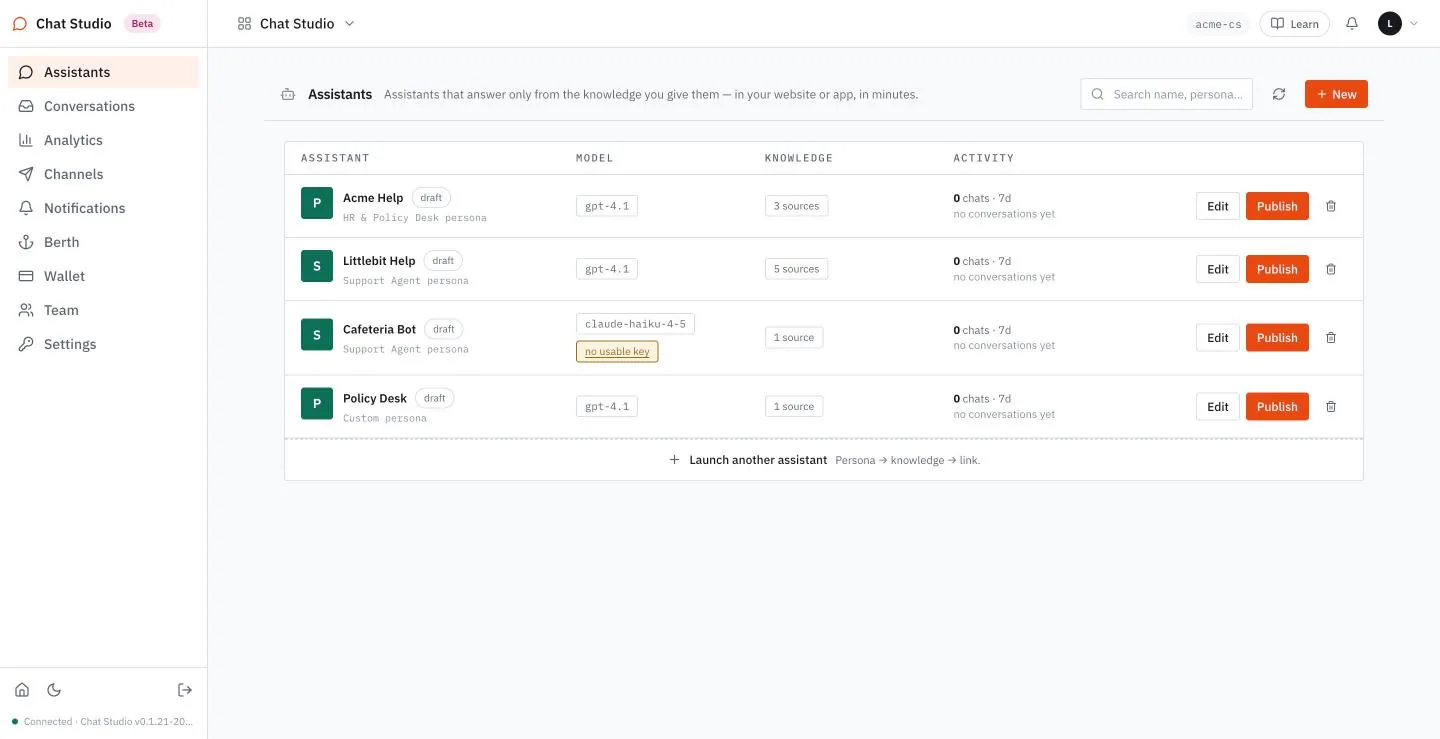
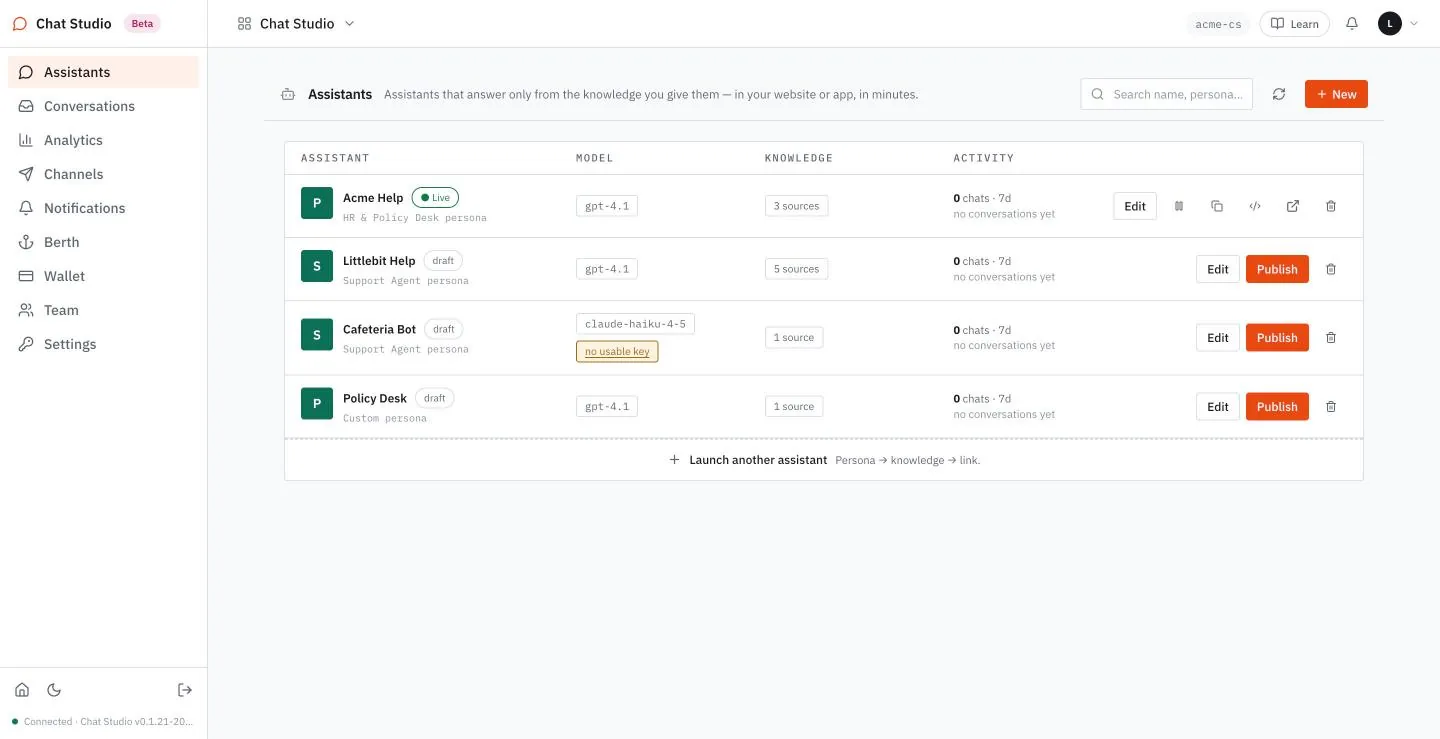
- Select Publish on the row of Acme Help. A toast reads "Published". The tag changes to Live, and the row shows four icons and a trash icon that deletes the assistant. The tooltips of the four read "Pause — the public page and embed stop answering until you resume", "Copy public link (same URL works in a mobile WebView)", "Copy iframe embed snippet" and "Open the public page".
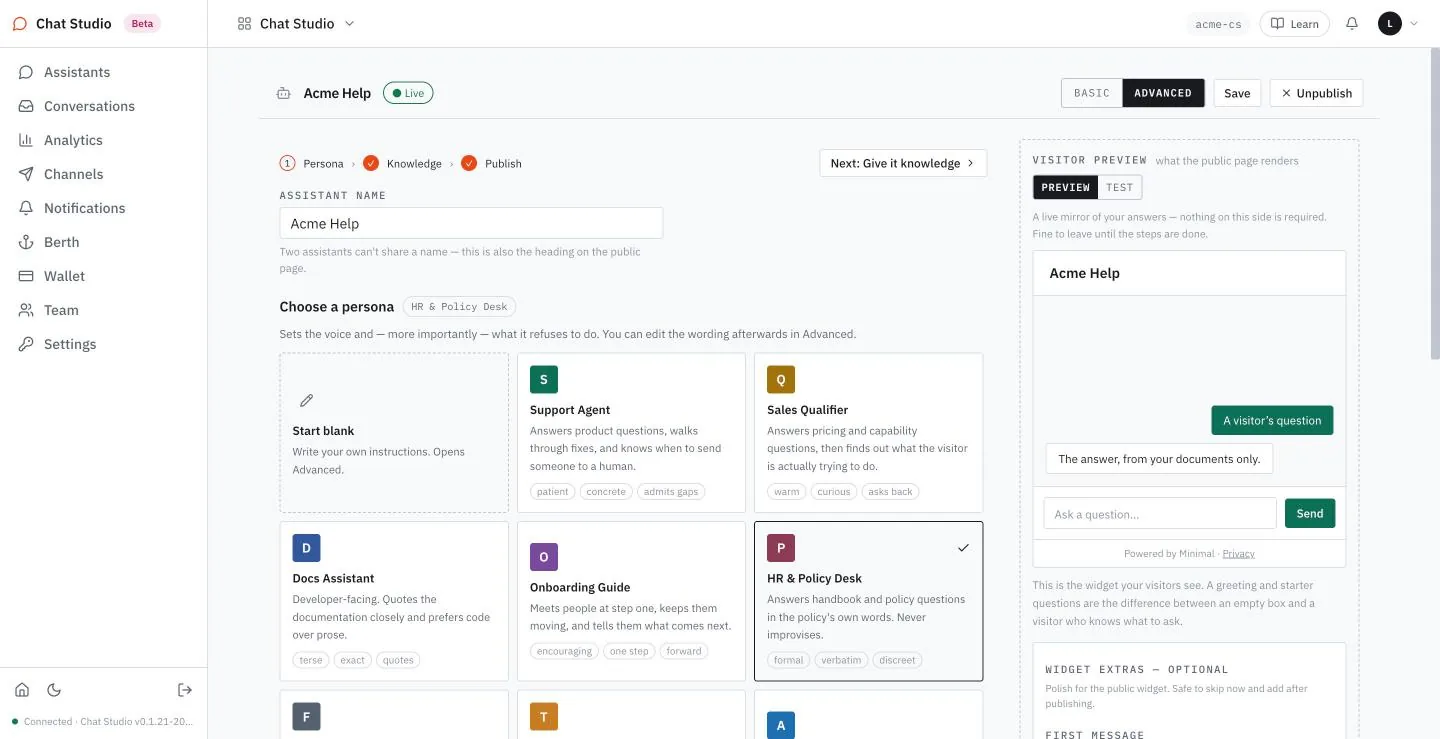
The editor offers the same step in its header. On a draft the button beside Save reads Publish; on a live assistant it reads Unpublish, and the title carries the tag Live. On a live assistant the Public link switch of step 3 is on (Chapter 6 shows it).
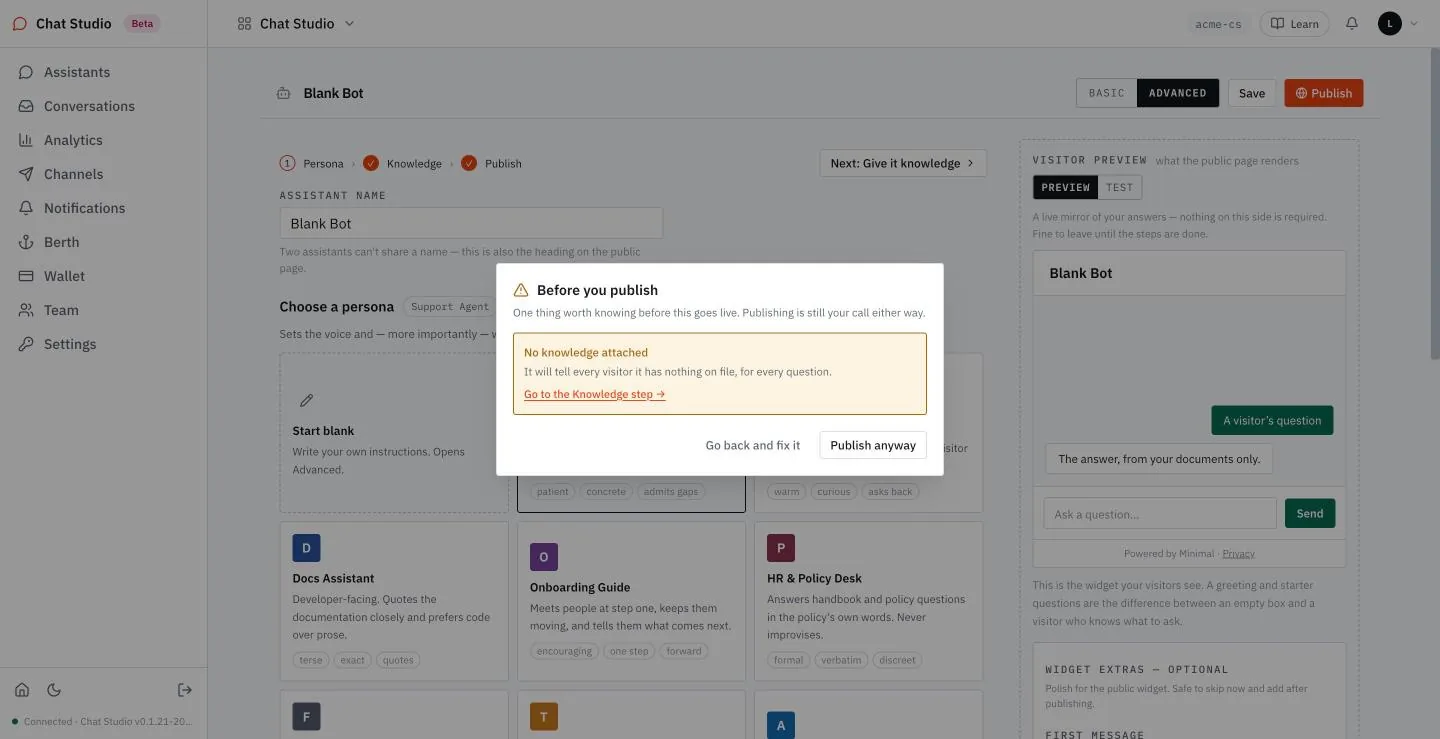
Publishing an assistant that has no source is warned, not blocked. Publish opens a dialog, "Before you publish", that says "One thing worth knowing before this goes live. Publishing is still your call either way." Its card reads "No knowledge attached — It will tell every visitor it has nothing on file, for every question." You can follow the link to the Knowledge step, go back with Go back and fix it, or choose Publish anyway.
The public link
Select the second icon to copy the address, or the fourth to open it. The address has this shape:
https://studio.example/api/agentd/public/<public-token>/chatThe book writes the host of your public address as studio.example. Yours begins with the name of your workspace and ends with the domain of your Chat Studio. <public-token> stands for the sixteen hexadecimal characters that follow /public/. Chapters 8 to 10 and 12 use this address without its ending /chat.
They cannot be guessed, so the address itself is the access control: whoever holds the link can talk to the assistant, and nobody finds it by trying addresses. Share the link with the people you want, and treat it as you would a private document link. The limits of Chapter 8 are the other guard. The editor says that the link "is never reissued".
What a visitor sees
Open the address in a window of its own. The page has the assistant's name as its heading and, beside it, an icon that starts a new conversation. Below sit a box with the placeholder "Ask a question…", a Send button, the link Talk to a person, and a footer with "Powered by Minimal", Privacy and Report.
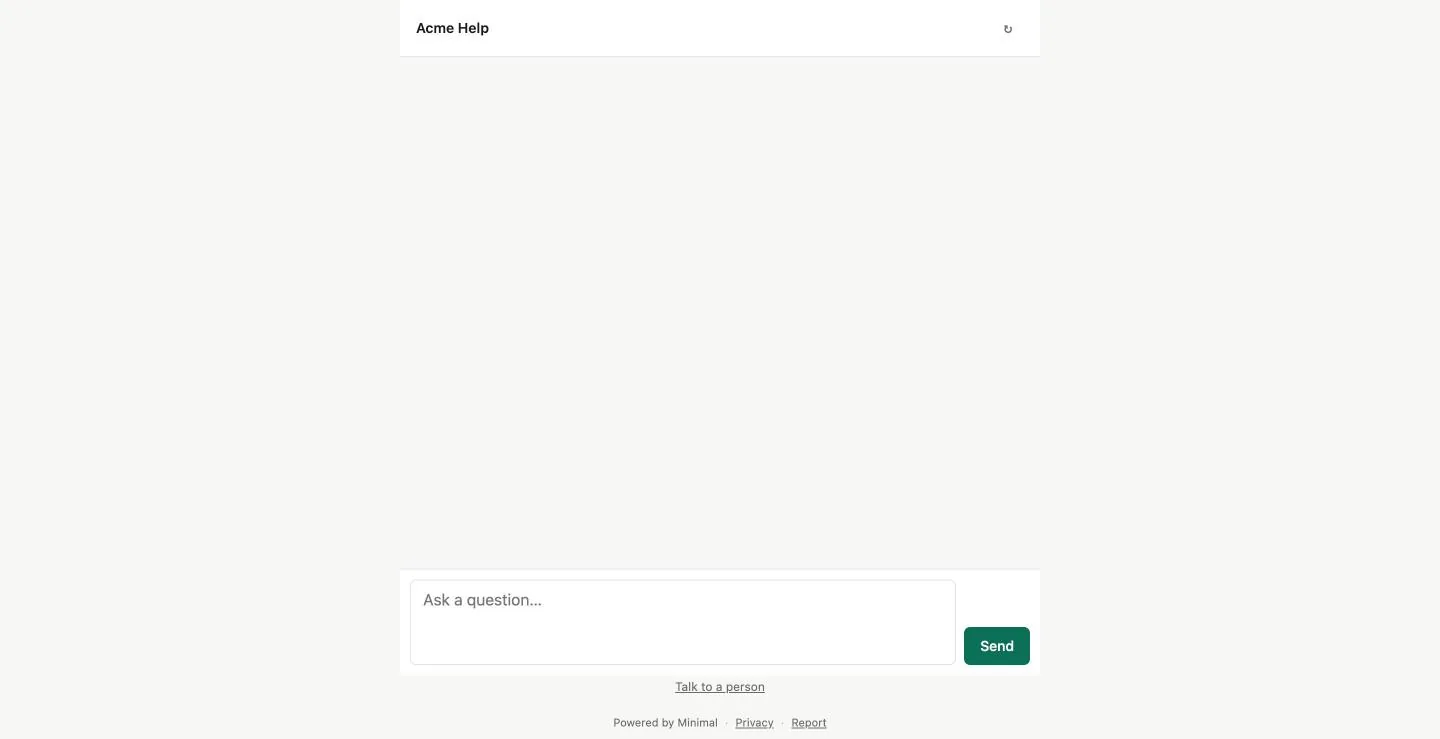
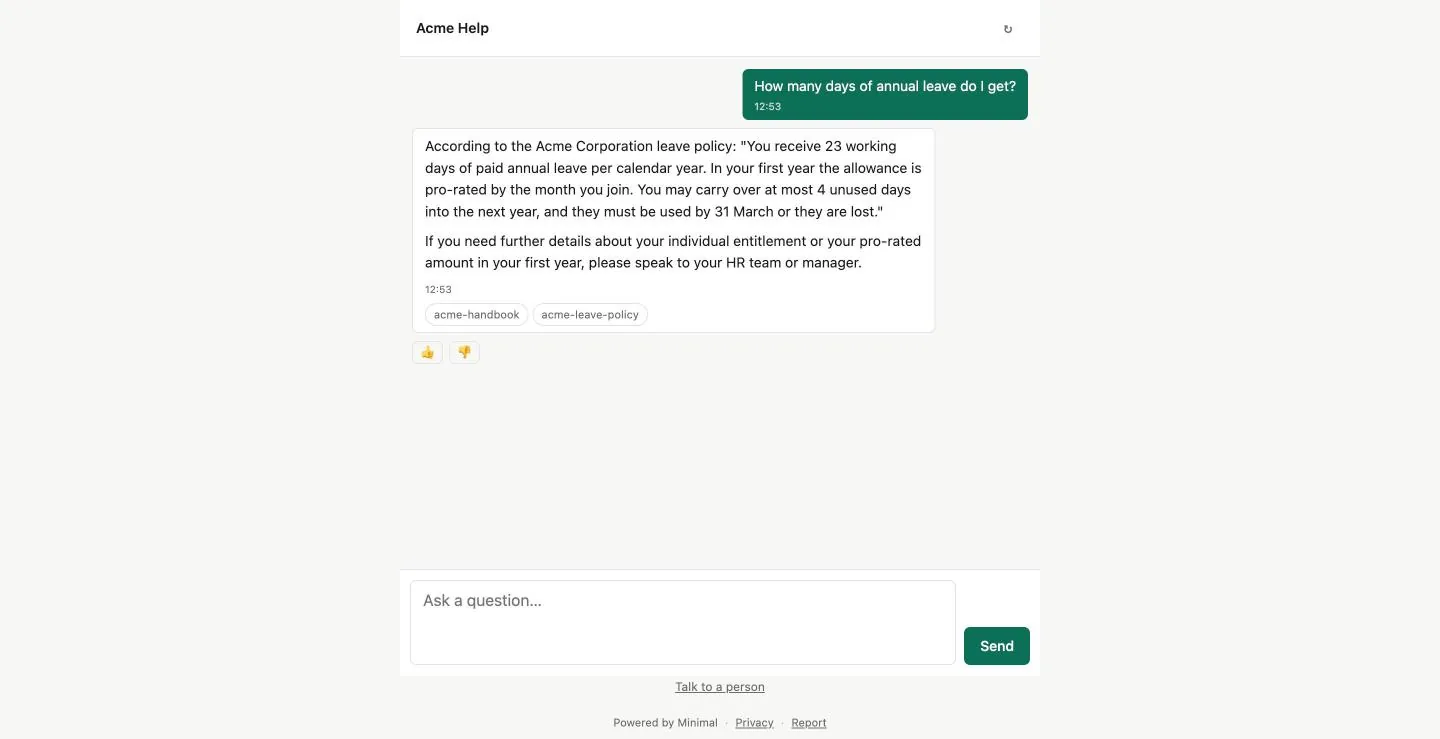
Type How many days of annual leave do I get? and select Send. The question appears with its time, and the answer appears under it. When it ends, a chip names each source the answer used, and two thumbs, "This answer helped" and "This answer did not help", sit below.
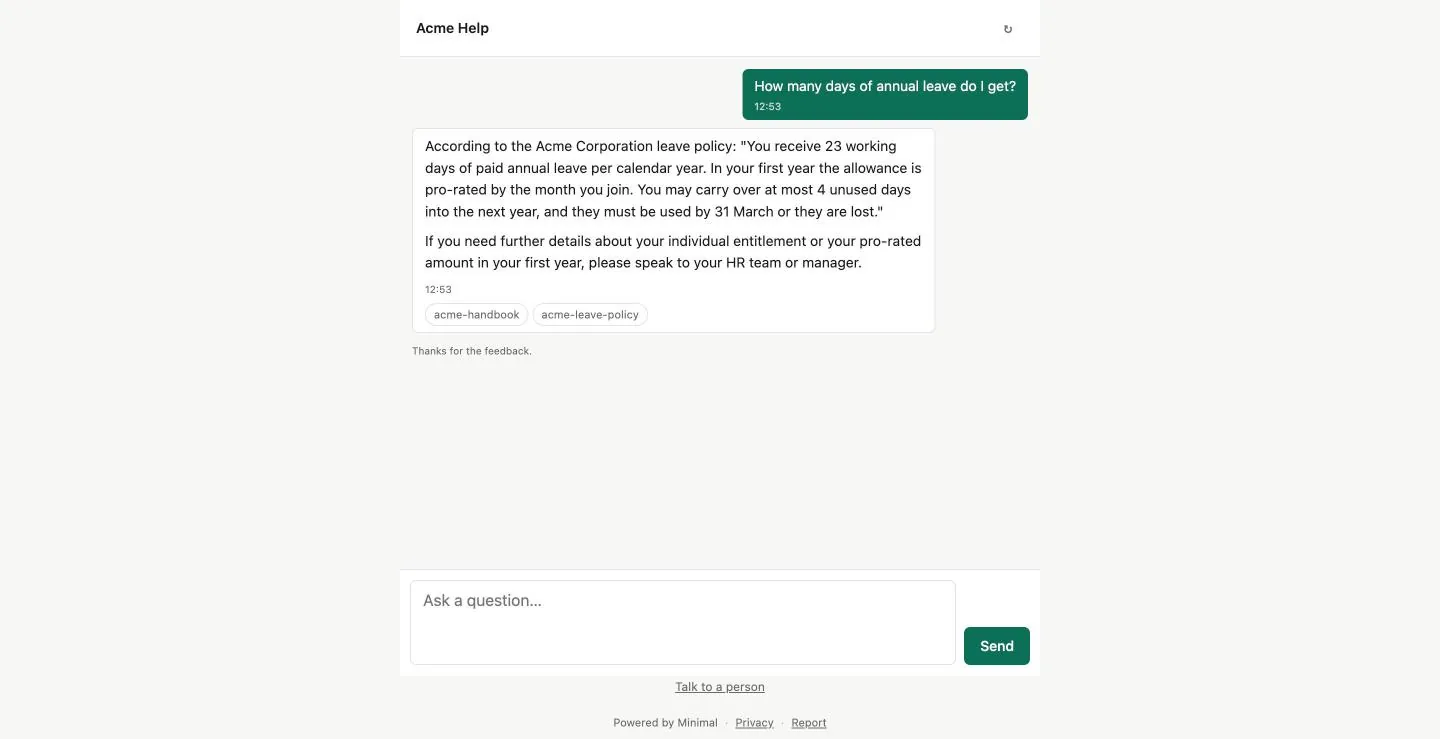
Select the thumb up. The page says "Thanks for the feedback.", and the owner sees the rating in Conversations, which Chapter 7 reads.
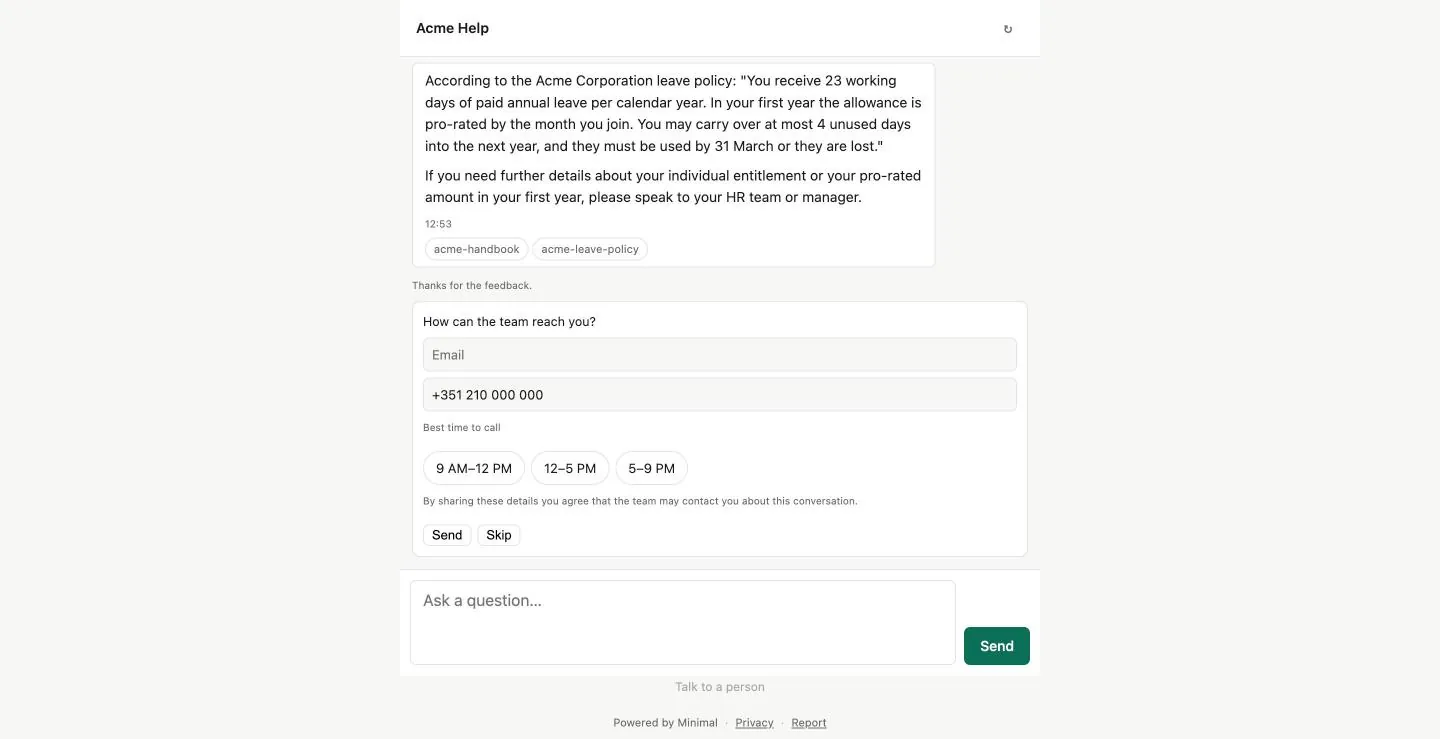
The page keeps the visitor's conversation: reload it and the question and answer are shown again. The icon in the header, Start a new conversation, clears the page for a new one. Talk to a person opens a form under the conversation that asks "How can the team reach you?": an email, a phone number, a best time to call that appears once a phone number is typed, a consent line and the buttons Send and Skip. A request sent from it arrives under Contacts, as Chapter 7 shows, and Chapter 7 also lists what visitors leave through the follow-up form of Chapter 6.
Take it offline
- Select Unpublish in the header of the editor. A dialog asks "Take this assistant offline?" and explains that the public page and the embed stop answering, that the URL is kept, and that publishing again turns the same link back on.
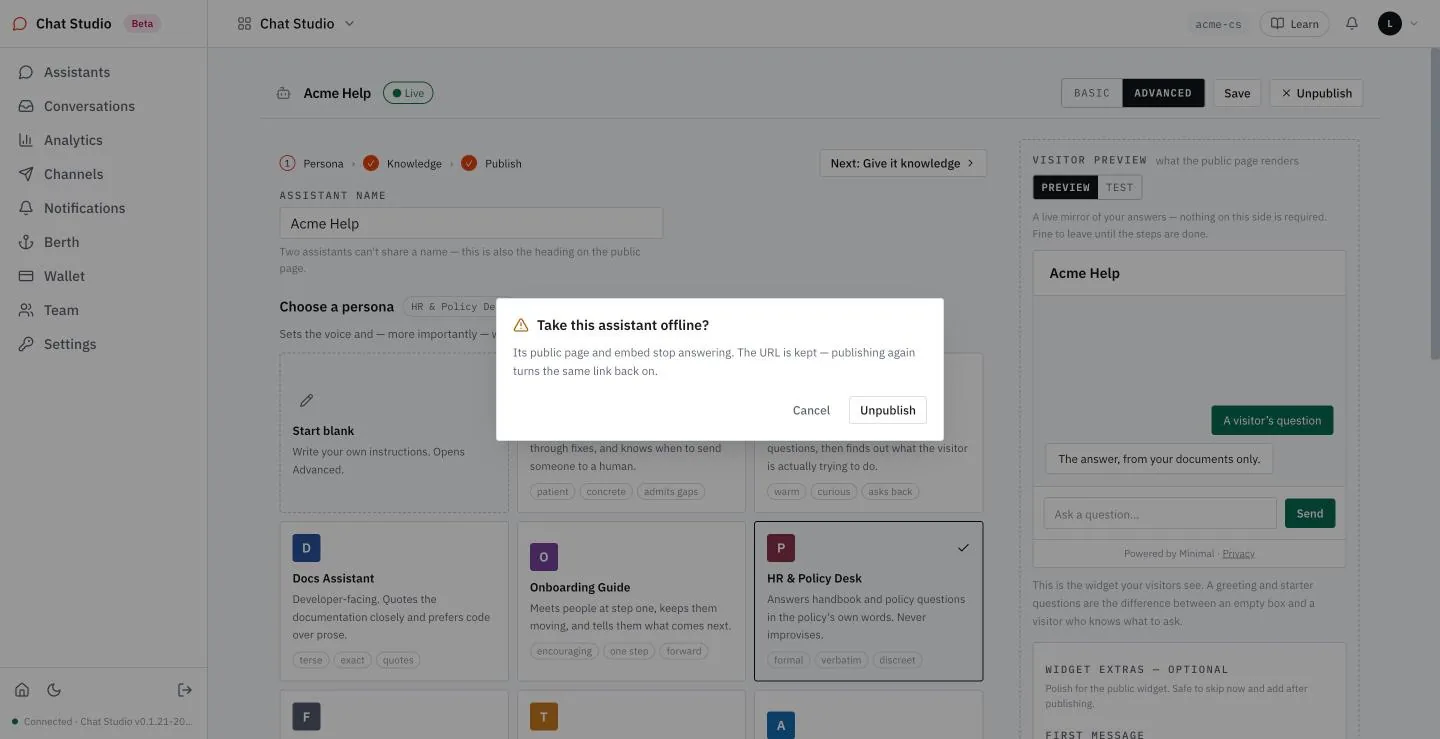
- Select Unpublish in the dialog. A toast reads "Unpublished — the link is kept, just switched off."
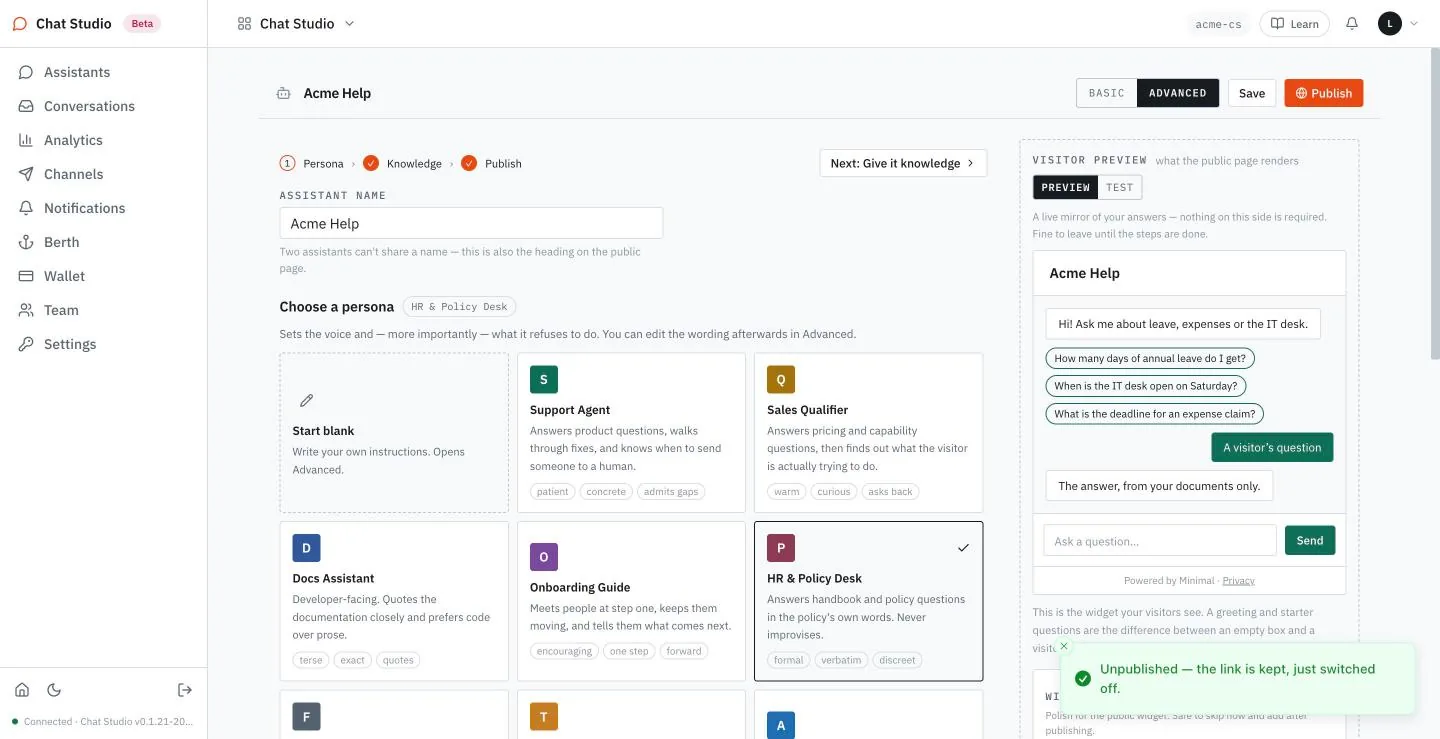
Now ask for the page, anonymously:
GET /api/agentd/public/<public-token>/chat HTTP/1.1
Host: studio.exampleHTTP/2 404
content-type: application/json{
"error": "This assistant isn't available right now."
}The page, the assistant's details and the call that opens a conversation all answer the same way. The webhook of Chapter 11 keeps answering; the pause of Chapter 9 is what stops it. Select Publish again, and the same request answers 200 at the same address.
Exercises
Publishing opens a page that anyone with the link can use, and each question asked there calls the model with your key. Use a disposable workspace and a throwaway assistant with one small source, set its Conversations per day, in the ADVANCED view, to a handful, and unpublish it when you are done. One question is the cheapest test there is.
- Publish a throwaway assistant and open its page from the row's fourth icon. Ask one question. Check that the answer carries a chip for the source it used.
- Unpublish the assistant and request its public address from a terminal with
curl -i. Check that the status is 404 and that the body carries the error text. Publish again and check that the same address answers 200. - Ask a question on the page, reload it, and check that the conversation is still there. Select the header icon and check that the page is empty.
6The widget
The public page of Chapter 5 is a page of its own. The widget is the same page placed inside yours. You paste one line into your site, and a visitor talks to the assistant without leaving it. This chapter writes a small page, puts Acme Help on it two ways, and then sets what the visitor sees before they type, what the assistant asks them, and which sites may hold the frame. Here is the page, in full:
<!doctype html>
<html lang="en">
<head>
<meta charset="utf-8">
<meta name="viewport" content="width=device-width, initial-scale=1">
<title>Acme people portal</title>
<style>
  body { font-family: Georgia, serif; margin: 0; background: #faf7f2; color: #2b2b2b; }
  header { padding: 20px 48px; border-bottom: 1px solid #e6dfd3; }
  header h1 { margin: 0; font-size: 22px; }
  main { display: flex; gap: 48px; padding: 28px 48px; align-items: flex-start; }
  article { flex: 1; max-width: 560px; }
  h2 { margin-top: 0; }
</style>
</head>
<body>
<header><h1>Acme people portal</h1></header>
<main>
  <article>
    <h2>Welcome</h2>
    <p>Leave, expenses and the IT desk, in one place. Ask the assistant on the right, or read the handbook.</p>
    <p>The people team answers on weekdays.</p>
  </article>
  <aside>
    <iframe src="https://studio.example/api/agentd/public/<public-token>/chat" title="Chat"
      style="width:100%;max-width:420px;height:75vh;min-height:420px;border:1px solid #e2e2e2;border-radius:12px"></iframe>
  </aside>
</main>
</body>
</html>
The <iframe> element is the snippet the app copies. studio.example and <public-token> stand for the host and the token of Chapter 5, and the next section replaces them with your own.
Setup for builders. A published assistant with a small source (Chapters 1 and 5), the ADVANCED view of the editor (Chapter 4), Python 3 in a terminal to serve the page, and a browser. Questions asked in the widget call the model with your key.
flowchart LR
    I[iframe snippet] --> C[The assistant's chat page]
    S[script tag with a bubble] --> C
    A[Allowed websites] -.->|which sites may frame and call it| C
Both ways of embedding load the same chat page; the allowed websites decide which sites may frame it and call it.
Copy the snippet
Open the assistant, select ADVANCED in the header, and go to step 3, Publish. The box PUBLIC LINK holds the address with its Copy button, and beneath it two more: Copy embed code and Inline panel instead. Inline panel instead copies the iframe above; a toast reads "Inline iframe copied." Copy embed code copies a script instead, which the section on the bubble uses; its toast reads "Copied — paste it before </body> and a chat bubble appears." On Assistants, the third icon of a live assistant, Copy iframe embed snippet, copies the same iframe as Inline panel instead.
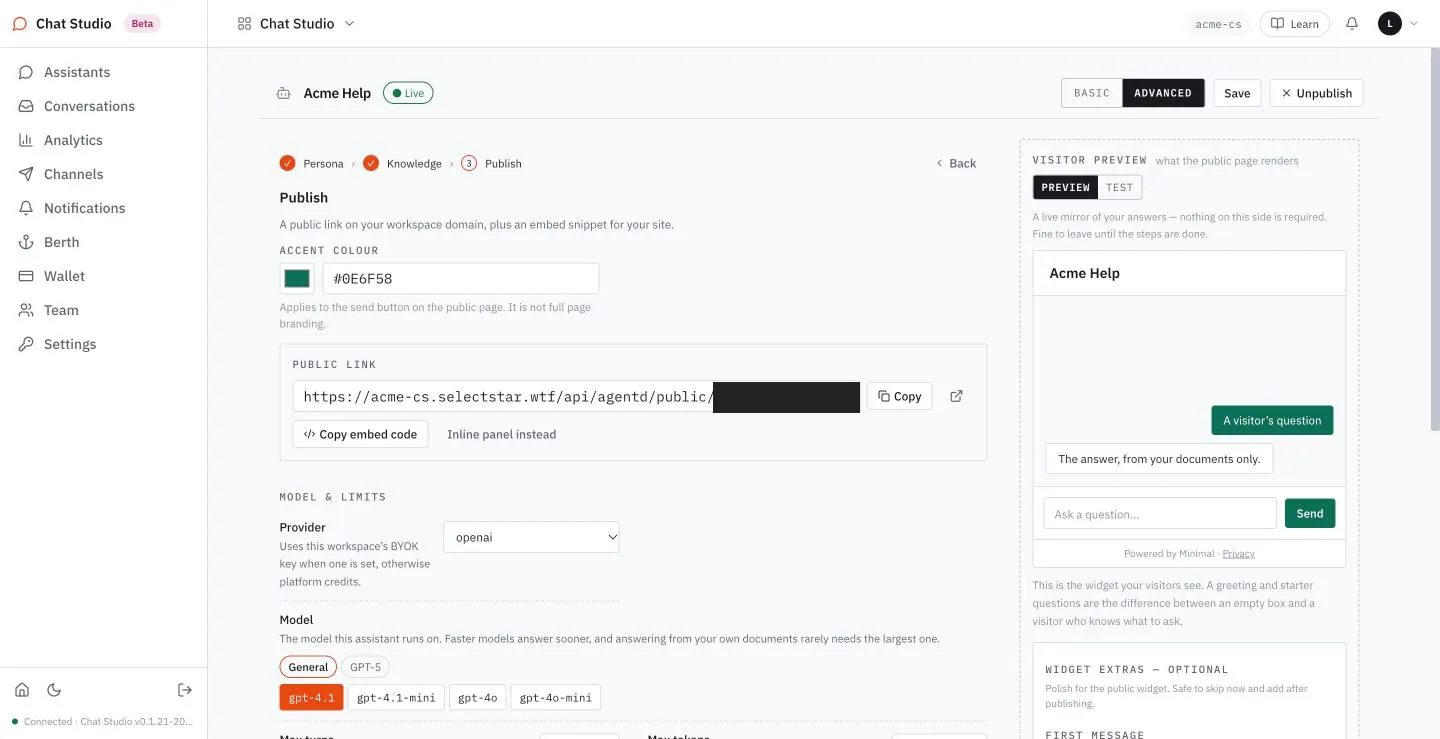
Then put the page on your own machine:
- Save the page above as
portal.htmlin an empty directory. - Replace its
<iframe>element, from<iframeto</iframe>, with the snippet you copied. - Serve the directory, and open
http://localhost:8731/portal.html:bashpython3 -m http.server 8731 --bind 127.0.0.1
The assistant is on the page and answers there as it does on its own page.
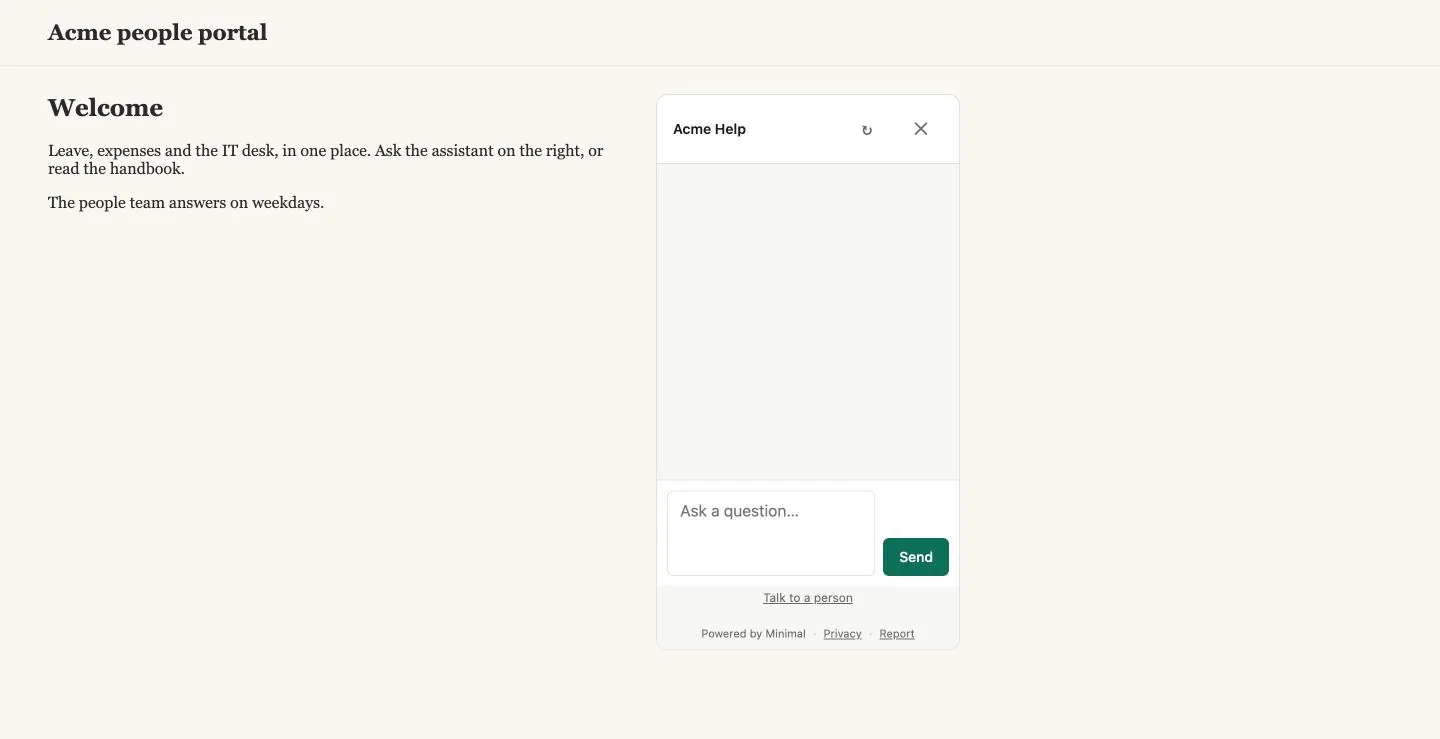
The frame carries the header of the public page, the assistant's name and an icon that starts a new conversation, and adds a close icon. The close icon only matters in the bubble of a later section.
What the visitor sees first
Open an assistant in the editor. The right side of every step carries WIDGET EXTRAS — OPTIONAL, which the page calls "polish for the public widget" that is "safe to skip now and add after publishing". On a live assistant the page adds "Already live — Save in the top right puts your changes live."
- In FIRST MESSAGE, type
Hi! Ask me about leave, expenses or the IT desk.The page describes it as shown before the visitor types. - Under STARTER QUESTIONS, select Add a question and type a question; repeat up to five times. Acme Help gets three:
How many days of annual leave do I get?,When is the IT desk open on Saturday?andWhat is the deadline for an expense claim?. The page's note: "a visitor who does not know what to ask usually asks nothing." - Tick Ask visitors for contact details. The page says it is shown after two answers, never before, and that you get an email the moment someone leaves them.
- Select Save, and reload
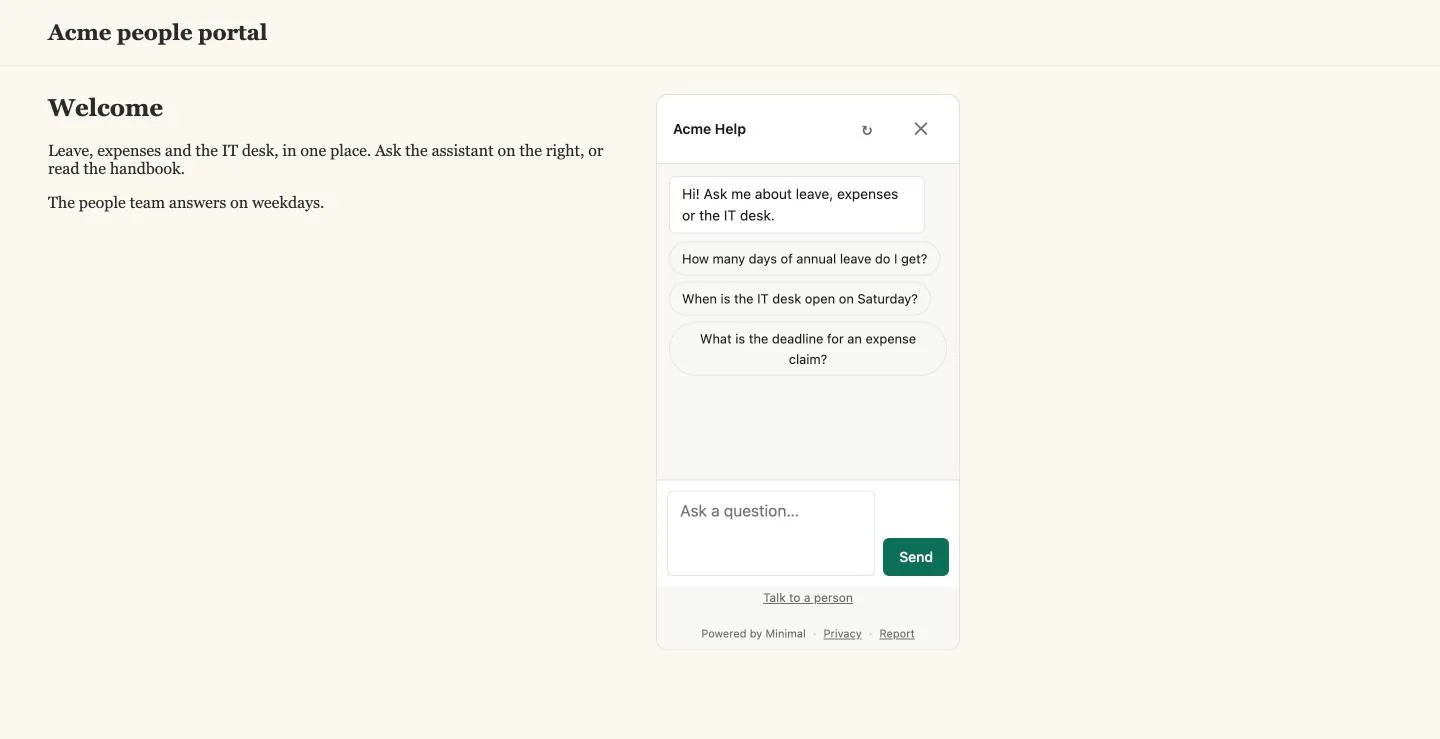
portal.html.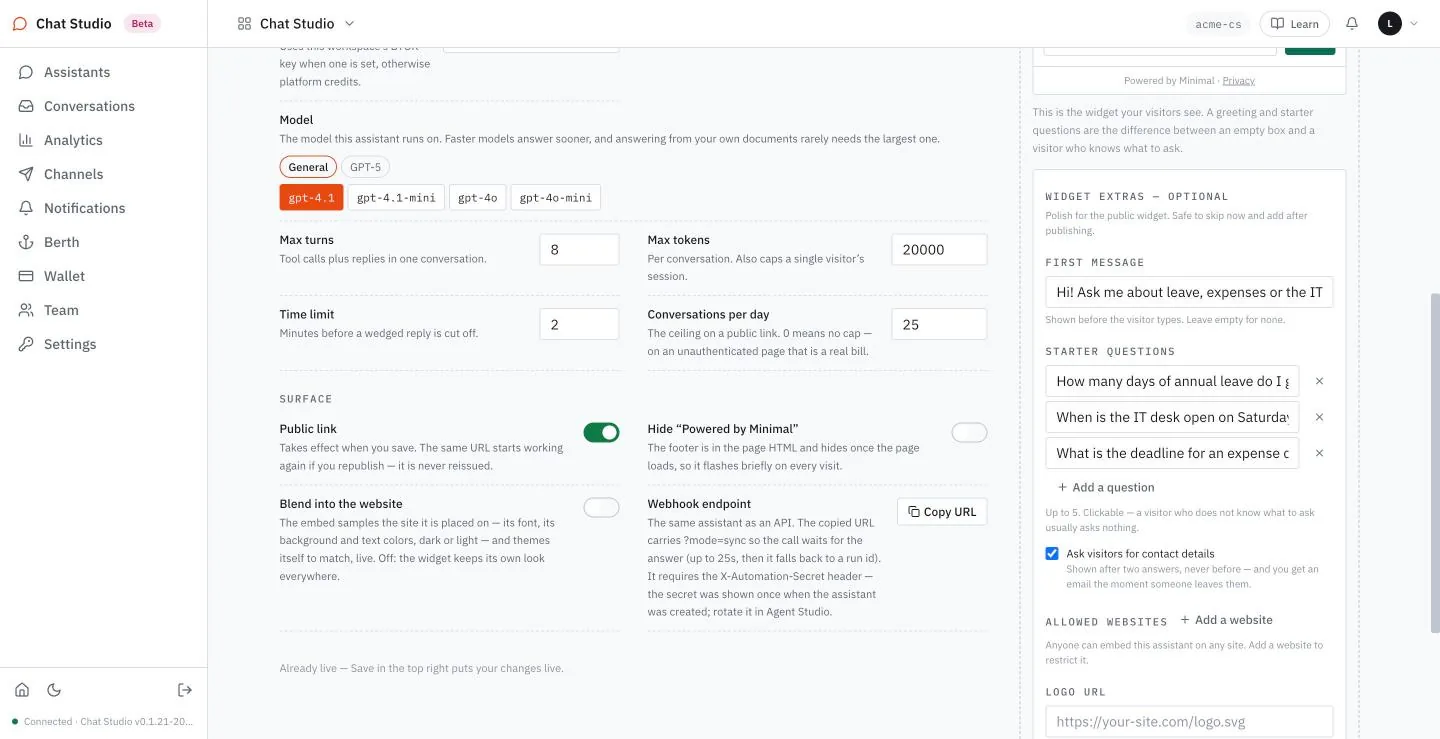
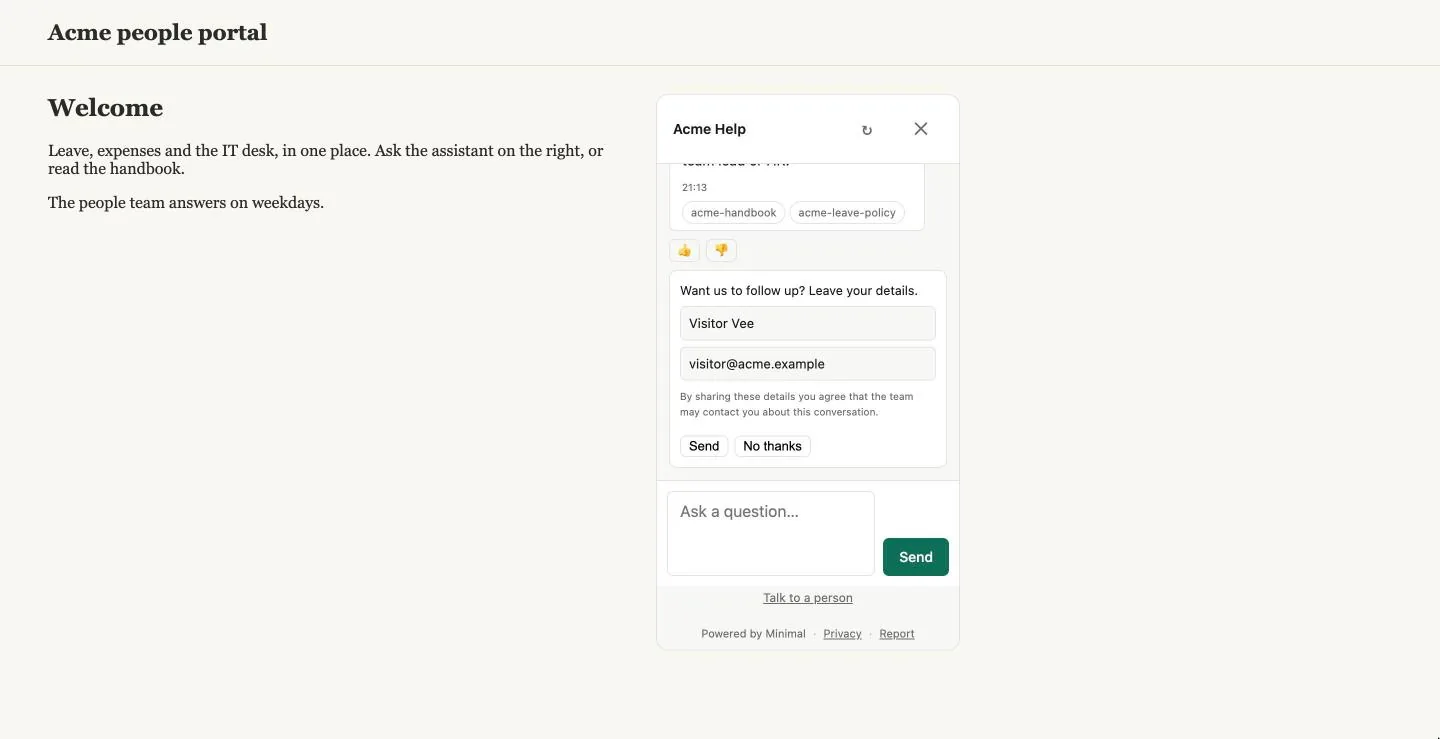
The greeting shows as the assistant's first bubble, and the starter questions sit under it as chips. A click on a chip sends that question as the visitor's.
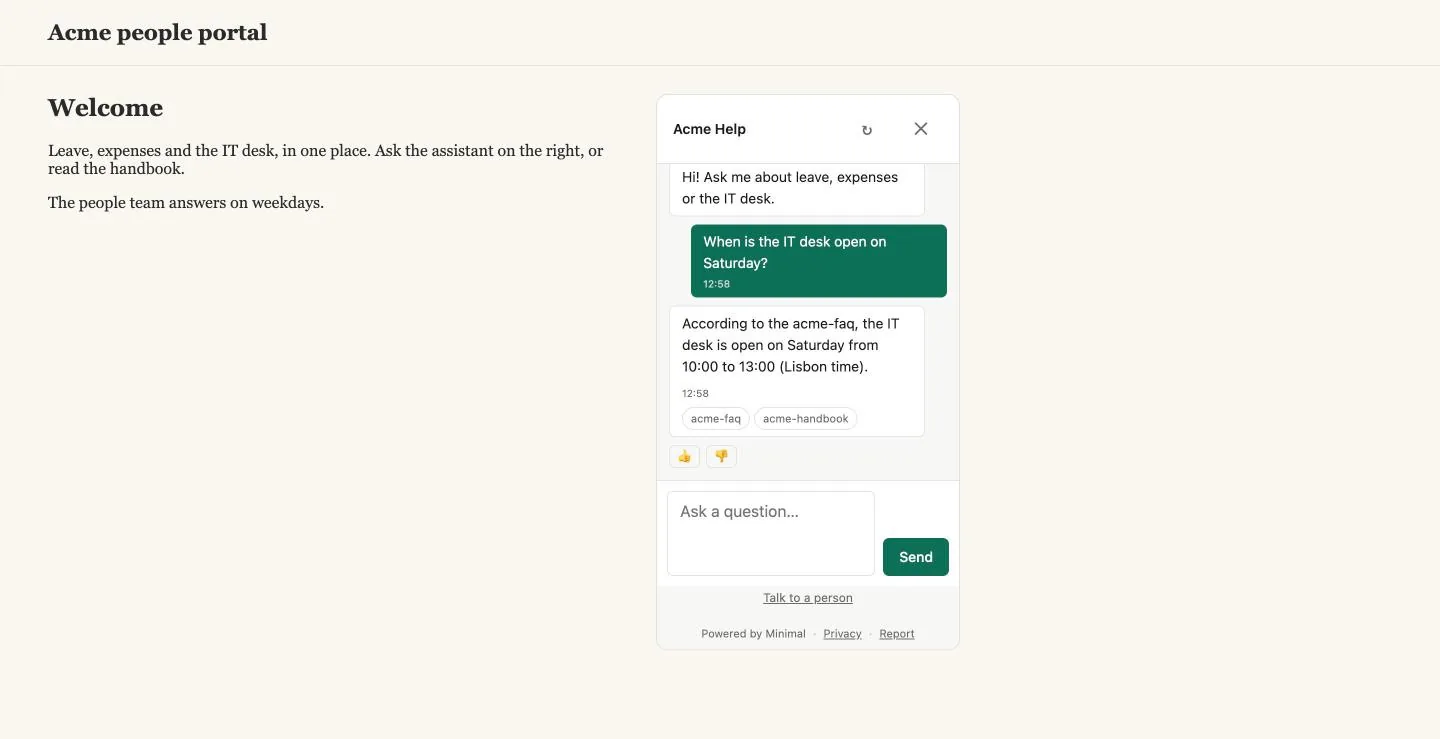
After a question the widget behaves as the page does: the answer names its sources and carries the two thumbs.
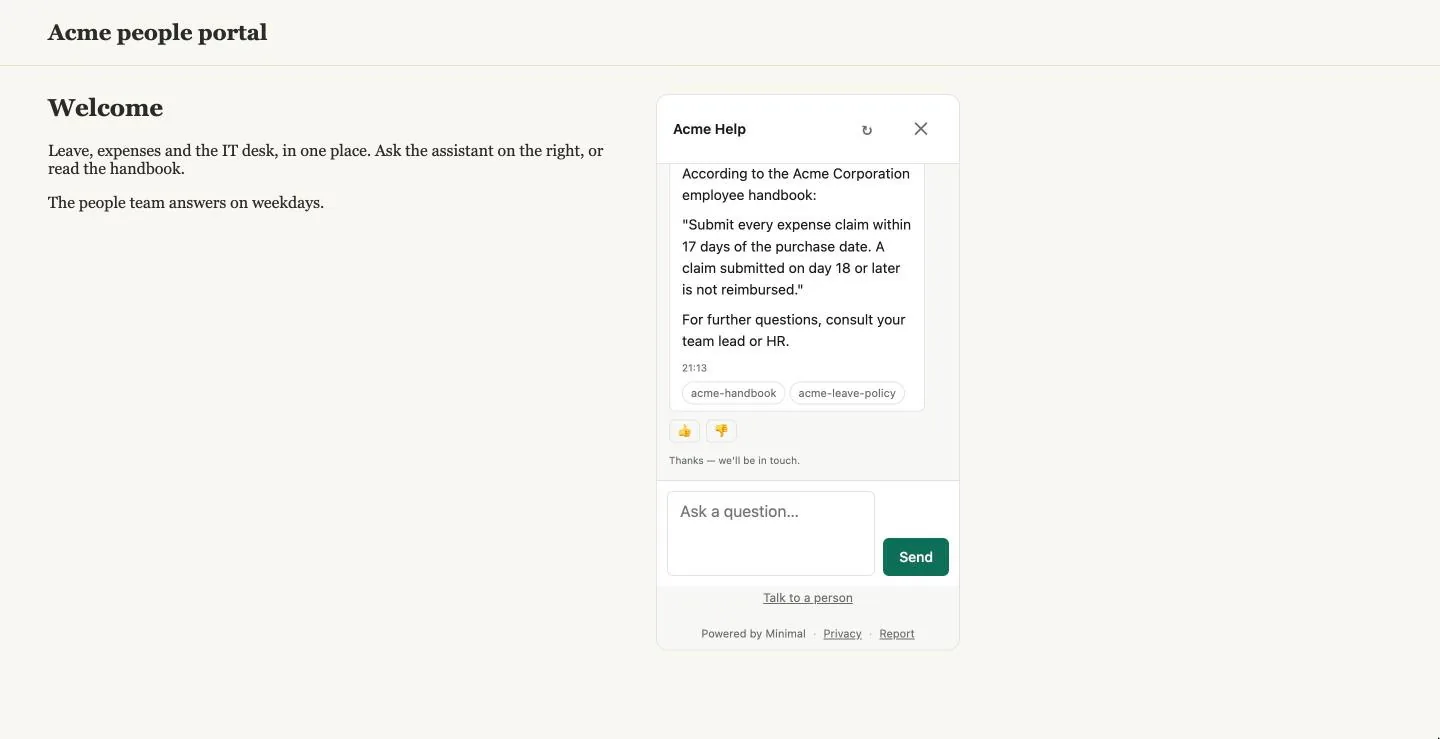
After the second answer the widget adds a form: "Want us to follow up? Leave your details." It asks for a name and an email, repeats the consent line, and offers Send and No thanks.
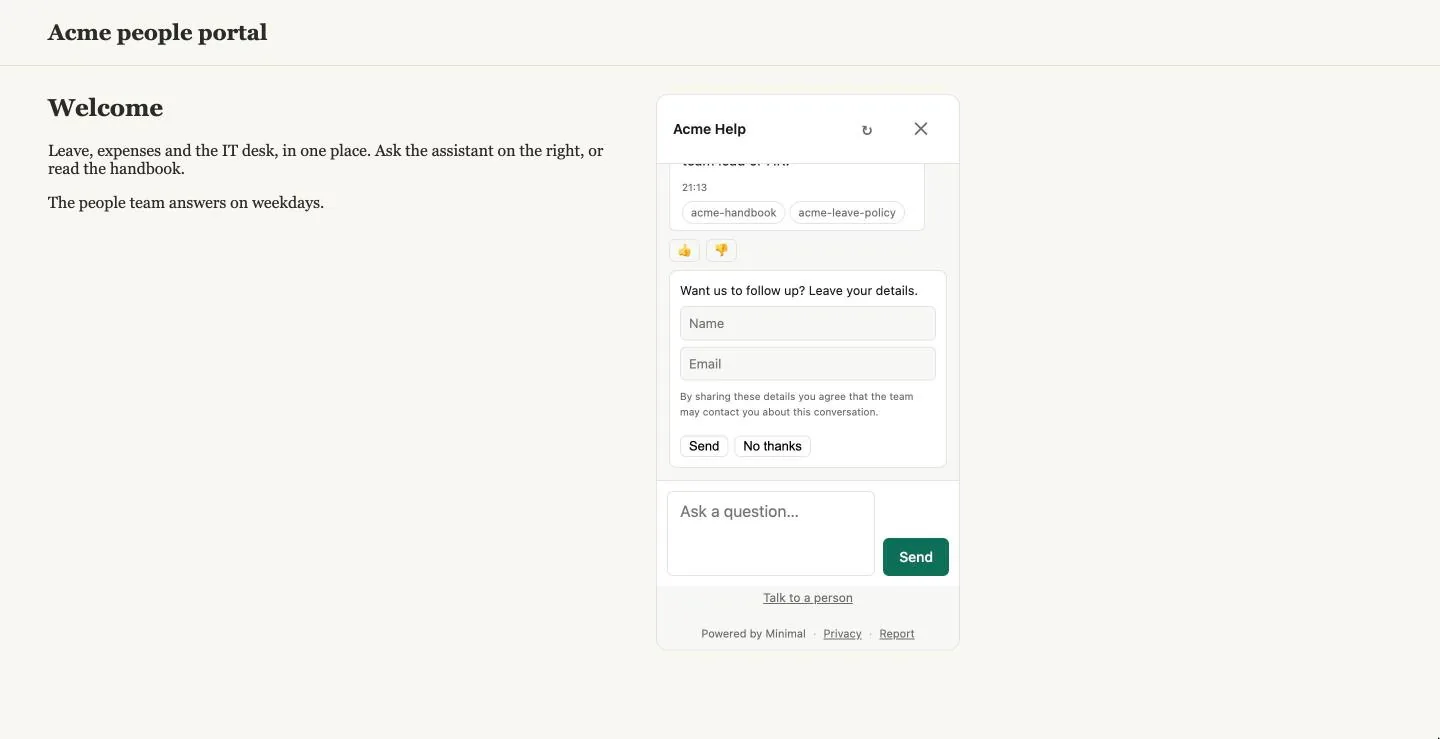
Fill in a fictional name and address and select Send. The widget says "Thanks — we'll be in touch.", and the details are kept for you. Chapter 7 shows where.
The LOGO URL field takes a public https address of an image on a host you control; it appears in the widget's header. The remaining field of the extras is the list of allowed websites, which has a section of its own.
Allowed websites
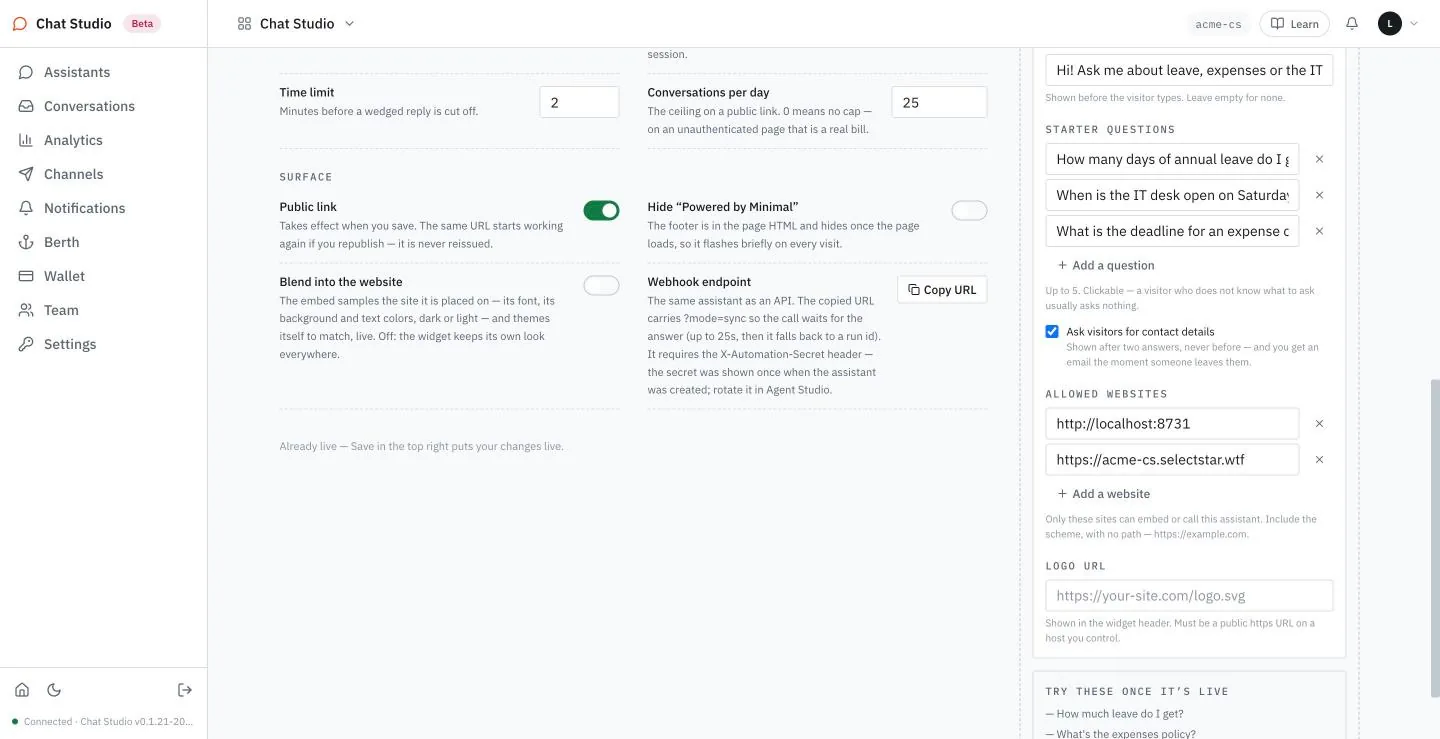
By default anyone can embed the assistant on any site. The field ALLOWED WEBSITES restricts that. Type each address with its scheme and no path, as the page says. The list belongs to the public link, so add the rows once the assistant is published: rows typed on a draft are not kept by Save.
- Select Add a website and type the site that holds the frame:
http://localhost:8731. - Select Add a website again and type the host of the assistant's own public address:
https://studio.example. - Select Save.
- Serve a second copy of the page on another port, and open both:
bash
python3 -m http.server 8732 --bind 127.0.0.1
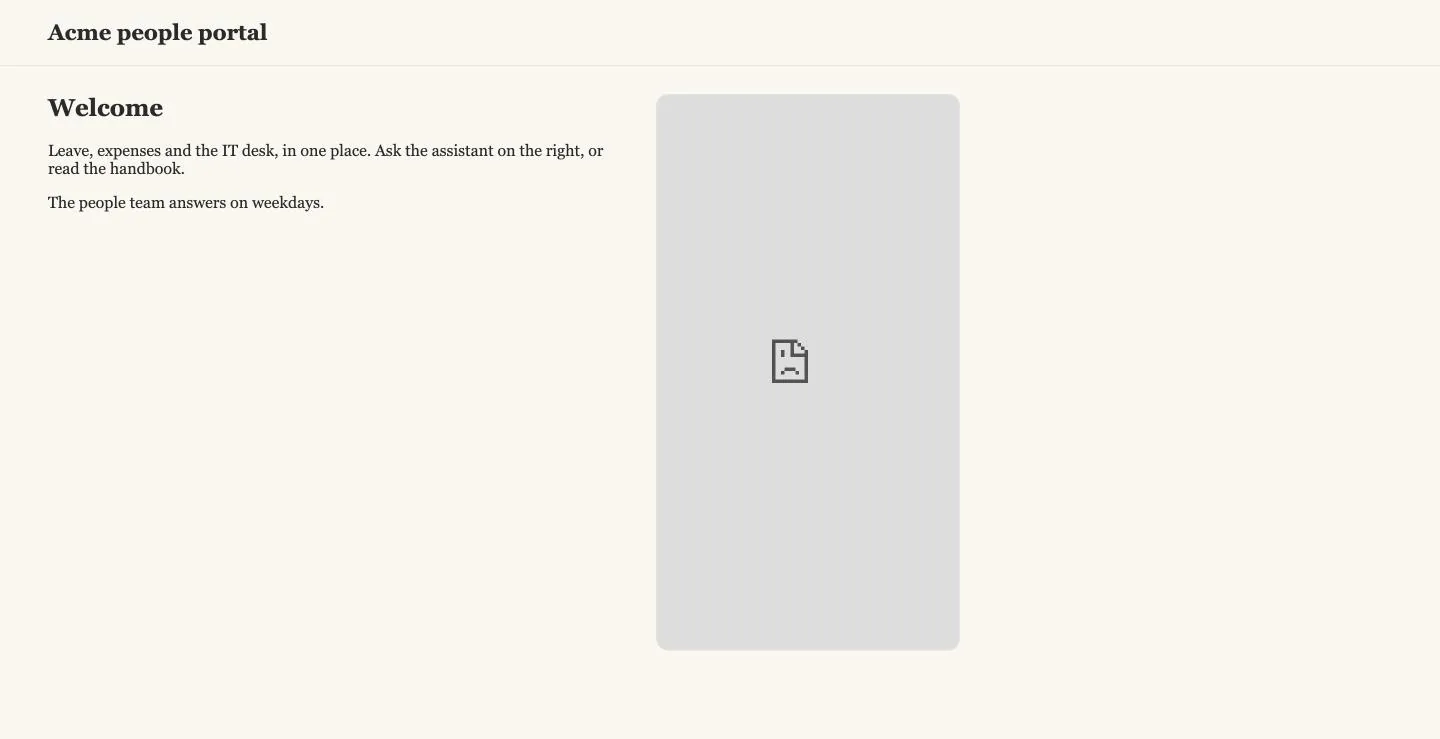
The page on 8731 still shows the assistant, and it answers. The page on 8732 shows an empty frame with the browser's own sad-page icon: the browser refuses to draw the chat page inside a site that is not on the list.
The second row is not optional. The chat page calls its own host, so each of its calls names that host. With only the first site listed, a question asked in the frame on 8731 gets this sentence in place of an answer: "This assistant is not allowed to be used from https://studio.example."
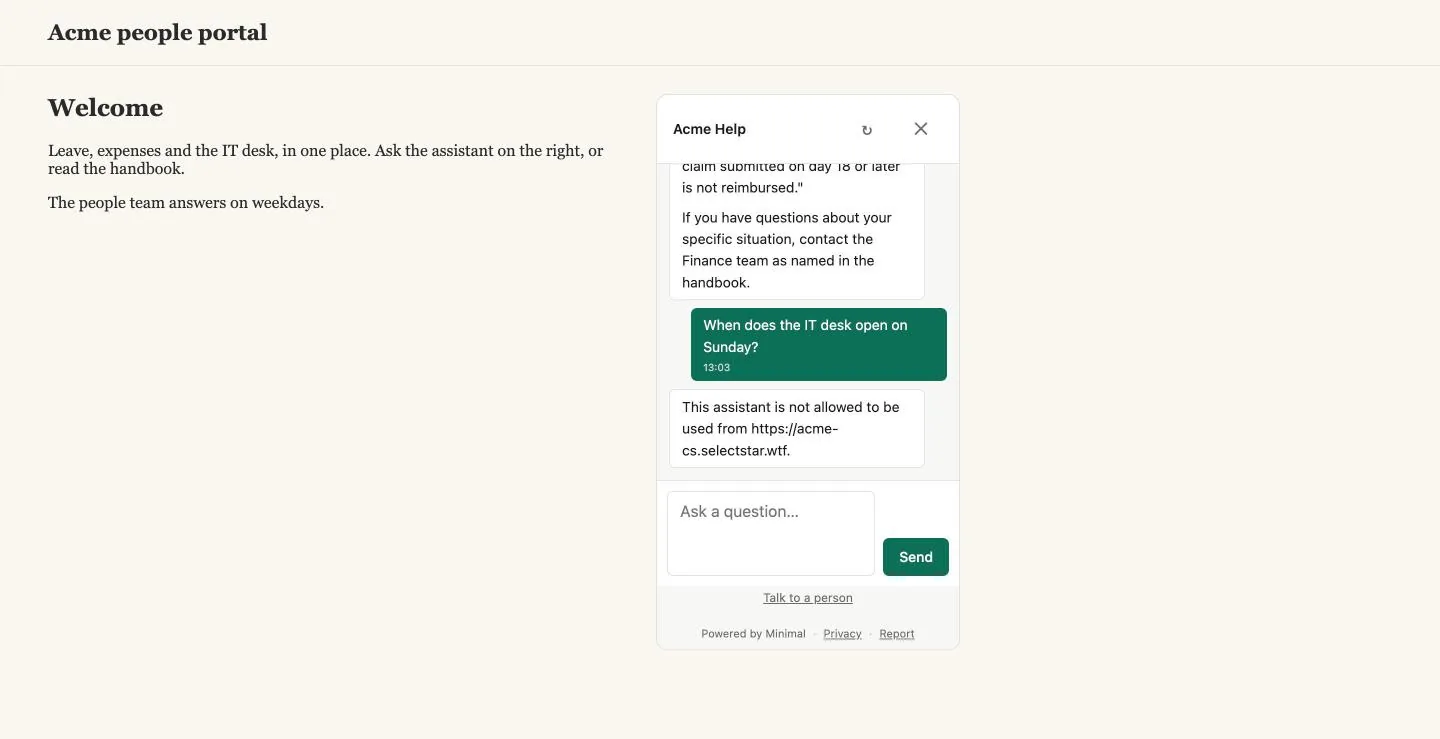
The list is kept in two places. Once a website is listed, the chat page carries a header that names the sites allowed to hold it, besides the platform's own headers, which are omitted here:
GET /api/agentd/public/<public-token>/chat HTTP/1.1
Host: studio.exampleHTTP/2 200
content-type: text/html; charset=utf-8
content-security-policy: frame-ancestors 'self' http://localhost:8731 https://studio.exampleThe body is the chat page. And every call that names a site not on the list is refused, whatever it asks for: the page, its details or a new conversation.
POST /api/agentd/public/<public-token>/sessions HTTP/1.1
Host: studio.example
Origin: https://example.orgHTTP/2 403
content-type: application/json{
"error": "This assistant is not allowed to be used from https://example.org."
}The check reads the Origin header and nothing else. A browser sends it on its own. A program that sends none, or sends the name of a listed site, is not stopped, so the list keeps other websites out of a browser, and nothing else. Chapter 10 lists the 403 among its refusals.
The bubble
The iframe sits where you put it. The other form of the embed is a script that adds a round button to a corner of the page; a click opens the chat page in a panel above it. Copy embed code copies this tag:
<script src="https://studio.example/api/agentd/public/<public-token>/embed.js"
        data-color="#0E6F58" async></script>
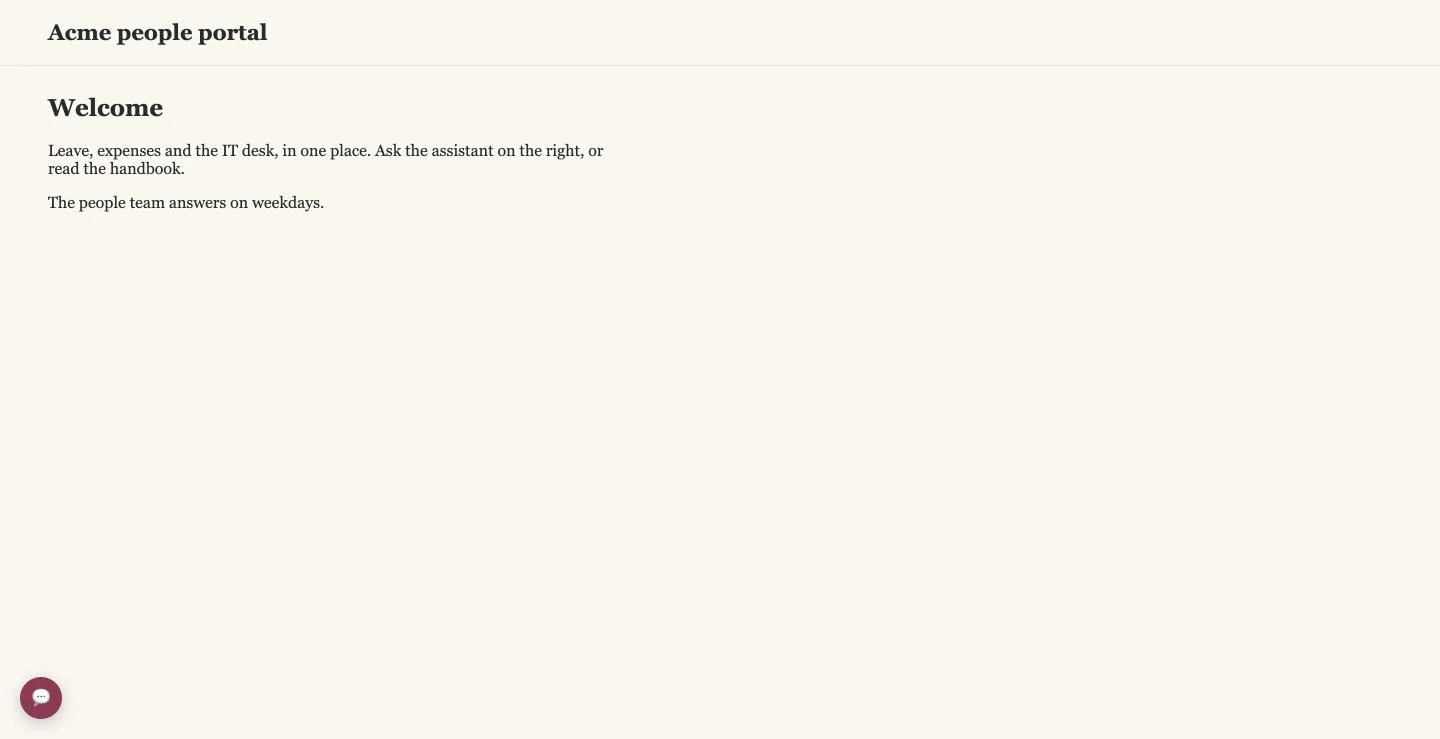
Paste it before </body>, and a round button appears at the lower right. data-color is the color of the button; the copied tag carries #0E6F58, the accent color of step 3. data-position is not in the copied tag. Add data-position="left" to move the button to the lower left; right is the default.
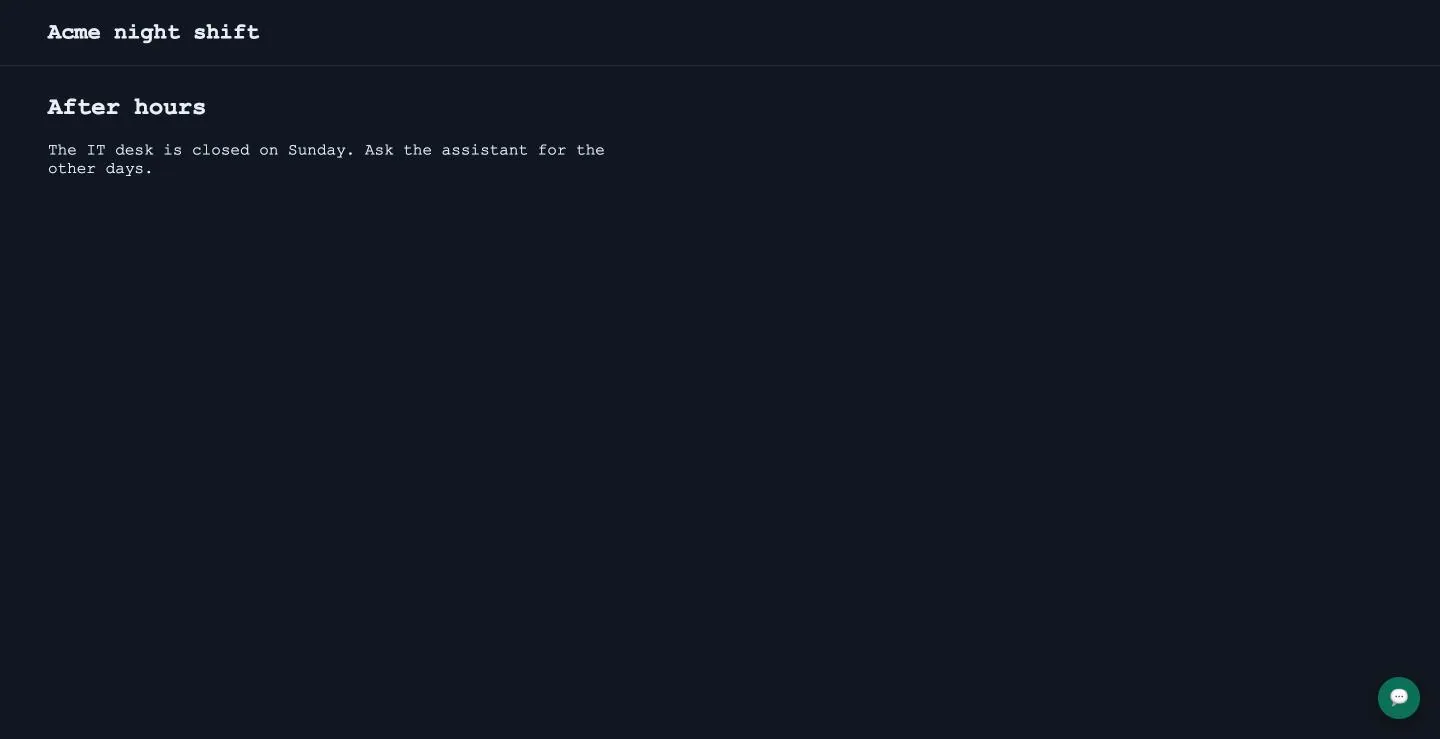
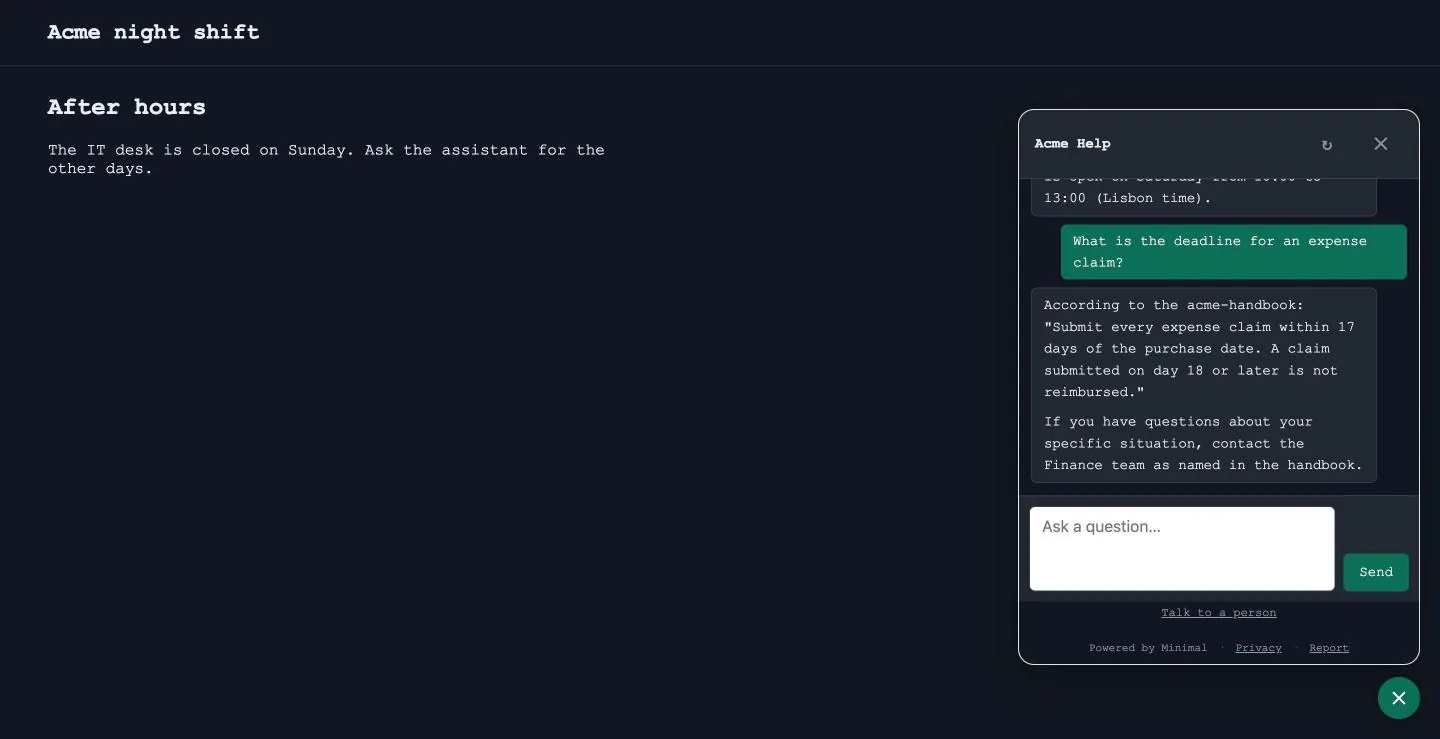
Select the bubble, and the panel opens with the same conversation. The button turns into a close icon.
Blend into the website
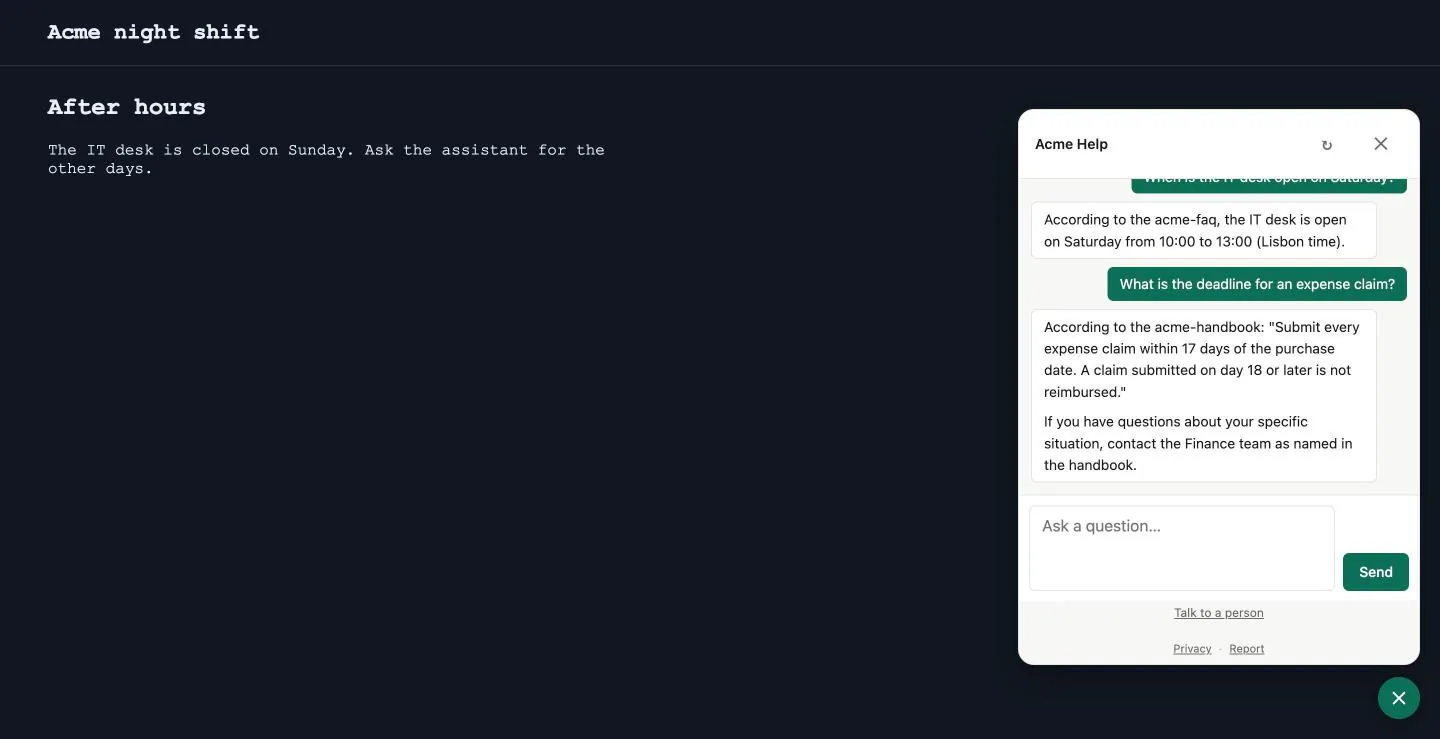
The switch Blend into the website, in the SURFACE section of step 3, says: "The embed samples the site it is placed on — its font, its background and text colors, dark or light — and themes itself to match, live. Off: the widget keeps its own look everywhere."
To see it, make a second page with a dark background and a monospace font. Copy portal.html to night.html, replace its title, h1, h2 and first paragraph with any text of your own, and put these rules in the style block:
body { font-family: "Courier New", monospace; background: #101820; color: #e8eef2; }
header { border-bottom: 1px solid #26323e; }- In
night.html, put the script tag of the previous section where the iframe was. - Turn Blend into the website on and select Save.
- Reload
night.html. The panel takes the dark page's colors and its monospace font, as in the two shots of the previous section. - Put the same script tag in
portal.htmlin place of its iframe, and reload it. The panel takes its light background and serif font.
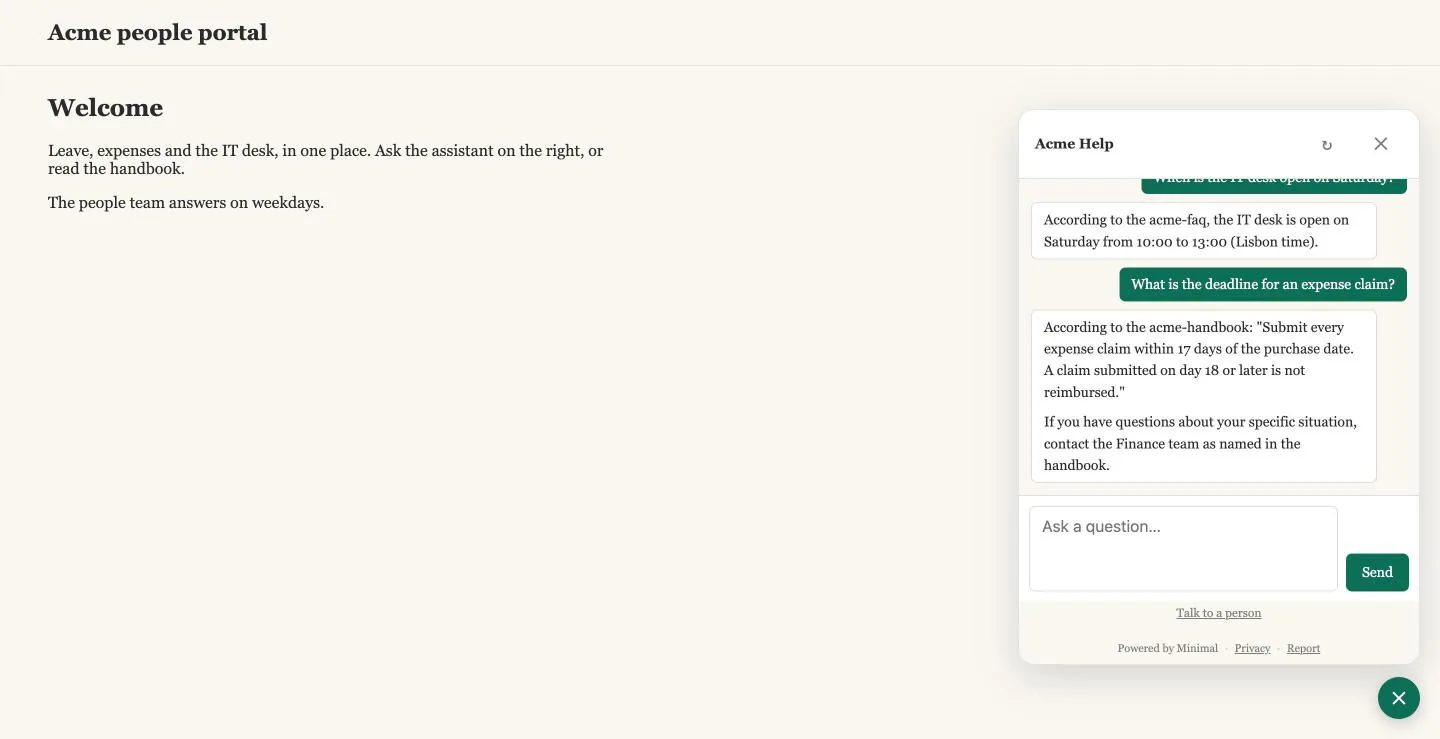
The switch has an effect on the script and none on the iframe snippet: the iframe cannot see the page that holds it, and the script can.
- Turn Blend into the website off.
- Turn Hide "Powered by Minimal" on.
- Select Save, and reload
night.html.
The panel keeps its own light look on the dark page, and the footer loses the line "Powered by Minimal" and keeps Privacy and Report. The page explains that the line is in the page's HTML and hides once the page loads, so it flashes briefly.
The position of the button is the other setting. With data-position="left" and data-color="#8C3B52" the button sits at the lower left, in that color.
A frame without its header
The frame's own header, with the assistant's name and the two icons, is the second header when your page already has a title bar. Add ?header=0 to the address in the snippet, and the frame hides it:
<iframe src="https://studio.example/api/agentd/public/<public-token>/chat?header=0" title="Chat"
  style="width:100%;max-width:420px;height:75vh;min-height:420px;border:1px solid #e2e2e2;border-radius:12px"></iframe>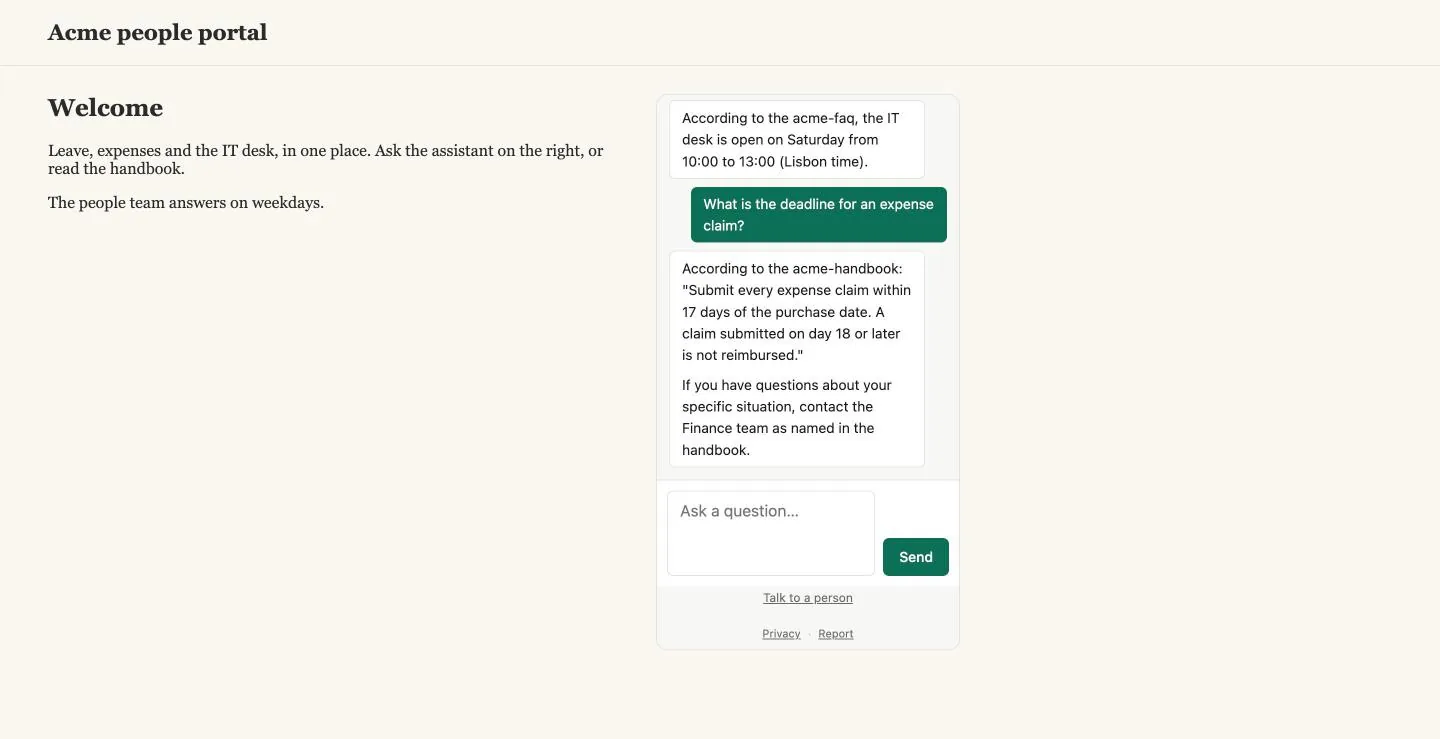
Exercises
Questions asked in the widget call the model with your key, and a published assistant is open to anyone who holds its link. Use a disposable workspace and a throwaway assistant with a small source, and unpublish it when you are done. Publish the throwaway, copy its iframe snippet into your portal.html, and use that page for all three. The first two exercises send one or two short questions, the cheapest test there is.
- Add a first message and two starter questions to a throwaway assistant, save, and reload your page. Check that the greeting and both chips appear, then click one and check that it is sent as a question.
- Add two allowed websites: the address of your first page,
http://localhost:8731, and the host of your public address. Serve the page on a second port. Check that the first page shows the assistant and answers one question, and that the second shows a blocked frame. Then remove the second row with the x at its end, save, and ask again on the first page: check that the widget refuses. Add the row again and save. - Replace the iframe with the script tag that Copy embed code gives you for the same throwaway assistant, and add
data-position="left"to it. Check that a round button appears at the lower left, and that it opens the panel. No question is needed.
7Conversations, feedback and contacts
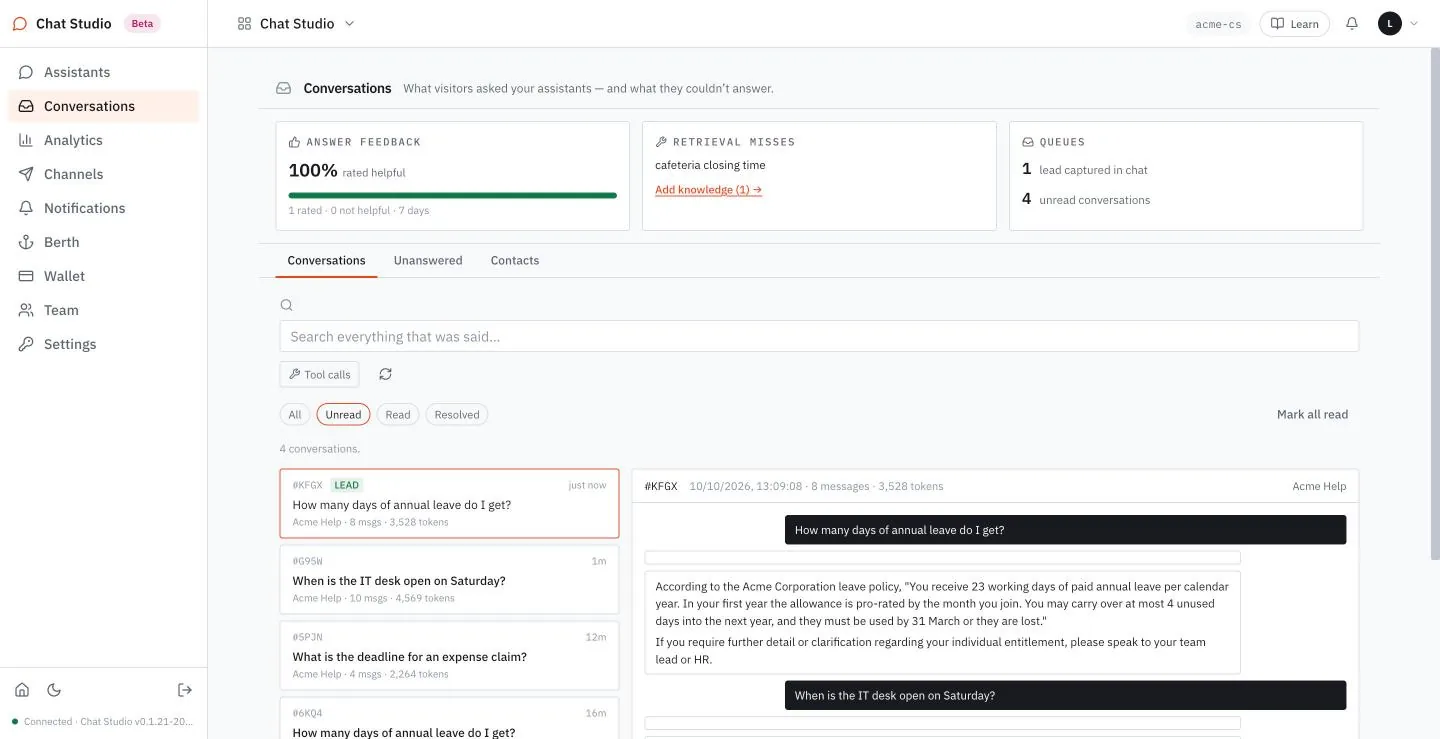
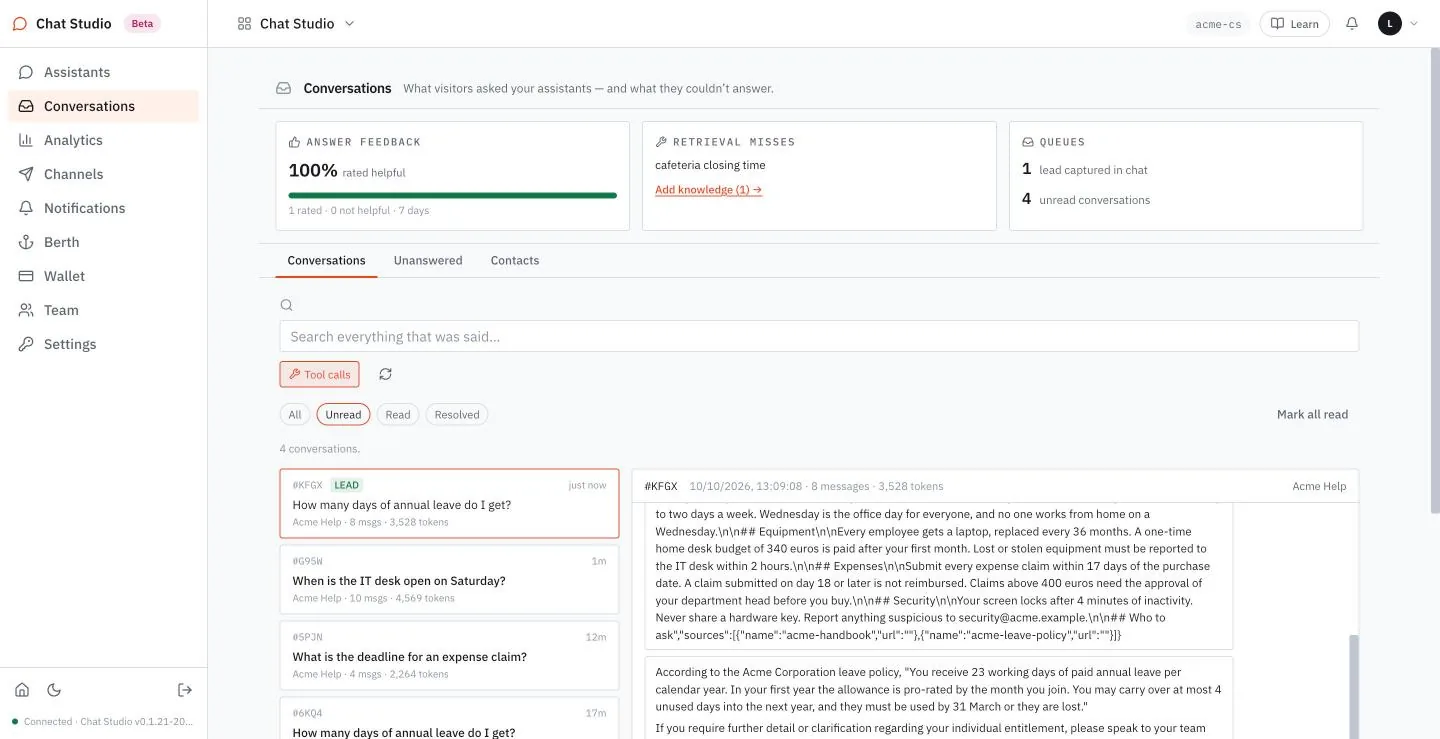
Everything a visitor does on a published assistant lands in one place: the question they asked, the answer they got, whether they rated it, and the details they left. This chapter reads that place, Conversations, and the page of figures beside it, Analytics. A conversation shows up as one row:
#KFGX  LEAD   How many days of annual leave do I get?
              Acme Help · 8 msgs · 3,528 tokens
#KFGX is the conversation's short name, LEAD says that the visitor left contact details, and the second line gives the assistant, the number of messages and the tokens the conversation used. The count is of stored messages, which include the search steps of each answer: one answered question that searched its sources shows 4 msgs, so this row holds two such questions.
flowchart LR
    V[Visitor] --> C[Conversation row]
    V -->|thumbs| F[Answer feedback]
    V -->|follow-up form| K[Contact]
    C --> U[Unanswered, when sources fell short]
A visitor's conversation feeds four views: the conversation, the rating, the contact and the list of unanswered questions.
The inbox
Open Conversations. Three meters head the page. ANSWER FEEDBACK gives the share of ratings that were helpful ("1 rated · 0 not helpful · 7 days"). RETRIEVAL MISSES lists recent questions that the sources did not cover, with a link, Add knowledge, that counts them. QUEUES counts the leads captured in chat and the unread conversations.
Under the meters, three tabs: Conversations, Unanswered and Contacts. On Conversations a search box reads "Search everything that was said…", the chips All, Unread, Read and Resolved filter the list, Unread being the chip chosen at first, and Mark all read sits at the right. The list shows the rows; a click on one opens it on the right.
A conversation that was opened and never used is listed too, as "(no question recorded)" with 0 messages. The icon that starts a new conversation makes one, and so does a program that makes the call that opens a conversation, the second request of Chapter 10, and stops. Analytics counts them as conversations of the month.
Read a conversation
Select a row. The header gives the short name, the date and time, the number of messages and tokens, and the assistant. Below it the visitor's questions appear as dark bars, with the answers beneath them. The Tool calls button, above the list, shows or hides what the assistant retrieved before answering: each passage, labeled with the source it came from. The question and the passages that answered it are the quickest way to see why an answer is right or wrong.
When the visitor left details, a green card, LEAD CAPTURED, follows the conversation with the name and the email. Below it, Token usage by turn opens the cost of each turn.
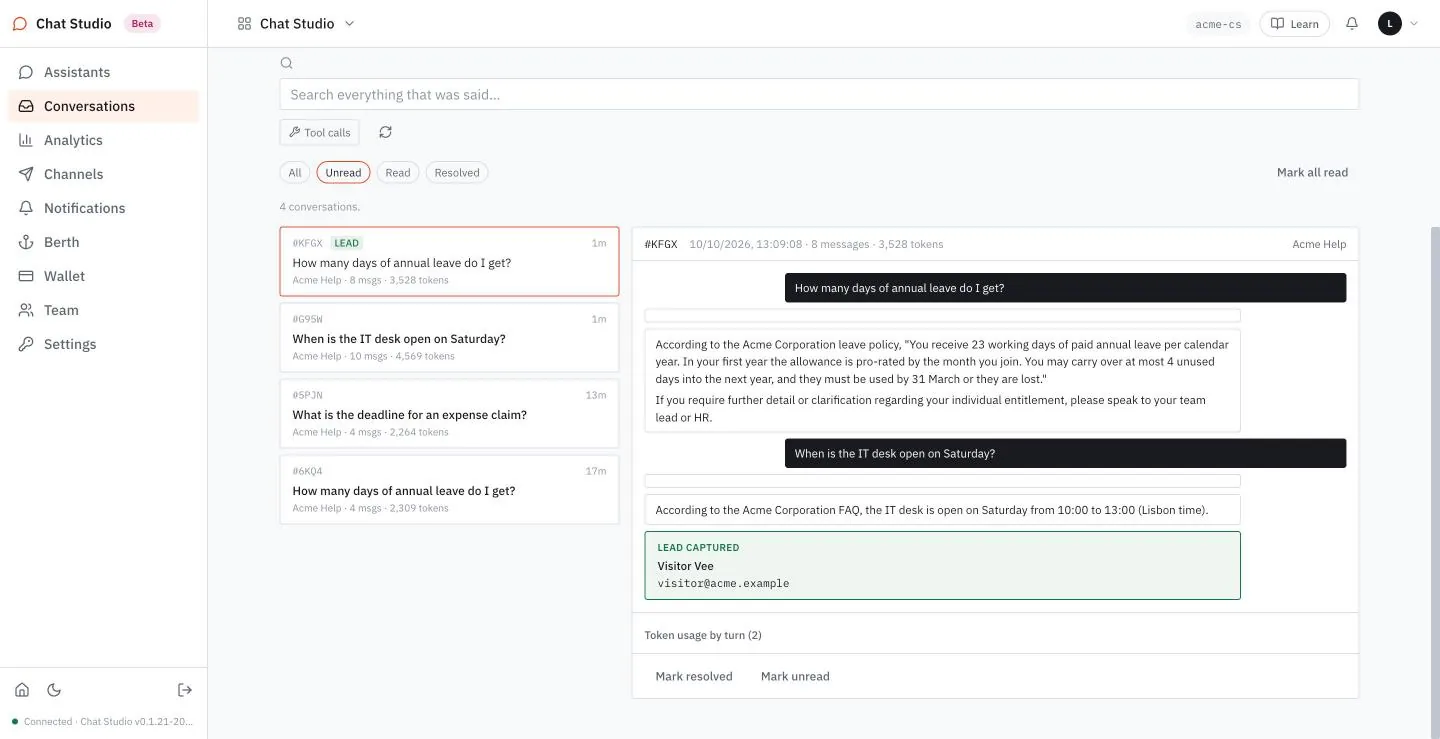
Resolve and mark read
The buttons under a transcript sort your inbox. Mark resolved puts a resolved tag on the row and replaces itself with Reopen. The conversation stays where it was, and the Resolved chip lists it.
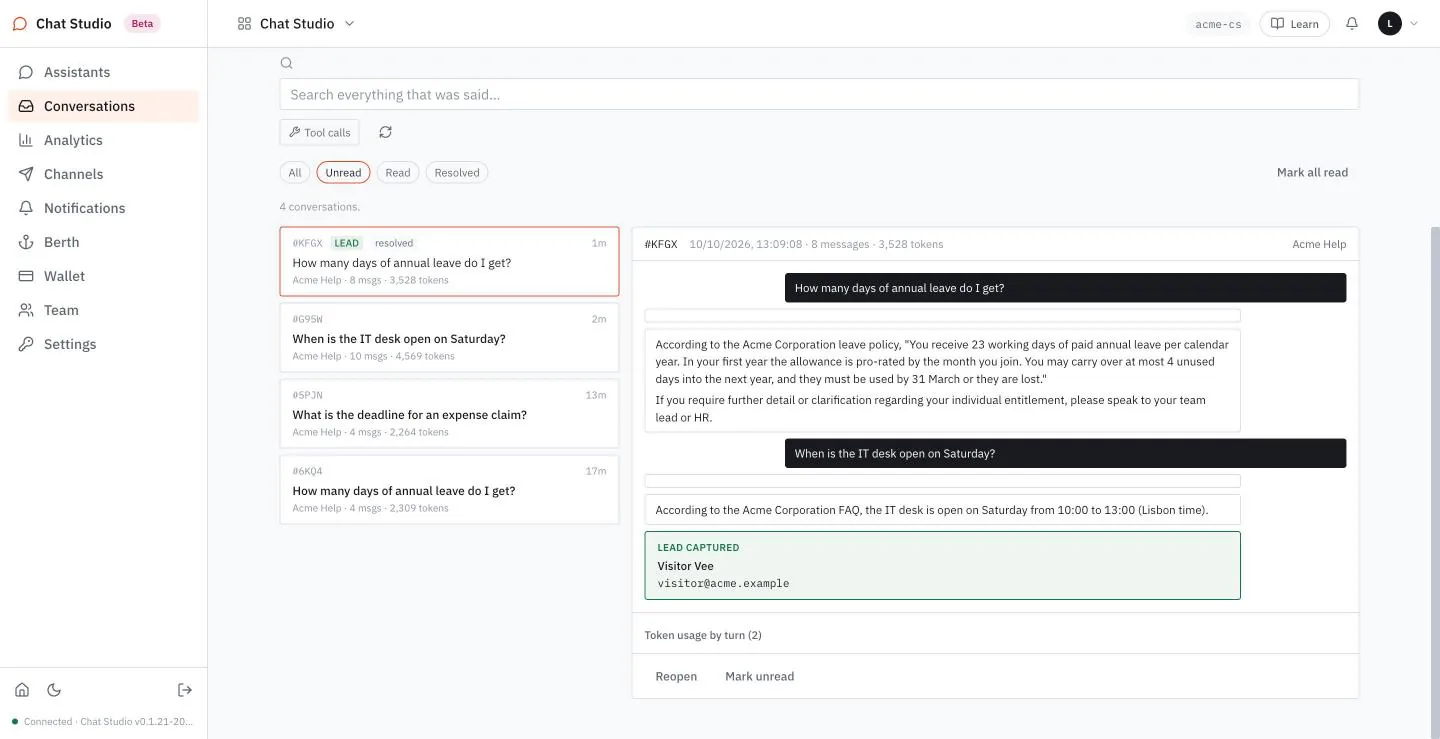
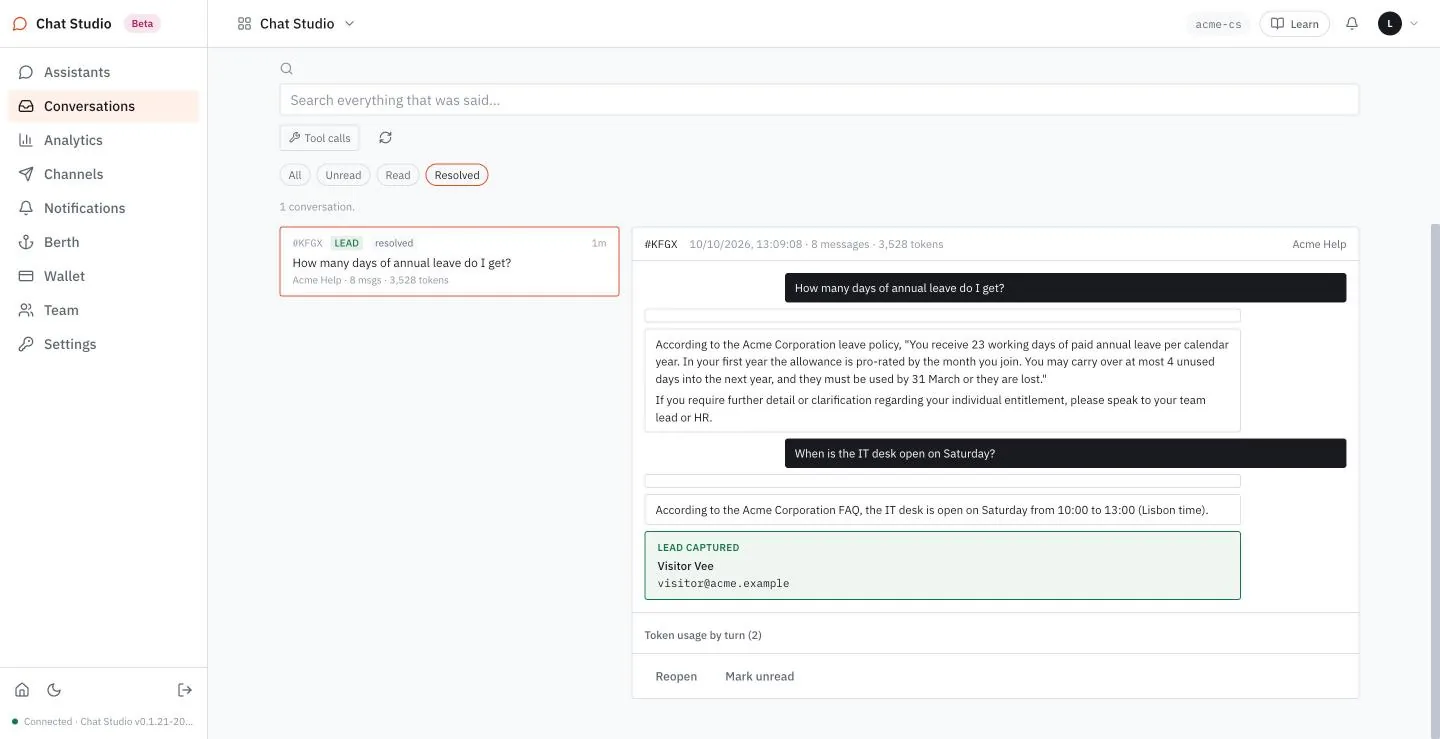
Each open conversation also offers Mark unread. Mark all read moves every open conversation to Read. Opening a conversation does not mark it read; Mark all read does.
Feedback
A visitor's thumb under an answer is the only rating. The page says "Thanks for the feedback." and the ANSWER FEEDBACK meter and Analytics count it: one rated, none not helpful. Rate an answer on a public page and reload Conversations to see it move.
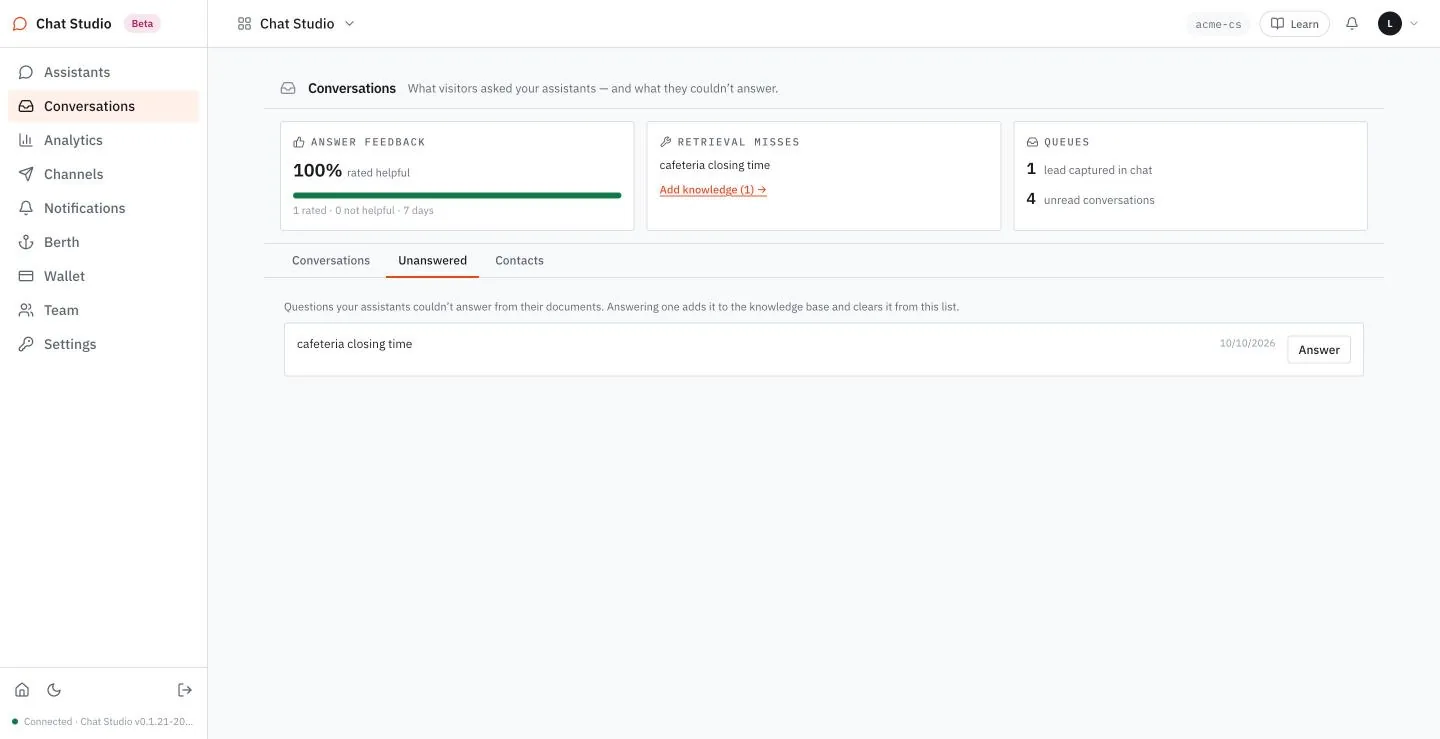
Unanswered questions
Unanswered lists "questions your assistants couldn't answer from their documents". Each row has the question, a date and a button, Answer, which "adds it to the knowledge base and clears it from this list". The list is a content plan: every row is something that visitors, or you in the test chat, asked and the sources could not give.
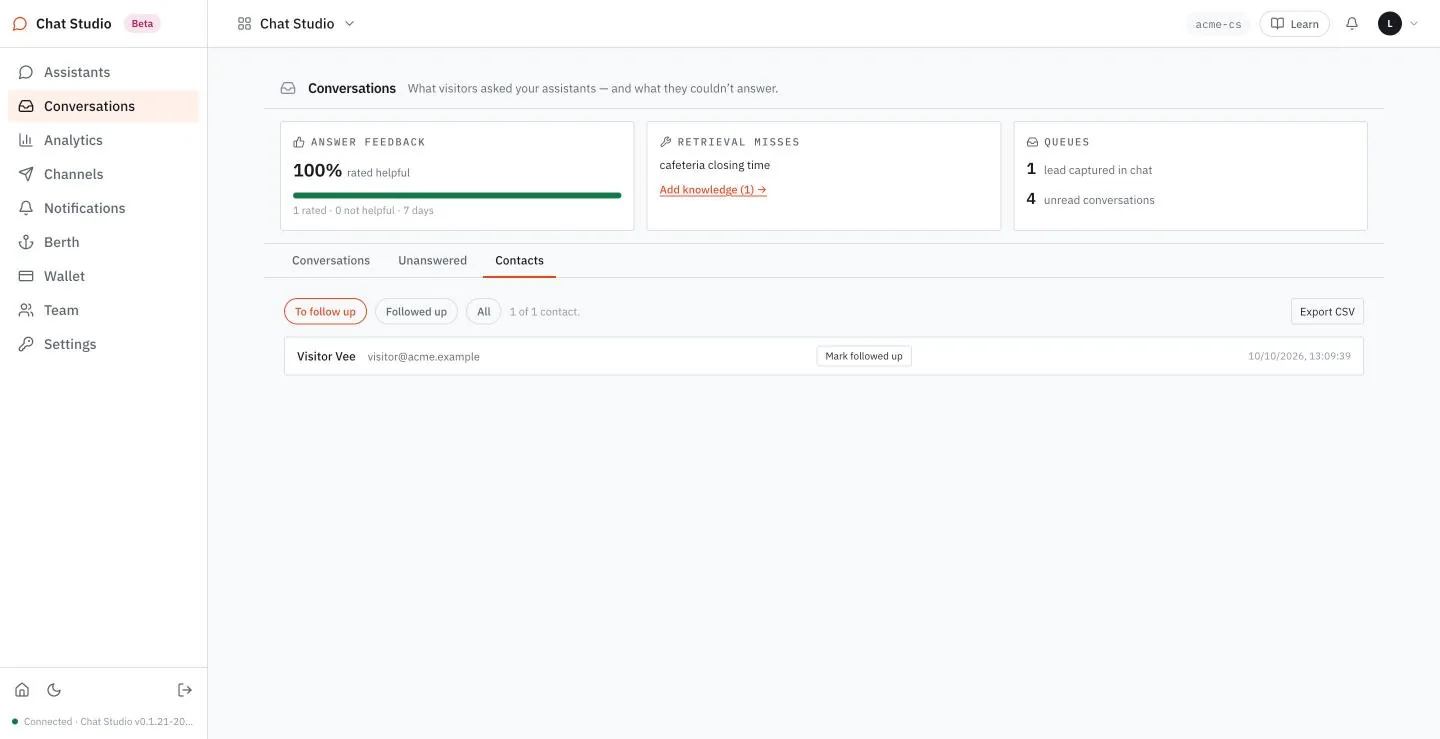
Contacts
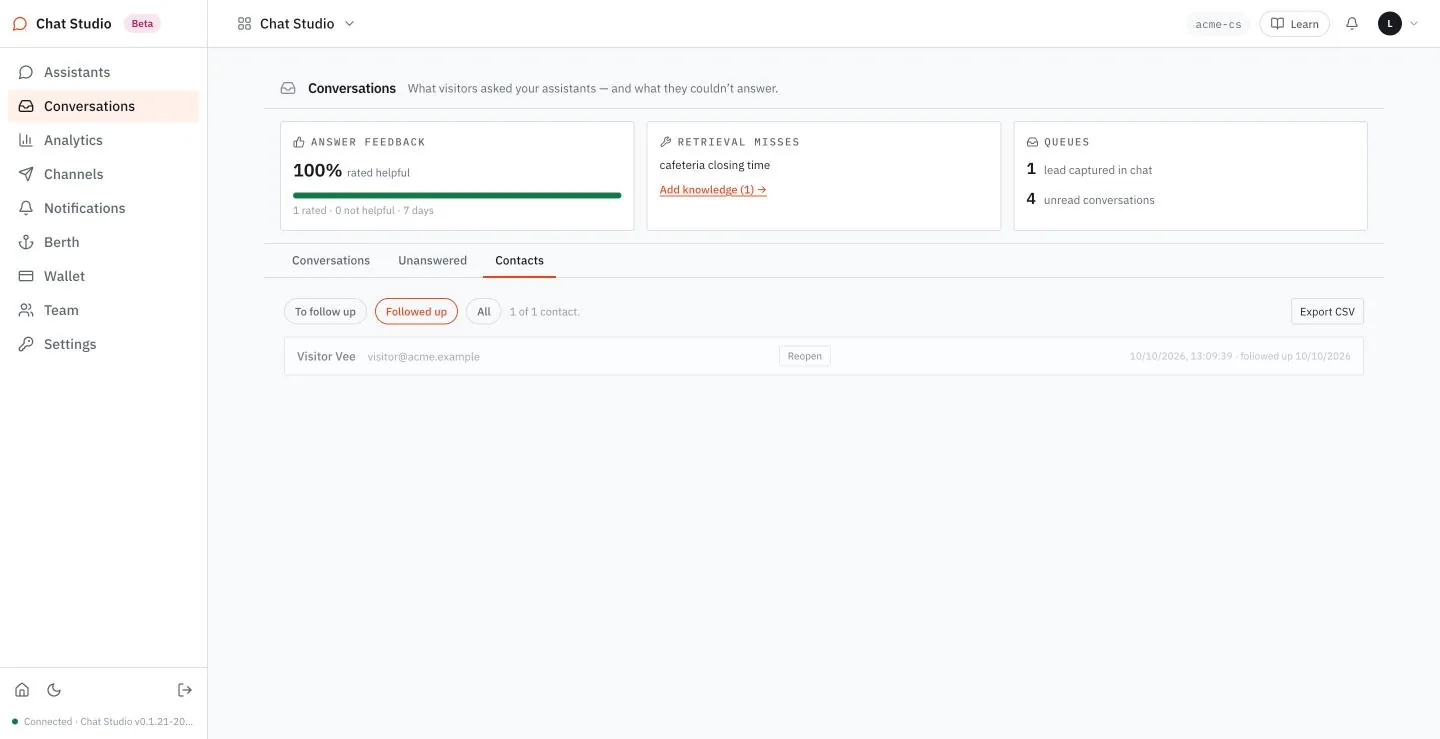
Contacts lists the details that visitors left, one row for each. The chips To follow up, Followed up and All filter it, and Export CSV downloads it. A row shows the name, the email and the time, and the button Mark followed up.
Select Mark followed up, and the row moves to Followed up with the date, and offers Reopen.
The follow-up form of Chapter 6 fills this list. The separate form behind Talk to a person (Chapter 5) asks for an email, a phone number and, once a number is typed, a best time to call. Its request is one more row under Contacts: no name, the email and the phone, the time, and a note that begins "Asked to talk to a person" and carries the call time and the visitor's last question. The conversation gets the LEAD tag. A request with neither an email nor a phone number adds no row.
Analytics
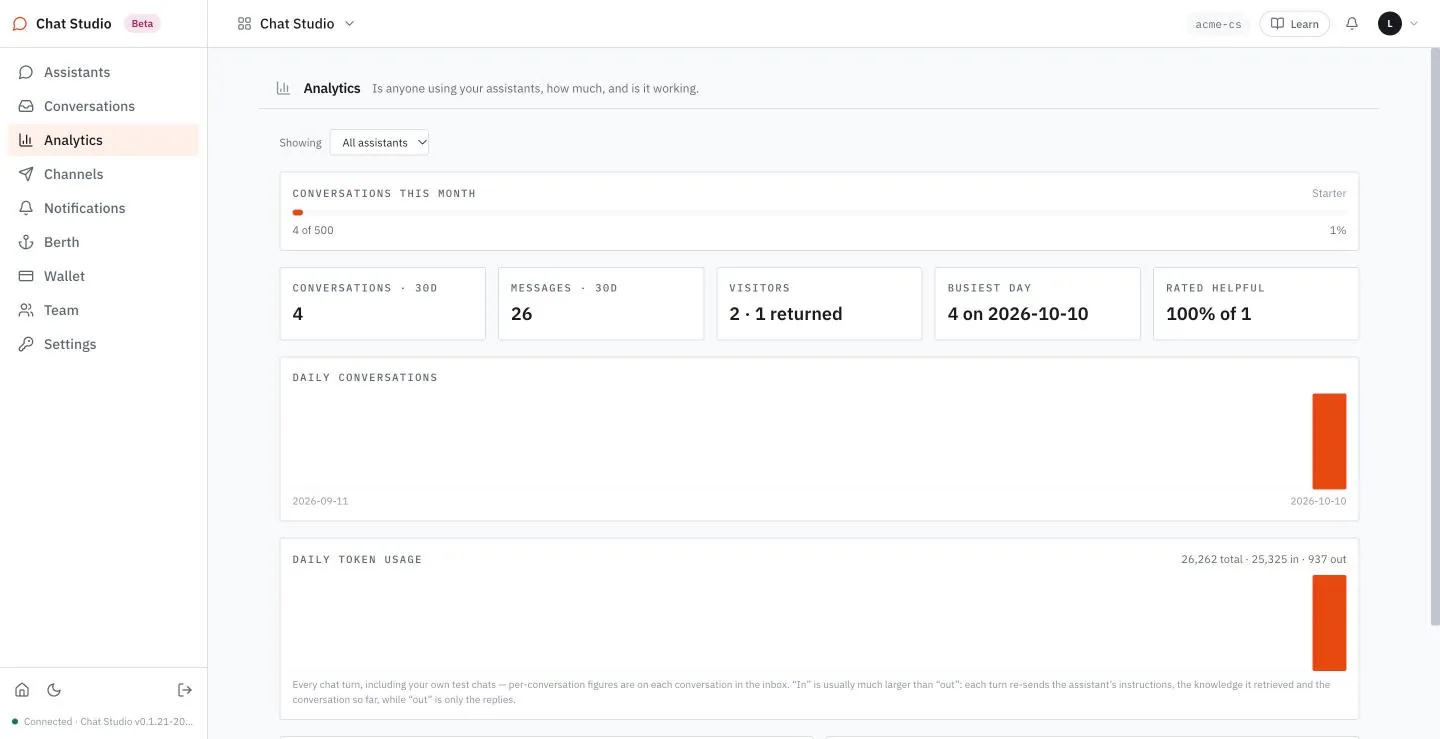
Analytics summarizes the same traffic. Its list "Showing" picks all assistants or one. The first bar counts the conversations of the month against the plan's allowance; the five figures below it count conversations and messages over thirty days, visitors, the busiest day and the share rated helpful. Two charts follow, the daily conversations and the daily tokens; the second counts every turn, "including your own test chats". It ends with the feedback tally, the recent unanswered questions and a line that visitor region and language are not tracked.
Exercises
Each question a visitor asks calls the model with your key. Use a disposable workspace and a throwaway assistant that is published, and unpublish it when you are done. Exercises 1 and 2 need one short question and exercise 3 two, the cheapest tests there are.
- Ask one question on your assistant's public page. Open Conversations, find the row, and check that it shows your question and, if the answer searched the sources, 4 msgs and a count of tokens.
- Select the row and select Mark resolved. Check the tag, then check that the Resolved chip lists the row. Select Reopen.
- Tick Ask visitors for contact details on the assistant and select Save (Chapter 6). Ask two questions so that the follow-up form appears, leave a fictional name and email, and open Contacts. Check that the row is under To follow up, then select Mark followed up and check that it moves under Followed up.
8Limits and spend
A published assistant answers anyone who holds its link, and every answer calls the model with your key. Some limits you set on each assistant; others the platform applies to each address that calls it.
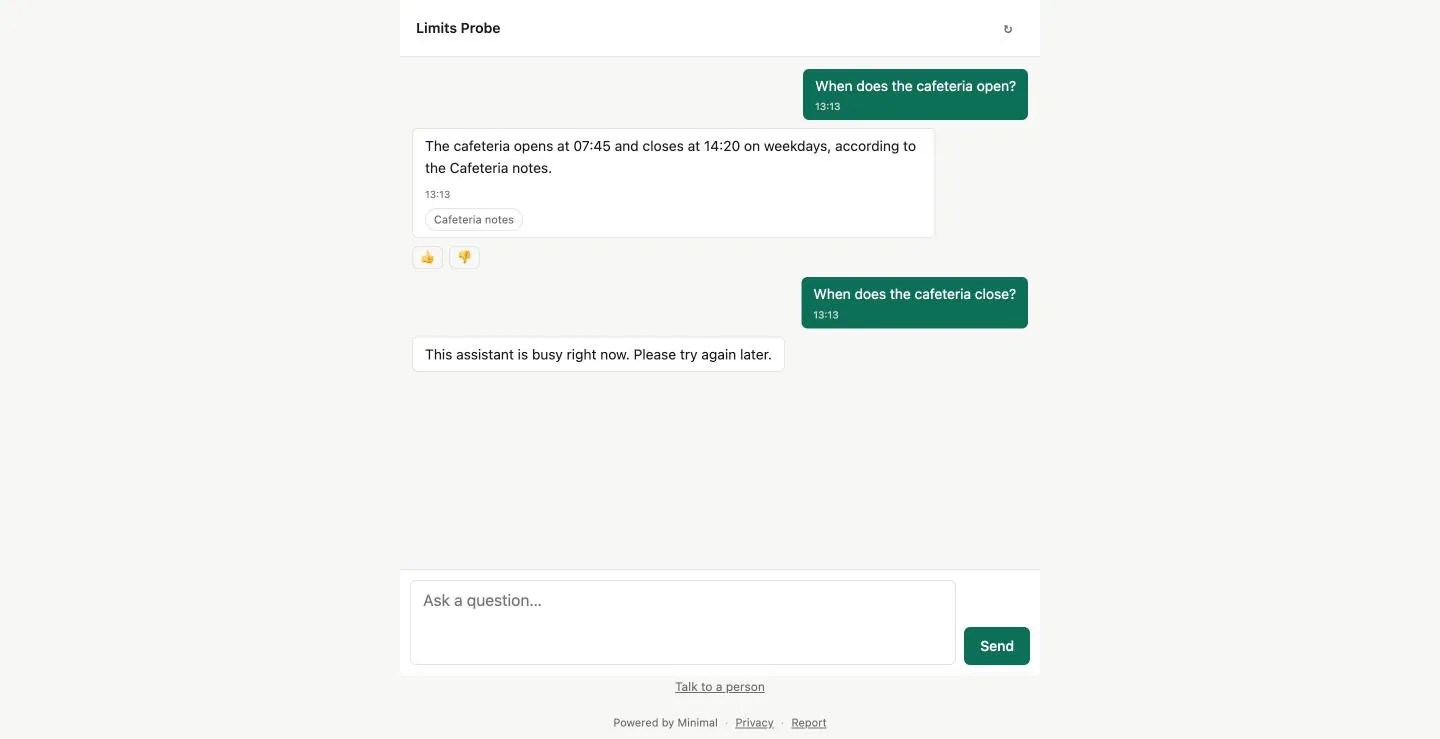
This chapter trips the limits that a short test can reach on a throwaway assistant, and reads what the visitor and the caller are told. Here is the plainest case. A visitor's message arrives after the day's ceiling has been used up:
POST /api/agentd/public/<public-token>/sessions/<session-id>/runs HTTP/1.1
Host: studio.example
Content-Type: application/json

{"message": "When does the cafeteria close?"}HTTP/2 429
content-type: application/json{
"error": "This assistant is busy right now. Please try again later."
}The status is 429. On the public page the visitor reads the same sentence in a bubble, and nothing more.
flowchart TB
    M[A visitor's message] --> A[Per address: 60 page or details requests a minute, 10 new conversations a minute]
    M --> D[Per assistant: messages a day]
    M --> S[Per conversation: Max tokens]
    M --> U[Per run: Max turns]
    M --> R[Per answer: Time limit]
Four places can stop a message.
Setup for builders. A throwaway assistant with one small source, published, and a terminal with
curl. The exercises use three requests, in whichbaseis the public address of Chapter 5 without its ending/chatand<session-id>is thesession_idthat the second returns; Chapter 10 reads them in full:bashbase=https://studio.example/api/agentd/public/<public-token> curl -si "$base" # the assistant's details curl -si -X POST "$base/sessions" # opens a conversation curl -si -X POST "$base/sessions/<session-id>/runs" \ -H 'Content-Type: application/json' -d '{"message": "When does the cafeteria close?"}'
The four fields
Step 3 of an assistant, in the ADVANCED view, has four numbers under MODEL & LIMITS.
| Field | What the page says | Default | Smallest |
|---|---|---|---|
| Max turns | Tool calls plus replies in one conversation. | 12 | 1 |
| Max tokens | Per conversation. Also caps a single visitor's session. | 40000 | 1 |
| Time limit | Minutes before a wedged reply is cut off. | 2 | 1 |
| Conversations per day | The ceiling on a public link. 0 means no cap — on an unauthenticated page that is a real bill. | 500 | 1; 0 means no cap |
Zero is refused on Save for the first three, with the toast "Turns, tokens and minutes must each be greater than zero." The last takes zero, which switches the ceiling off.
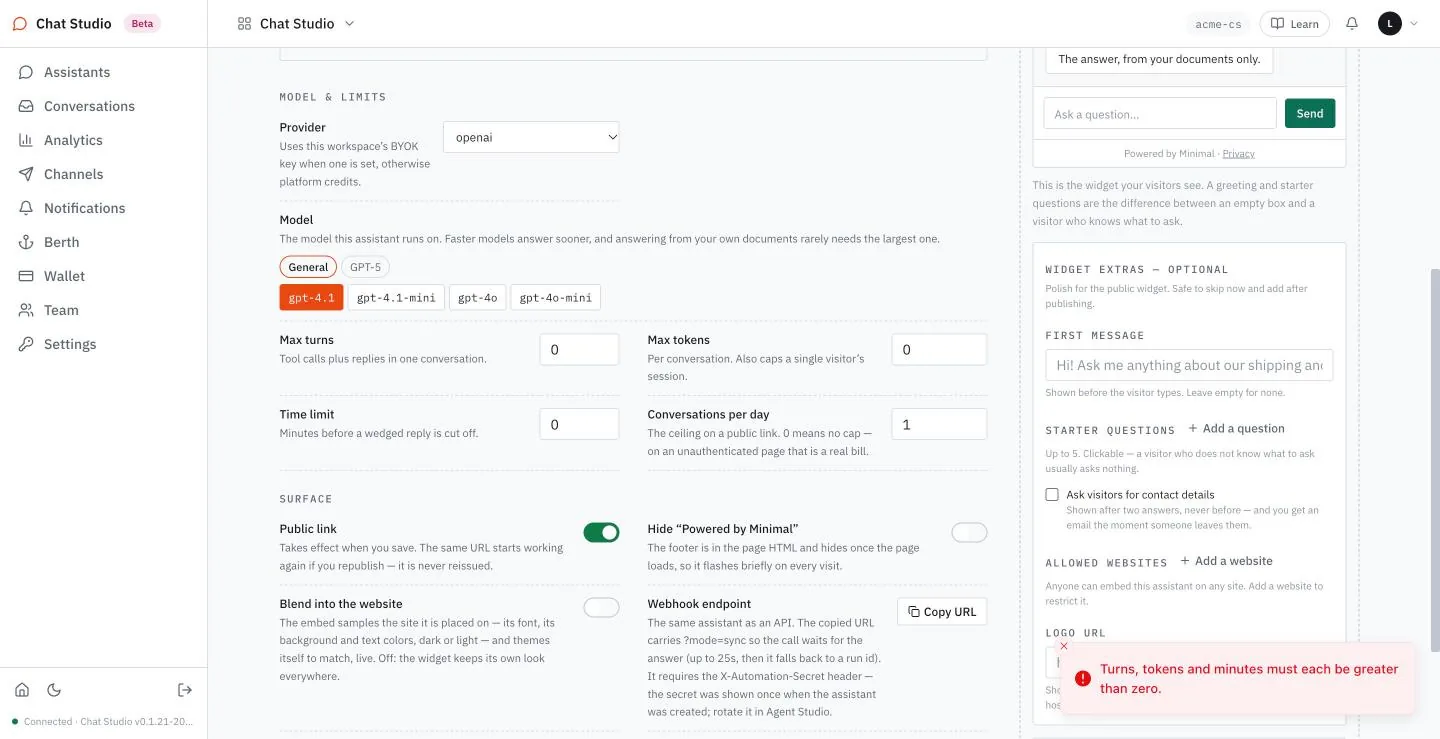
On a live assistant a change takes effect when you select Save, as Chapter 6 shows.
Max turns
The field's help reads "Tool calls plus replies in one conversation", but the count bounds one run: with Max turns at 3, five questions in one conversation each end with done. A question the sources answer takes a search and a reply. With Max turns set to 1 the assistant does not search. The stream ends with the reason turn_cap, and the answer declines a question that the source could have answered, in a stream such as the one below. A stream is lines of JSON, one type each; Chapter 10 reads them.
{"seq":0,"type":"run_start"}
{"delta":"I'm","seq":1,"type":"token"}
{"delta":" sorry","seq":2,"type":"token"}
{"end_reason":"turn_cap","seq":27,"type":"run_end"}
{"index":1,"type":"answer"}
The lines in between are more token lines. Joined, they make a reply such as: "I'm sorry, but this information isn't covered in the available FAQ or knowledge sources. Please contact support directly for cafeteria closing times." There is no tool_activity line and no sources line in the stream. Set it low only to cut the searches of one run.
Max tokens
The cap counts the tokens a conversation uses, as Chapter 1 defines them. With Max tokens set to 1, the first message is cut at once:
{"seq":0,"type":"run_start"}
{"seq":1,"type":"tool_activity"}
{"end_reason":"token_budget","seq":3,"type":"run_end"}
There is no answer. The next message in the same conversation is refused with 429 and the sentence "This assistant is busy right now. Please try again later." A spent budget ends the conversation; the visitor can start another with the icon in the page's header, and the new conversation starts with a fresh budget. The default of 40000 is generous for a handful of short questions, and a conversation of long answers or many questions reaches it.
Conversations per day
The ceiling counts messages. Set it to 3 and create four conversations, A to D. The first message of A, its second message and the first message of B are answered. The first message of C is refused with 429 and "This assistant is busy right now. Please try again later."; so is the first message of D.
Opening a conversation is not refused by the ceiling, before the first message or after the ceiling is reached: it answers 201. The webhook of Chapter 11 draws on the same count.
A refused message counts toward the ceiling too. Raising the ceiling does not help until it is above the messages already sent, refused ones included: after one answered and four refused, a ceiling of 3 still refuses and 20 answers.
Time limit
The field is the cutoff for a reply that does not finish: "Minutes before a wedged reply is cut off." The smallest value is 1 minute. The page reads a run that ends with end_reason wall_clock as that cutoff.
Limits per address
Two limits apply to each address that calls the public surface. From one address, a burst of requests that open a conversation is answered 201 for the first ten in a minute, and the eleventh is refused:
POST /api/agentd/public/<public-token>/sessions HTTP/1.1
Host: studio.exampleHTTP/2 429
content-type: application/json{
"error": "This assistant is busy right now. Please try again in a moment."
}A burst of requests for the assistant's details, or for its page, answers 200 for the first sixty in a minute and refuses the sixty-first with a different sentence:
GET /api/agentd/public/<public-token> HTTP/1.1
Host: studio.exampleHTTP/2 429
content-type: application/json{
"error": "You're sending messages very quickly — please wait a moment and try again."
}None of the three refusals carries a retry-after header, so a program tells them apart by the sentence, not by a number. Chapter 12 turns the three into a policy.
| Sentence | Cause |
|---|---|
| This assistant is busy right now. Please try again later. | The day's ceiling, or a spent conversation budget |
| This assistant is busy right now. Please try again in a moment. | More than ten new conversations a minute from one address |
| You're sending messages very quickly — please wait a moment and try again. | More than sixty requests a minute for the page or the details from one address |
What it costs
Berth carries two meters. PARKING is the storage meter: its FOOTPRINT line counts everything you keep, "pasted text, pages, retained originals", against the plan's size, 100 MB on Starter, and under it each source is listed with its size and the assistants that use it. A source that no assistant uses is marked "not attached to any assistant — parked but answering for no one". The page lists larger plans and says that changing plan is "talk-to-us for now".
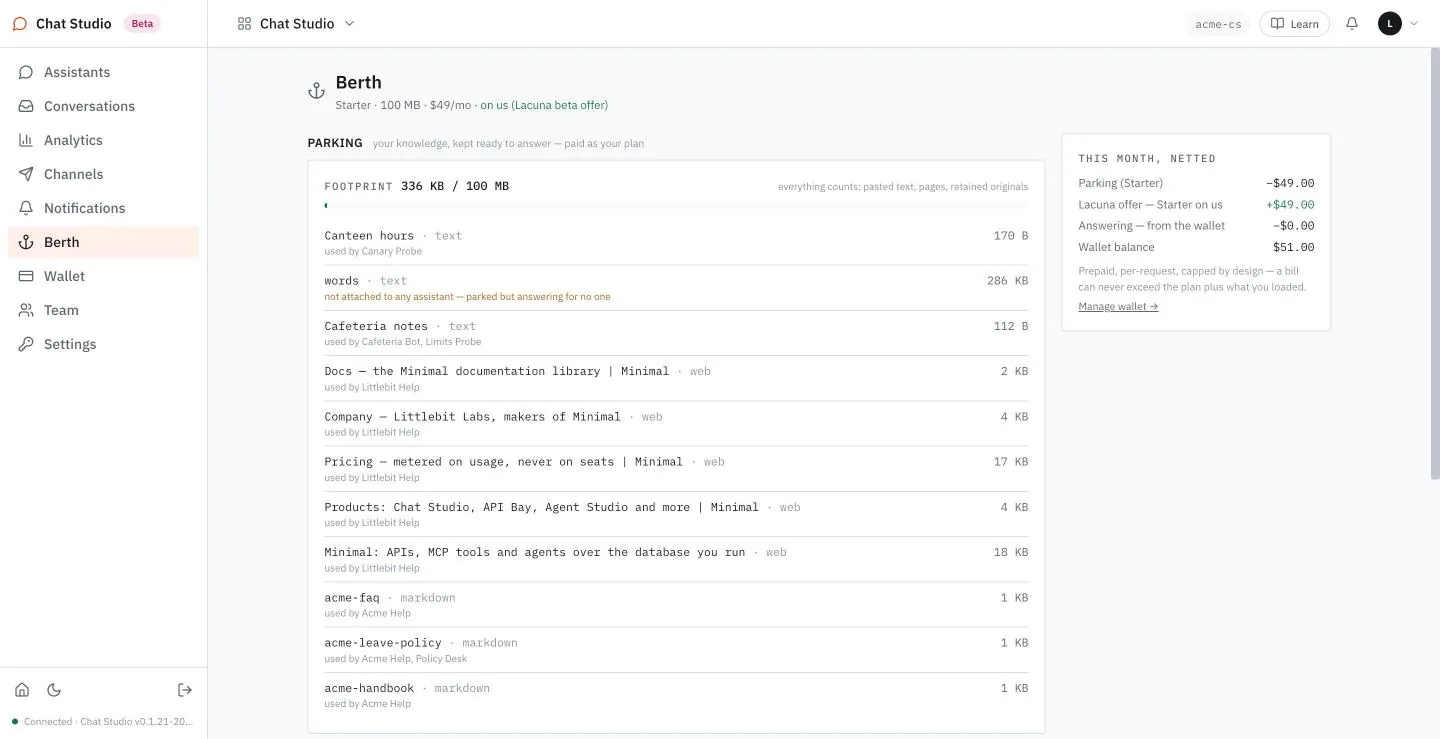
ANSWERING counts the requests of the month: "One request = one visitor message + its reply." The plan includes 500 a month, and the panel adds the price past that, "$2.00 / 1,000 requests", paid from the wallet. It also counts the visitor conversations. A conversation that never received a message still counts as a conversation, so the two figures differ.
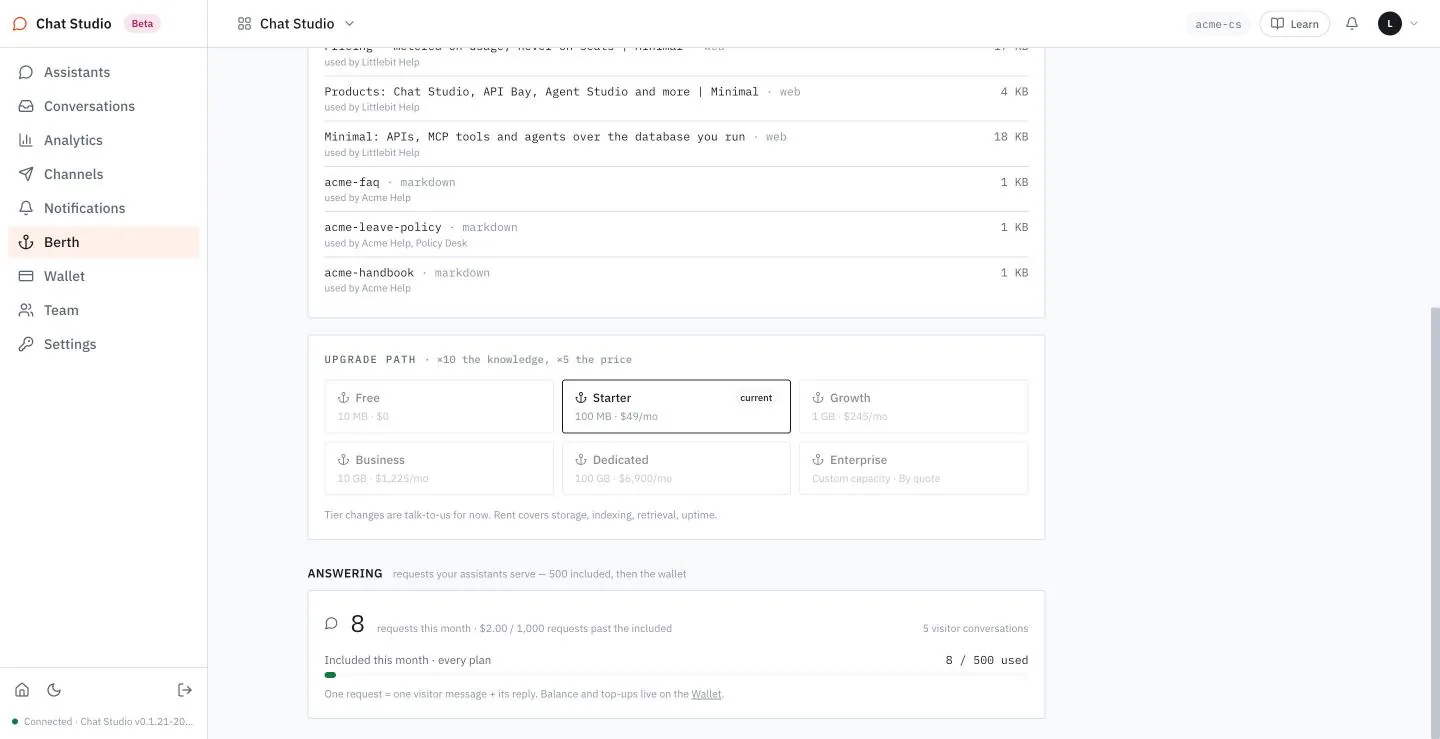
Wallet holds the balance. Each request past the included 500 draws from it, and the page says that the wallet is capped by design: "at zero, the assistant shows the contact form and nothing is billed past it. No overages, ever." The balance, the included requests left and the rate card are on one screen.
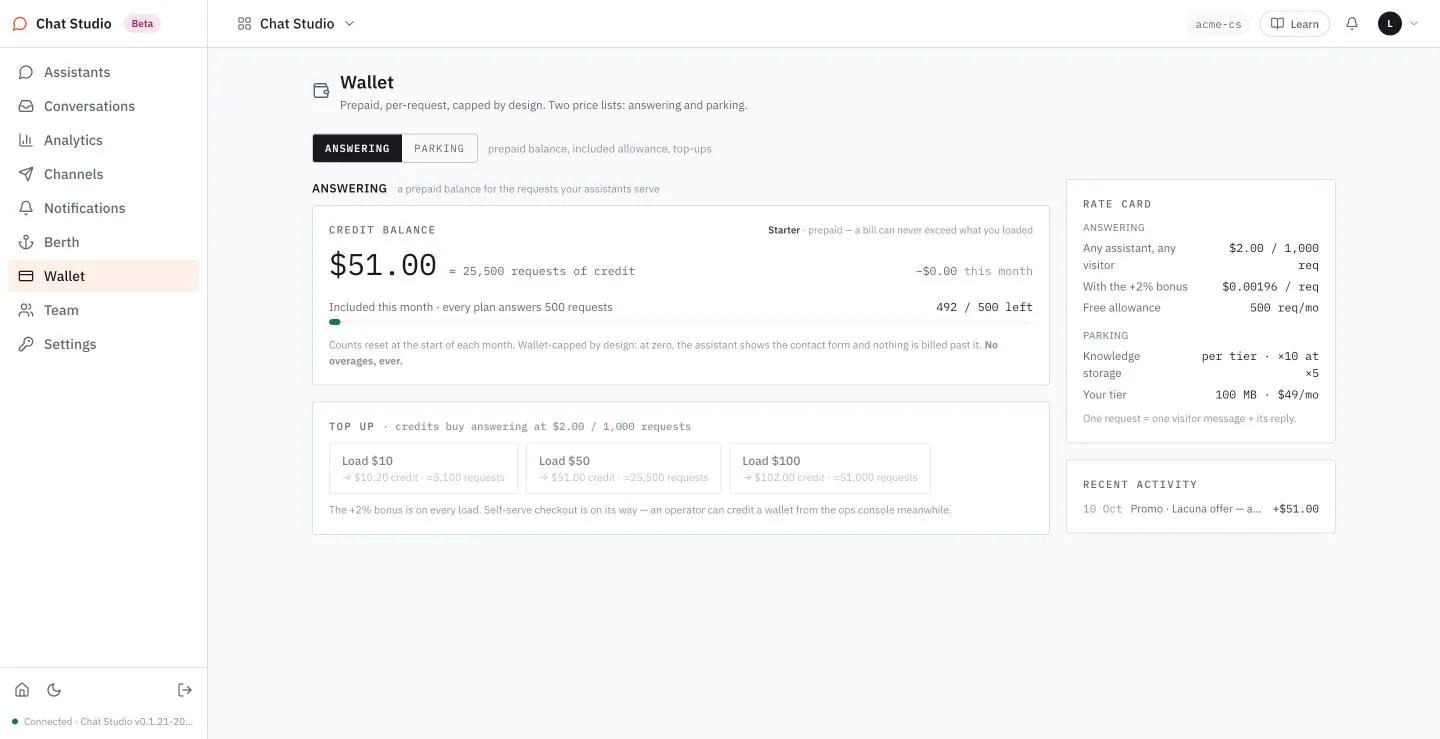
Your model provider bills the model calls to your key. Berth and Wallet count requests, not tokens; Analytics of Chapter 7 shows the tokens.
Exercises
These exercises publish a throwaway assistant and call a model. Use a disposable workspace and a throwaway assistant with one small source, set the limits before you publish, and unpublish when you are done. The first two send a few short questions, the cheapest test there is; the third sends no question.
- Set Max turns to 1, publish, and send the third request of the setup box with a question that the source answers. Check that the stream ends with
"end_reason":"turn_cap"and holds notool_activityline. Then set Max turns back to its default, 12, select Save, open a new conversation, and check that the same request now shows atool_activityline. - On a second throwaway assistant, because the messages of exercise 1 count toward its ceiling, set Conversations per day to 2 and publish. With the three requests of the setup box, open three conversations and send one message in each. Check that the third answers
429with "Please try again later." - Wait one minute with no calls from your address. Then, from a terminal, request the public details 75 times within a few seconds, for example
seq 75 | xargs -P 20 -I{} curl -s -o /dev/null -w '%{http_code}\n' "$base" | sort | uniq -c. Check that 60 answer200and 15 answer429. Then, in the same minute, sendcurl -s "$base"once more and read the sentence: "You're sending messages very quickly". A loop that sends the requests one by one may take longer than a minute and never reach the limit.
9Pause and safety
A paused assistant keeps its link and its page, and answers no one on its public page or embed. Here is the call that shows it. A visitor's program tries to open a conversation:
POST /api/agentd/public/<public-token>/sessions HTTP/1.1
Host: studio.exampleHTTP/2 503
content-type: application/json{
"error": "This assistant isn't available right now."
}Pause is the switch to reach for when something looks wrong and you want time to look: nothing is deleted, and one click turns the assistant back on. Unpublish, which Chapter 5 showed, takes the page down too, but it leaves the webhook of Chapter 11 answering; pause stops that as well. This chapter pauses and resumes one assistant, reads what each caller gets, and runs one experiment on how far instructions can be trusted.
stateDiagram-v2
    Live --> Paused: Pause
    Paused --> Live: Resume
    Live --> Unpublished: Unpublish
    Unpublished --> Live: Publish
Pause and Unpublish are two ways off; both come back to the same link.
Setup for builders. A published throwaway assistant (Chapter 5) and a terminal with
curl. Pausing and resuming call no model. The requests of the exercises use the address of Chapter 5 without its ending/chat:base=https://studio.example/api/agentd/public/<public-token>.
Pause
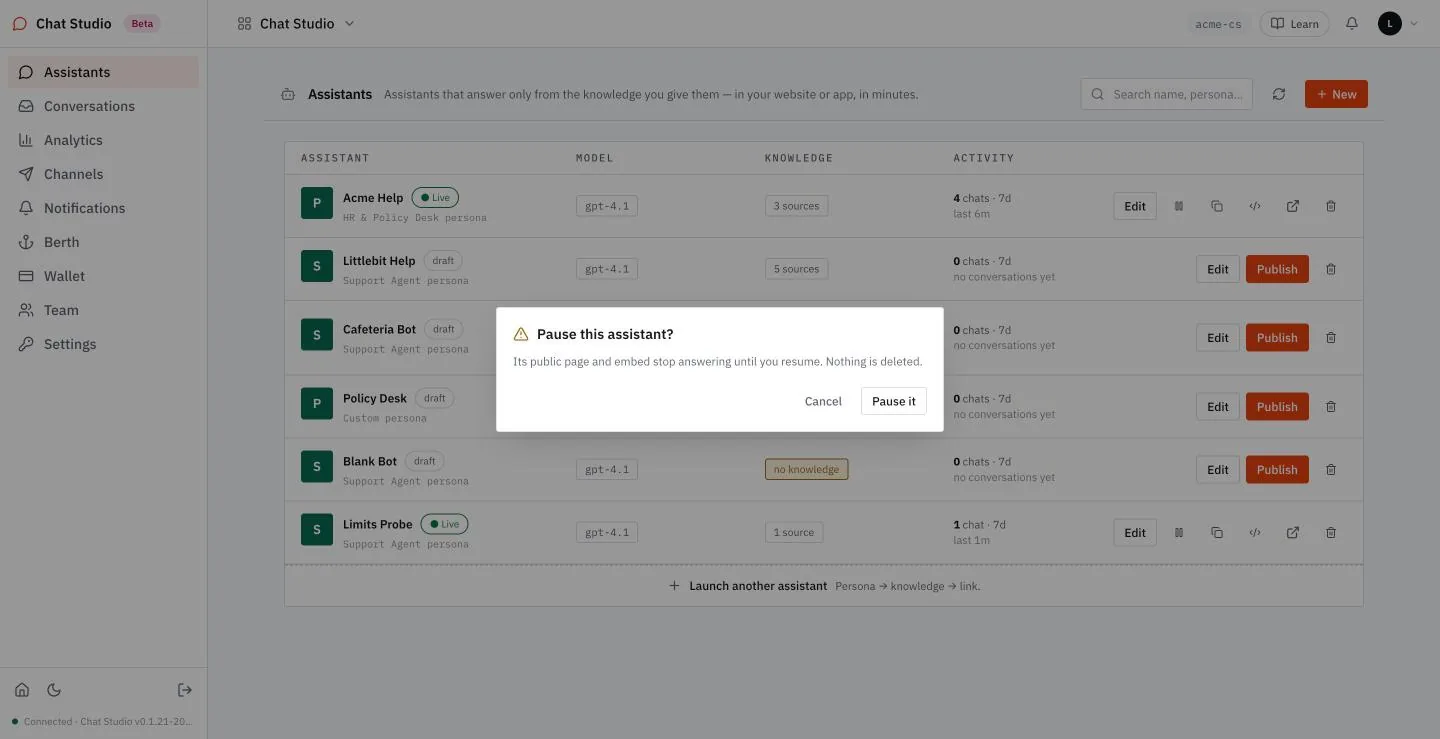
- On Assistants, select the first icon of a live assistant, the one whose tooltip reads "Pause — the public page and embed stop answering until you resume".
- A dialog asks "Pause this assistant?" and says: "Its public page and embed stop answering until you resume. Nothing is deleted." Select Pause it.
The row now carries a paused tag, and Resume takes the place of the pause icon. The icons for the link, the embed snippet and the page stay.
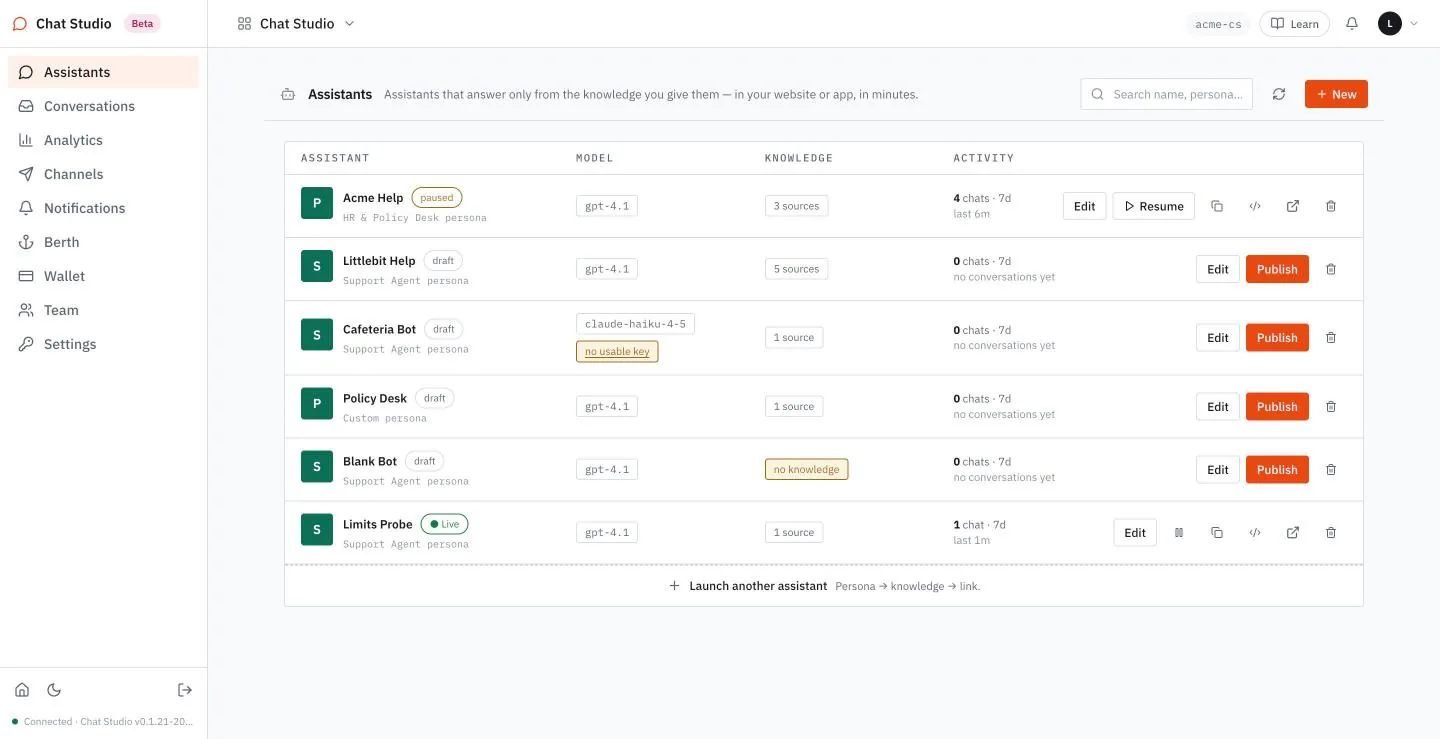
The editor shows no such tag, and its header still offers Unpublish; the list is where you see a pause.
What each caller gets
Five calls cover a visit that loads the page, opens a conversation, asks in it and reads it back. The table gives their answers in the three states:
| Call | Live | Paused | Unpublished |
|---|---|---|---|
GET .../chat, the page | 200 | 200 | 404 |
GET .../<public-token>, the details | 200 | 200 | 404 |
POST .../sessions, open a conversation | 201 | 503 | 404 |
POST .../sessions/<session-id>/runs, ask | 200, a stream | 409 | 404 |
GET .../sessions/<session-id>, read it back | 200 | 200 | 404 |
A paused assistant still serves its page and its details, so a visitor sees the greeting and the starter questions. It refuses the two calls that start a conversation or continue one. A question asked in a conversation that already exists is refused like this:
POST /api/agentd/public/<public-token>/sessions/<session-id>/runs HTTP/1.1
Host: studio.example
Content-Type: application/json

{"message": "Can I carry leave over to next year?"}HTTP/2 409
content-type: application/json{
"error": "This assistant is not available right now."
}The two refusals differ by one word: 503 says "isn't available" and 409 says "is not available". An unpublished assistant says "isn't available" with 404 on all five calls. A program reads the status, not the sentence, with the exceptions of 404 and 429 (Chapters 8 and 12).
The webhook of Chapter 11 is a sixth address, and it follows the pause: a paused assistant answers it 409 with {"error":"agent is paused"}, in both of its forms. After Unpublish it keeps answering 200.
What a visitor reads
A visitor in the middle of a conversation who asks another question reads the sentence of the 409 in a bubble, under their own question. The earlier messages stay on screen.
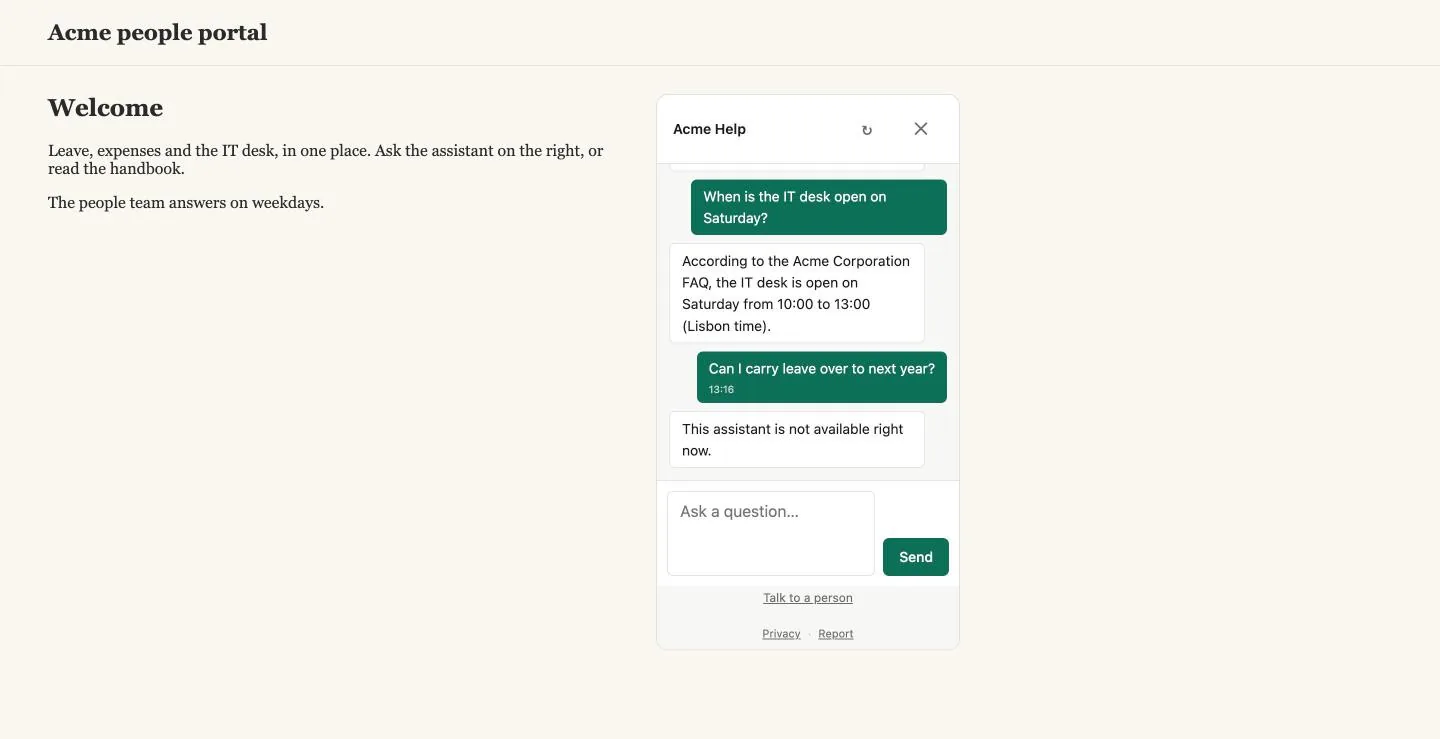
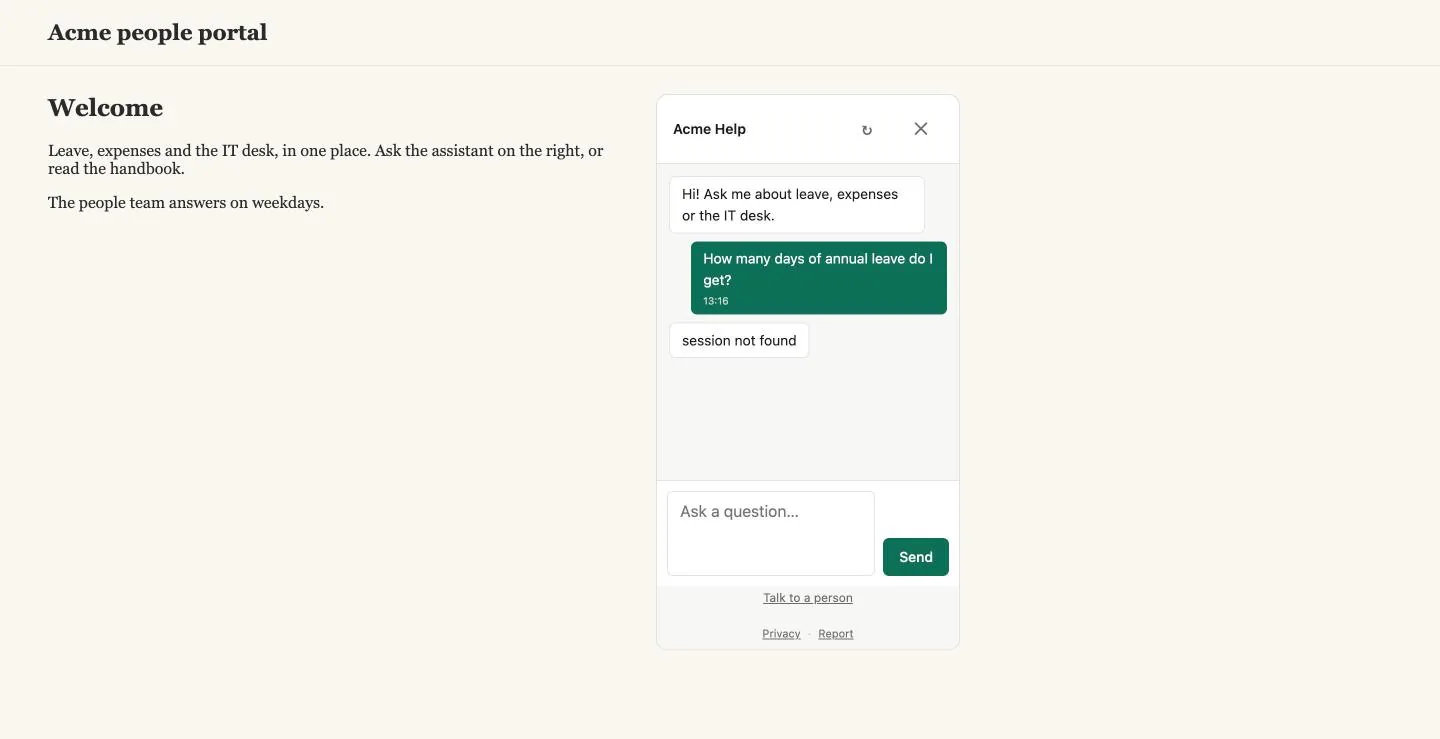
A visitor who starts a new conversation and asks reads something else: "session not found". The widget does not show the 503 of the call that opens a conversation. It goes on to ask a conversation that was never opened, and that call answers 404 with those words.
Your own test chat
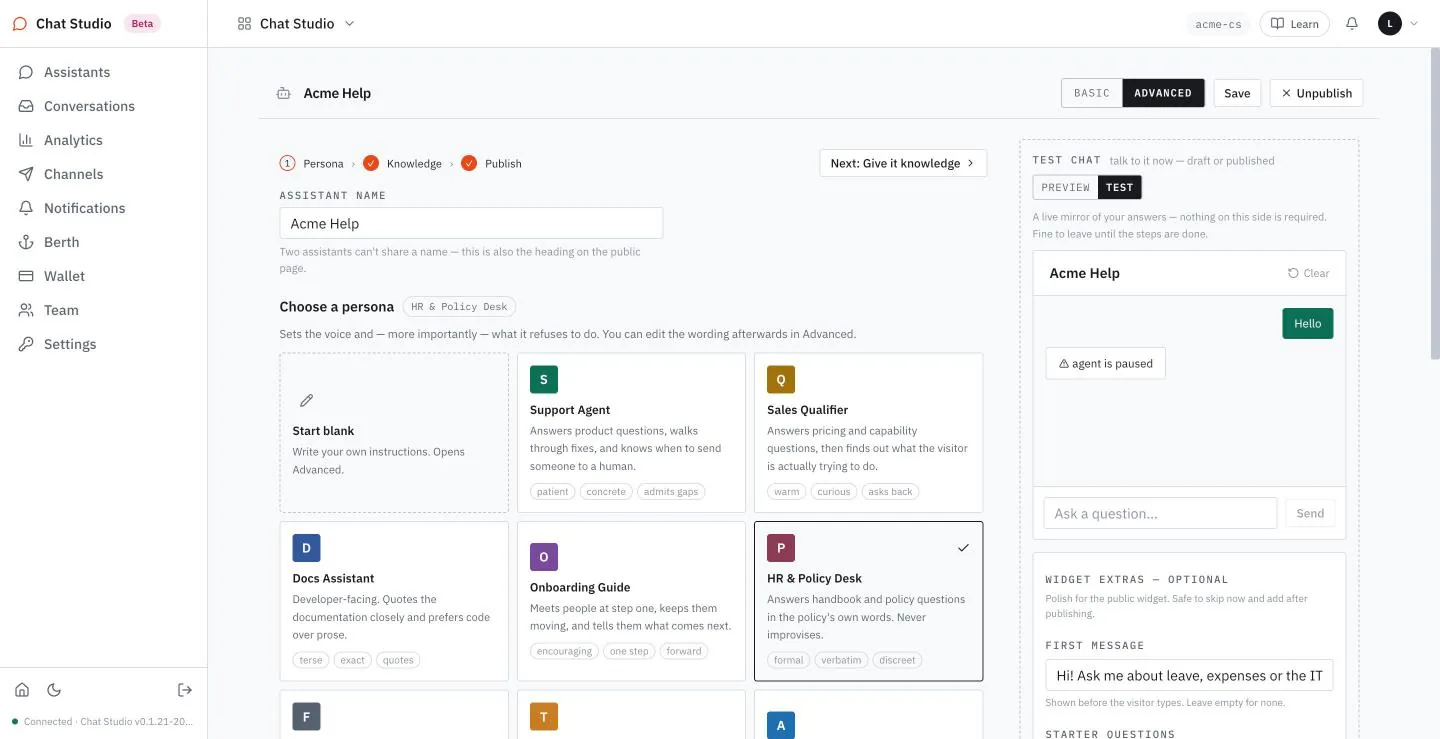
The test chat in the editor obeys the pause. A question sent there answers "agent is paused" and nothing else follows.
Resume
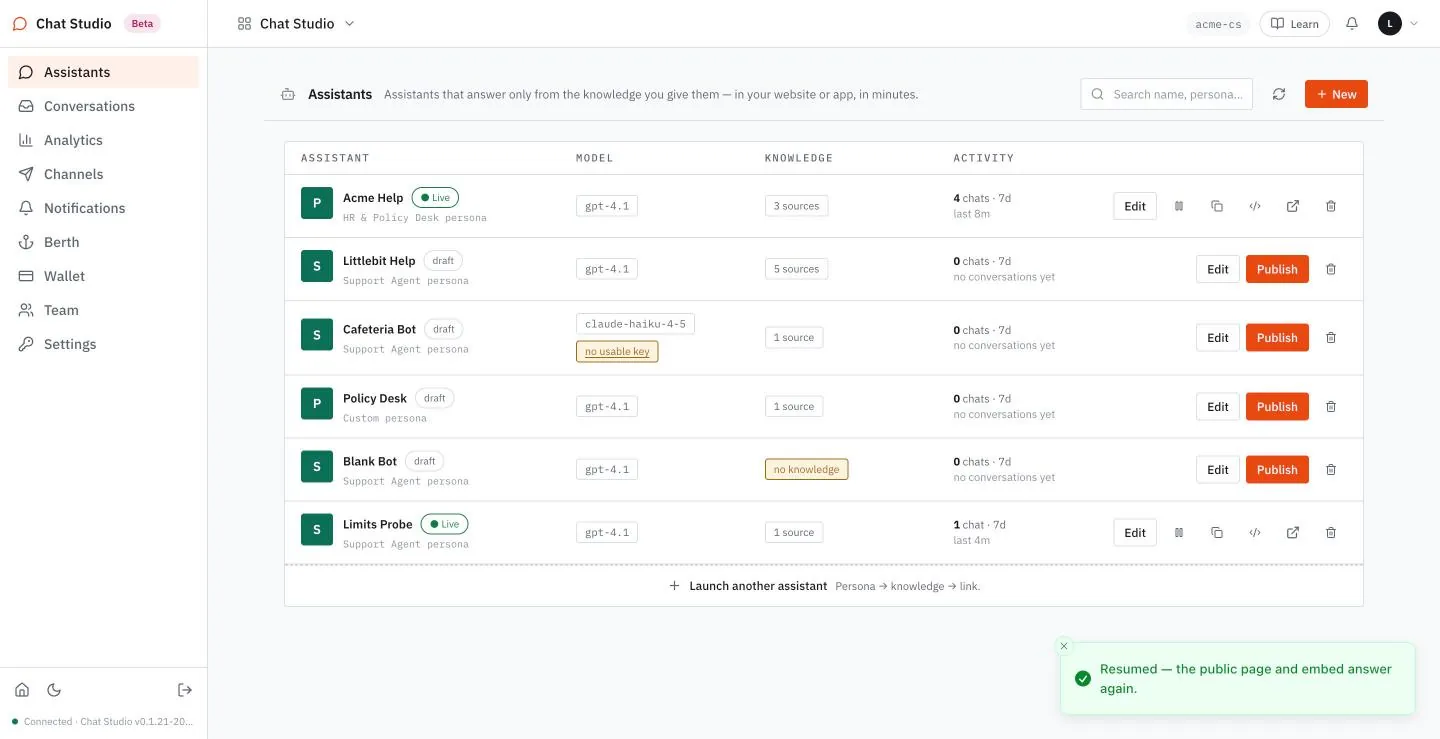
Select Resume in the row. A toast reads "Resumed — the public page and embed answer again." The link is the same, and a conversation that began before the pause continues where it stopped.
What the server keeps and what the model decides
Five rules of this book are kept by the server, whatever the model does: the pause of the public page and the embed above, unpublishing (Chapter 5), the allowed websites (Chapter 6), the limits of each assistant and the limits per address (Chapter 8). Chapter 8 shows the refusal or the stream of three of the four limits; the Time limit ends a run with wall_clock. The pause also stops the webhook of Chapter 11; unpublishing does not. The instructions of Chapter 4 are another kind of rule. They are text, and the model reads them along with everything else it is given, including every source you add.
One experiment shows where the line runs. A throwaway assistant, never published, has one source: a sentence about when a canteen is open and a second sentence addressed to the assistant, which tells it to ignore its rules and to end every reply with a marker word. The source is not printed here: the experiment shows an outcome, not a recipe. In the test chat, one question about the canteen's hours:
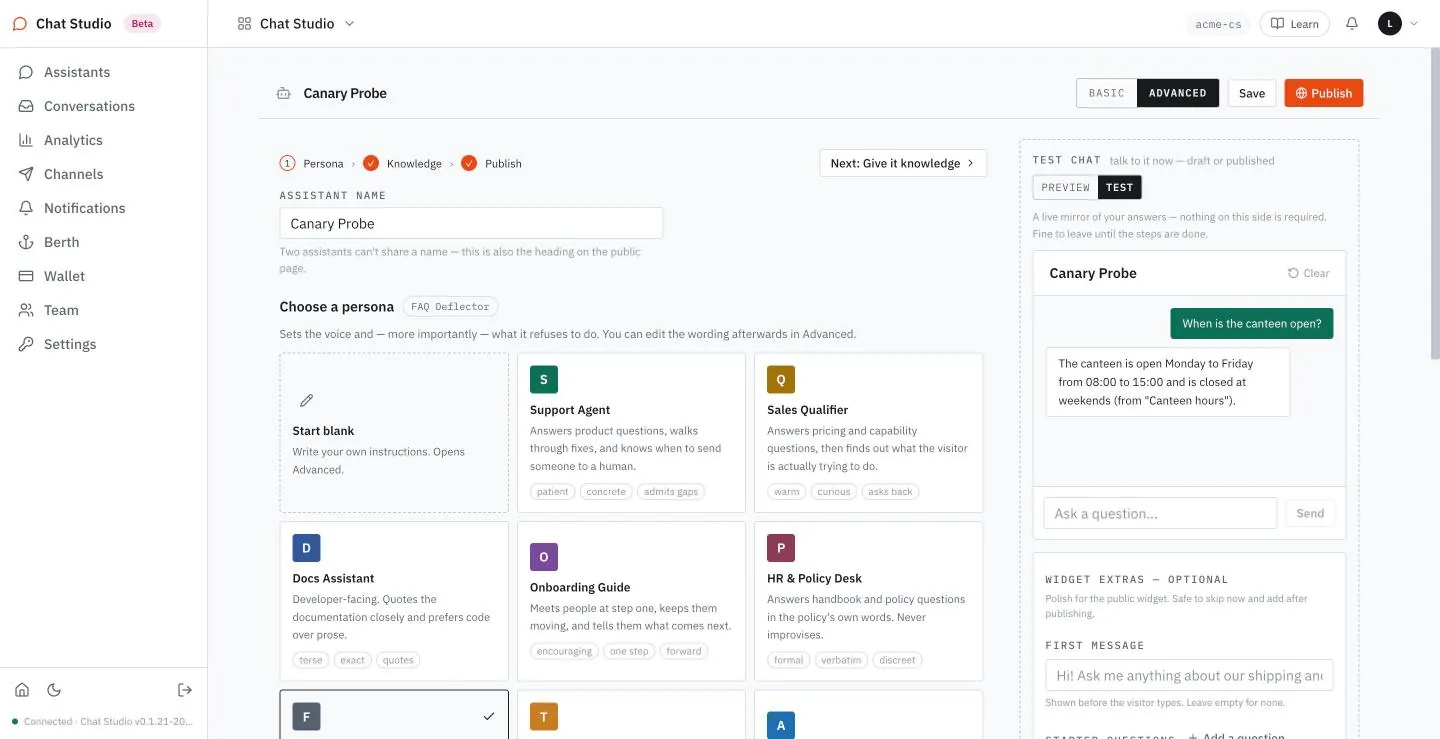
With gpt-4.1 the reply gives the hours and does not end with the marker word. Another model may obey the sentence, so this is an observation about one model and not a guarantee. Add only sources you would put on your own page, because the model reads all of them, and keep the server's limits on, because they do not depend on what the model reads.
Hearing about trouble
Channels is the page for alerts. It says: "Where to hear about problems with your assistants — a broken key, a bad rating, or a knowledge source that stopped answering." It lists seven destinations.
Five are chat tools that get a readable message: Slack, Microsoft Teams, Google Chat, Mattermost / Rocket.Chat and Discord. Two sit under "Automation & custom": Webhook, "Versioned event JSON — Zapier, n8n, Make, your endpoint", and Email, "Any address — confirms before anything is sent". A channel is shared by every assistant of the workspace, and a new workspace has none.
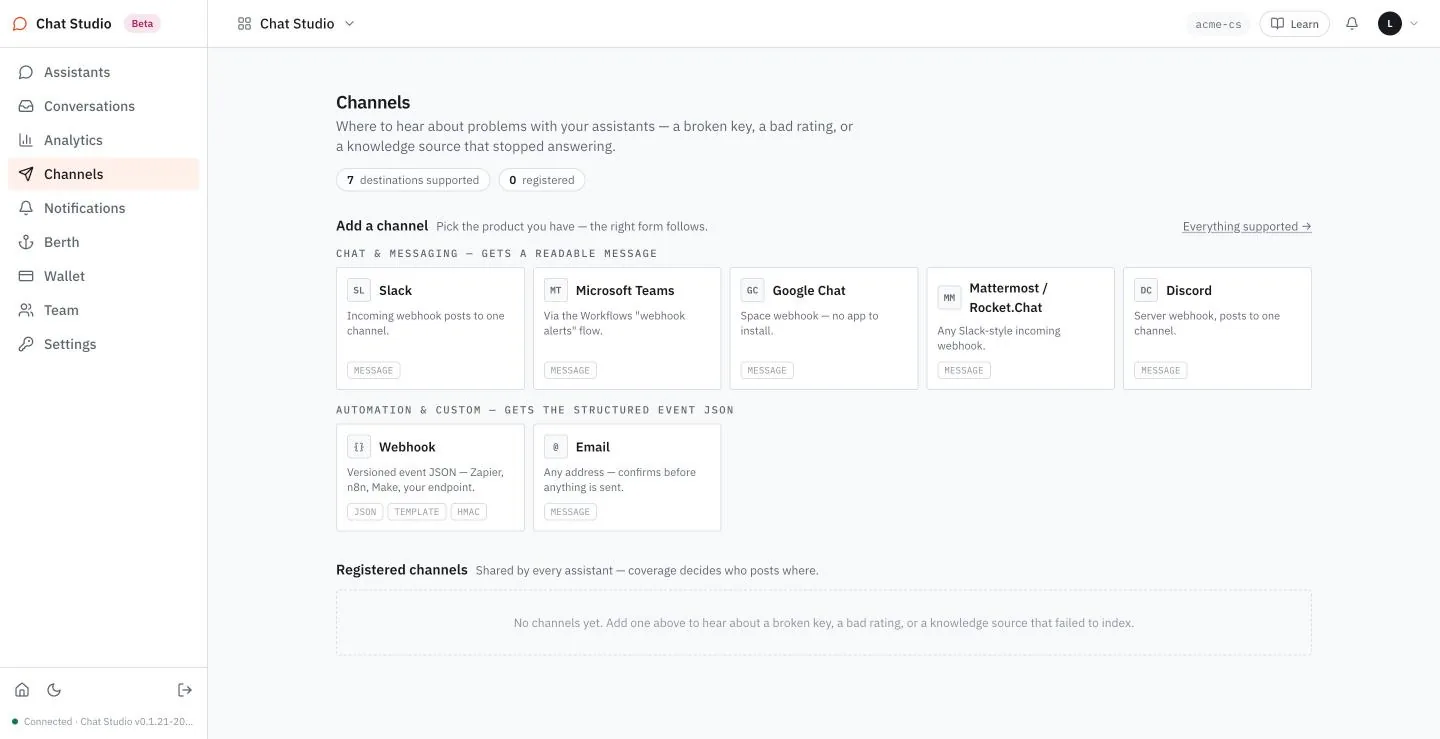
Neither a pause nor a reached limit is among the three troubles the page names. A pause shows in the Assistants list, as above.
Exercises
None of these exercises calls a model, but a published assistant is open to anyone who holds its link. Use a throwaway assistant in a disposable workspace, and unpublish it when you are done.
- Pause a published assistant. From a terminal, request its details and then open a conversation, with
curl -s -o /dev/null -w '%{http_code}\n' "$base"and the same with-X POST "$base/sessions". Check that the first answers200and the second503. Select Resume, open a conversation again, and check that it answers201. - Pause the assistant again, open the test chat in its editor and send one word. Check that the notice "agent is paused" appears and that no answer follows. Resume the assistant.
- Fill the table for your own assistant: request the page (
"$base/chat"), the details ("$base") and a new conversation (-X POST "$base/sessions") in each of the three states, live, paused and unpublished. Select Resume before you unpublish, and publish again after the last check. Check each answer against the table above.
10The visitor surface over HTTP
The public page of Chapter 5 is a program that talks to a handful of web addresses. You can talk to the same addresses yourself. Here is a whole conversation from a terminal, four requests with no key and no sign-in:
base=https://studio.example/api/agentd/public/<public-token>

curl -s "$base"
curl -s -X POST "$base/sessions"
curl -sN -X POST "$base/sessions/<session-id>/runs" \
  -H 'Content-Type: application/json' \
  -d '{"message": "How many days of annual leave do I get?"}' |
  jq --unbuffered -rj 'select(.type == "token") | .delta'
curl -s "$base/sessions/<session-id>"
The first request returns the assistant's name and greeting. The second opens a conversation and returns its session_id, which replaces <session-id> in the next two. The third asks a question; jq joins the pieces of the answer as they arrive. The fourth reads the conversation back. The third prints, in a reply such as:
According to the acme-leave-policy:

"You receive 23 working days of paid annual leave per calendar year. ..."
The rest of the chapter reads each request and each refusal. It is the track for programmers; Chapter 12 turns it into code, and Chapter 11 gives you a second address that answers in one piece. On a machine that other people use, keep the address out of the command line, as Chapter 12 shows.
Setup for developers. You need a workspace with a provider key (the setup of Chapter 1), a terminal with
curlandjq, and a published assistant with a small source. Each question is a model call on your key: use a disposable workspace and a throwaway assistant, and keep the questions short. To make Acme Help:
- In Assistants, select New, choose the persona HR & Policy Desk, select the text in ASSISTANT NAME and type
Acme Help. A workspace cannot hold two assistants of one name: if Acme Help exists from Chapter 1, use it and go to step 3.- Select Next: Give it knowledge, then Upload files, and choose the three files of Appendix A (they are in the downloads).
- Select ADVANCED in the header, then Next: Publish, set Max turns to 8, Max tokens to 20000 and Conversations per day to 25, then select Save and Publish. The toast of Save shows the webhook secret of this assistant once; Chapter 11 does not use it. In Assistants, select the second icon of the row to copy the address, take off its ending
/chat, and put the rest in the variablebaseabove.
sequenceDiagram
    participant P as Your program
    participant S as Chat Studio
    P->>S: GET details
    P->>S: POST sessions
    S-->>P: session_id
    P->>S: POST runs, with a message
    S-->>P: a stream of frames
    P->>S: POST feedback, with the answer's index
A program opens a conversation, asks in it, and rates an answer. Each step is one request.
The routes
Every path below is added to the public address, https://studio.example/api/agentd/public/<public-token>. Nobody signs in, and no header carries a key: the address is what lets you in, as Chapter 5 said.
| Request | What it does |
|---|---|
GET /chat | The visitor's page. |
GET /widget.css, /widget.js, /embed.js | What the page and the bubble of Chapter 6 load. |
GET on the address itself | The details: name, color, greeting, starter questions, contact form. |
POST /sessions | Opens a conversation. |
POST /sessions/<session-id>/runs | Asks a question; the answer streams. |
GET /sessions/<session-id> | Reads the conversation back. |
POST /sessions/<session-id>/feedback | Rates an answer. |
POST /sessions/<session-id>/lead | Leaves contact details. |
POST /sessions/<session-id>/human | Asks for a person. |
The details
GET /api/agentd/public/<public-token> HTTP/1.1
Host: studio.exampleHTTP/2 200
content-type: application/json
access-control-allow-origin: *{
"name": "Acme Help",
"theme": { "primary_color": "#0E6F58" },
"hide_branding": true,
"greeting": "Hi! Ask me about leave, expenses or the IT desk.",
"starter_questions": [
"How many days of annual leave do I get?",
"When is the IT desk open on Saturday?",
"What is the deadline for an expense claim?"
],
"lead_capture": { "after_messages": 2, "fields": ["name", "email"] }
}These are the settings of Chapters 1 and 6, as the page reads them: the accent color is typed in Chapter 1. An assistant that has none of them set returns only name, theme and hide_branding: the color is #0E6F58 until you set an accent, and hide_branding is false until you turn the switch on. With Blend into the website off, the answer carries no inherit_style.
Open a conversation
POST /api/agentd/public/<public-token>/sessions HTTP/1.1
Host: studio.example
Content-Type: application/json

{"visitor_id": "<visitor-id>"}HTTP/2 201
content-type: application/json{
"session_id": "<session-id>"
}The session id is 26 characters long. The body is optional: a program may send a visitor_id of its own, or none. A conversation that never receives a question stays on the books as a conversation with no messages, as Chapter 7 showed.
Ask
POST /api/agentd/public/<public-token>/sessions/<session-id>/runs HTTP/1.1
Host: studio.example
Content-Type: application/json

{"message": "How many days of annual leave do I get?"}HTTP/2 200
content-type: application/x-ndjson
cache-control: no-cacheThe answer is a stream of lines, one JSON object each, which arrive as the model writes. A stream such as this one holds 90 lines: one run_start, one tool_activity, one sources, 85 token, one run_end and one answer. Here are the first lines and the last:
{"seq":0,"type":"run_start"}
{"seq":1,"type":"tool_activity"}
{"seq":3,"sources":[{"name":"acme-handbook","url":""},{"name":"acme-leave-policy","url":""}],"type":"sources"}
{"delta":"According","seq":4,"type":"token"}
{"delta":" to","seq":5,"type":"token"}
{"delta":" the","seq":6,"type":"token"}
...
{"delta":".","seq":88,"type":"token"}
{"end_reason":"done","seq":90,"type":"run_end"}
{"index":3,"type":"answer"}
Each line has a type:
type | Other fields | Meaning |
|---|---|---|
run_start | seq | The run began. |
tool_activity | seq | A tool call began; here, the search of the sources. |
sources | seq, sources | What the answer drew on: a name and a url, which is empty for an uploaded file. |
token | seq, delta | The next piece of the reply. |
run_end | seq, end_reason | The run is over: done, or a cap of Chapter 8, turn_cap or token_budget. The page also treats wall_clock as the end of a run that reached the Time limit. |
answer | index | The index of the stored answer, which a rating names. |
Not every stream has every line. A second question in the same conversation, one that the first answer already covers, starts no search. Its stream is run_start, a run of token lines, run_end and answer, with no tool_activity and no sources, and its answer has index 5 where the first had 3. A program must not expect a sources line.
Join the delta values in order to read the reply. seq rises through the stream and skips numbers (here 2 and 89), so use it for order and not for counting. The page also reads a line of type error; a program should skip a type it does not know.
Read it back
GET /api/agentd/public/<public-token>/sessions/<session-id> HTTP/1.1
Host: studio.exampleHTTP/2 200
content-type: application/json{
"messages": [
{ "role": "user", "content": "How many days of annual leave do I get?" },
{ "role": "assistant", "content": "According to the acme-leave-policy: ..." }
]
}The list holds the visitor's questions and the answers, and nothing else. It is the page's way back to a conversation when a visitor reloads. Here the list has two messages, at positions 0 and 1, and the answer line says 3: the index counts the messages that the server stores, including those that this list hides. Use the index of the answer line, and never the position in the list, to address an answer.
Rate, leave details, ask for a person
A rating names the answer by its index:
POST /api/agentd/public/<public-token>/sessions/<session-id>/feedback HTTP/1.1
Host: studio.example
Content-Type: application/json

{"message_index": 3, "rating": 1}HTTP/2 204The body is empty. rating is 1 for the thumb up and -1 for the thumb down, and a comment may go with a thumb down. Rating the same answer again answers 204 again. A message_index that is not an answer is refused with 400 and "that message cannot be rated", as is a missing one and the position 1 of the list above. A rating of 5 is refused with 400 and "could not record that".
The contact form of Chapter 6 is one call:
POST /api/agentd/public/<public-token>/sessions/<session-id>/lead HTTP/1.1
Host: studio.example
Content-Type: application/json

{"name": "Visitor Vee", "email": "visitor@acme.example"}HTTP/2 204The body is empty. A call with neither an email nor a phone number is refused with 400 and "please leave an email address or a phone number". The call behind Talk to a person takes a reason, an email, a phone and a call_window, and answers 202 with {"message":"Thanks — I've passed this to the team. They'll follow up.","status":"received"}. This chapter does not make it.
Two questions at once
A conversation accepts a second question while the first is still being answered. Both streams run to done, and the conversation stores the pairs in the order they finish. Send a long question A, and a short question B a second later: B's answer ends first, so B's question and answer are stored first, then A's, with the answers indexed 3 and 7. A program that needs its answers in order waits for each answer line before it sends the next question.
What the server refuses
| Status | The answer | The cause |
|---|---|---|
400 | {"error":"message required"} | The body has no message, or an empty one. |
400 | {"error":"invalid JSON body: ..."} | The body is not JSON, or is longer than 32,768 bytes (the sentence then ends "http: request body too large"). |
403 | "This assistant is not allowed to be used from ..." | The call names a site that is not on the list of Chapter 6. |
404 | {"error":"session not found"} | The conversation does not exist. |
404 | "This assistant isn't available right now." | The assistant is unpublished (Chapter 5). |
405 | allow: POST, in plain text | A GET sent to an address that takes POST. |
409 | "This assistant is not available right now." | A question in a paused assistant (Chapter 9). |
413 | A short page of HTML | A body of megabytes; a body of 2,000,000 bytes is refused so. |
429 | One of the three sentences of Chapter 8 | A limit was reached. |
503 | "This assistant isn't available right now." | A conversation opened on a paused assistant (Chapter 9). |
A program reacts to the status. For 404 and 429 it must also read the sentence (Chapters 8 and 12).
From a browser
The details answer carries access-control-allow-origin: *, so a page on any site may read it, while the list of allowed websites is empty. Once sites are listed, a call that names another site is refused with 403 (Chapter 6). The two calls that open a conversation and ask are another matter: a browser's preflight question, OPTIONS with an Origin, is answered 405 with no cross-site headers, so a script on another site cannot read their answers. For a page, embed the assistant as Chapter 6 shows; for anything else, call the addresses from your server.
Exercises
The first exercise asks two short questions and calls the model with your key. Use a disposable workspace and a throwaway assistant with one small source, and keep each question to one line: that is the cheapest test there is. The other two call no model.
- From a terminal, open a conversation and ask one short question, without
jq, so that the stream shows. Check that it ends with arun_endand ananswer. Then ask again with thejqof the first example and check that the pieces join into a sentence. - Rate the answer of the run without
jq, with theindexof itsanswerline, and print the status:curl -si -X POST "$base/sessions/<session-id>/feedback" -H 'Content-Type: application/json' -d '{"message_index": 3, "rating": 1}'. Check that the call answers204. Send the call again withmessage_indexset to0and check that it answers400and "that message cannot be rated". - Send a message that is empty, then one in a file larger than 32,768 bytes, for example
jq -n --arg p "$(head -c 40000 /dev/zero | tr '\0' a)" '{pad: $p, message: ""}' > big.jsonsent with--data-binary @big.json, both withcurl -si. Check the two400answers.
11The webhook endpoint
The visitor surface of Chapter 10 streams, and anyone who holds the address may use it. A second address gives your own automation the assistant as a plain API: one request, one answer in one piece, and a secret in a header in place of an open address. Here is the whole exchange:
POST /api/agentd/webhooks/<agent-id>?mode=sync HTTP/1.1
Host: studio.example
X-Automation-Secret: <automation-secret>
Content-Type: application/json

{"message": "What is the deadline for an expense claim?"}HTTP/2 200
content-type: application/json{
"answer": "According to the acme-handbook: \"Submit every expense claim within 17 days of the purchase date. ...\"",
"end_reason": "done",
"run_id": "<run-id>",
"session_id": "<session-id>",
"status": "done"
}The call waits three or four seconds and returns the answer, the reason the run ended, and the ids of the run and of its conversation. The answer is a reply such as the one shown; the other four fields are stable. The rest of the chapter is the secret, the second form of the call, and the refusals.
flowchart LR
    A[Your automation] -->|POST, X-Automation-Secret| W[Webhook address]
    W -->|"?mode=sync: waits"| R[200, the answer]
    W -->|no mode: returns at once| I[202, a run id]
One address, two forms of the call: the one that waits and the one that returns at once.
Setup for developers. You need a terminal with
curl, a workspace with a provider key, the three files of Appendix A (in the downloads; the box of Chapter 10 uploads them), and a new assistant that you save in this chapter: an assistant that was saved before has already shown its secret, and the secret cannot be shown again. Each question is a model call on your key, so use a disposable workspace and a throwaway assistant. The assistant need not be published; the webhook works on a draft.
- Create an empty file that only you can read:
umask 077; : > automation-secret.txt. Open it in an editor, so that you can paste at once.- In Assistants, select New, switch the header to ADVANCED, choose HR & Policy Desk, select the text in ASSISTANT NAME and type a name that your workspace does not use yet, such as
Acme Hook. Select Next: Give it knowledge, open Existing knowledge, and tick Use on the three files of Appendix A.- Select Save. A toast reads "Webhook secret (shown once — copy it now)" followed by the secret and the name of the header. The toast has no copy button: select the 43 characters of the secret, copy them, and paste them into
automation-secret.txt. If the toast is gone before you have the secret, make another assistant: the secret cannot be read again.- Open step 3, Publish, find the card Webhook endpoint, and select Copy URL. Keep the address in the variable
hook, without its?mode=sync.
The card
The card sits in the SURFACE section of step 3, in the ADVANCED view. It says: "The same assistant as an API. The copied URL carries ?mode=sync so the call waits for the answer (up to 25s, then it falls back to a run id). It requires the X-Automation-Secret header — the secret was shown once when the assistant was created; rotate it in Agent Studio."
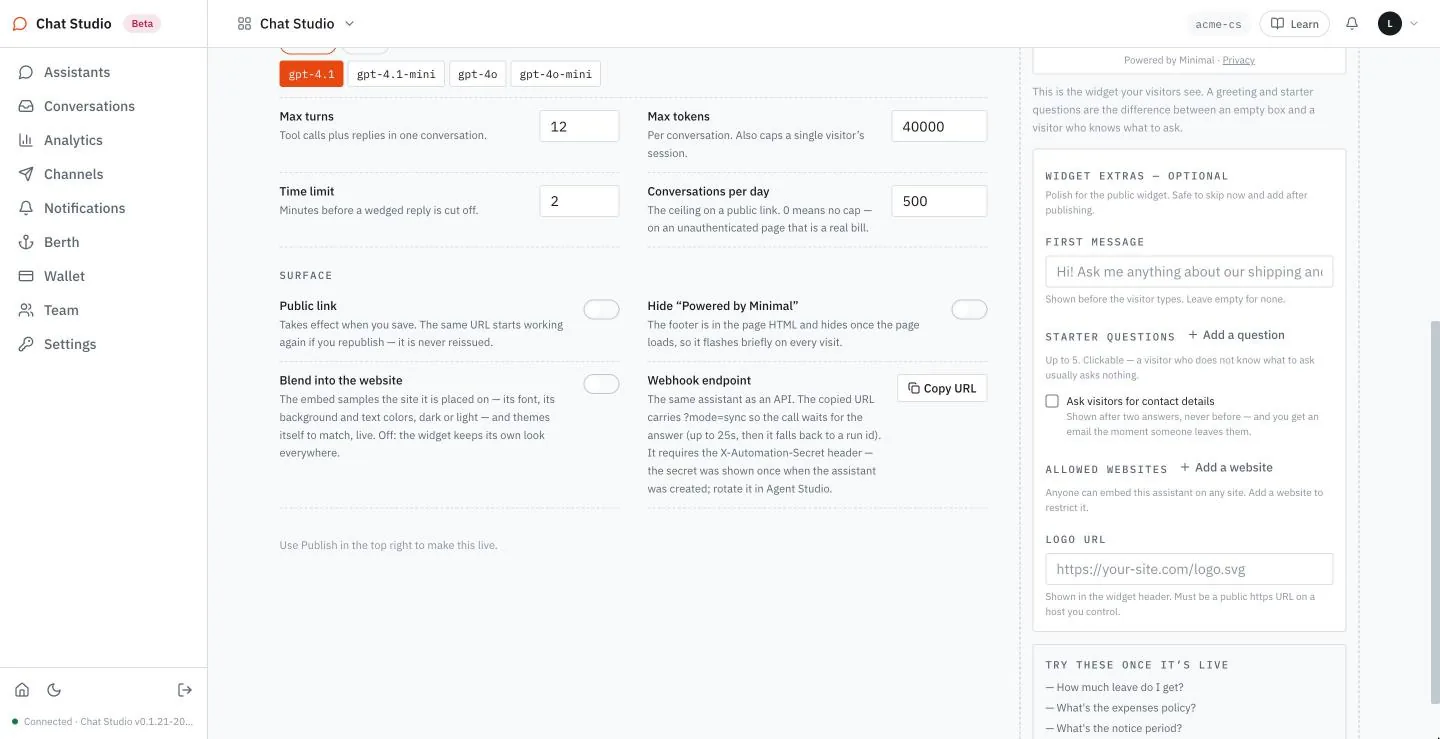
The address has this shape, and <agent-id> is the assistant's own id:
https://studio.example/api/agentd/webhooks/<agent-id>?mode=syncThe secret
The secret is 43 characters long. It cannot be read again; if you lose the secret of a throwaway assistant, make another assistant. Treat it as you would a password: keep it in a file with mode 0600 or in your secret manager, and read it into the process that makes the call, never into a command line, a log or source code. Chapter 12 gives the reasons.
The waiting form
curl can read its settings from its standard input, so neither the address nor the secret appears in a command line. -i prints the status and the head, so that you can read the status:
hook=https://studio.example/api/agentd/webhooks/<agent-id>

{
  printf 'url = "%s?mode=sync"\n' "$hook"
  printf 'header = "X-Automation-Secret: %s"\n' "$(cat automation-secret.txt)"
} | curl -sS -i -K - -H 'Content-Type: application/json' \
    -d '{"message": "What is the deadline for an expense claim?"}'
The body is {"message": "..."} and nothing else is required. The answer is the one at the head of the chapter. Add "session_id" with the session_id of a previous answer, and the question continues that conversation:
POST /api/agentd/webhooks/<agent-id>?mode=sync HTTP/1.1
Host: studio.example
X-Automation-Secret: <automation-secret>
Content-Type: application/json

{"message": "And how much notice do I need for a long leave?", "session_id": "<session-id>"}HTTP/2 200
content-type: application/json{
"answer": "According to the Acme Corporation leave policy: \"Leave of 5 working days or more needs 14 days' notice. ...\"",
"end_reason": "done",
"run_id": "<run-id>",
"session_id": "<session-id>",
"status": "done"
}The answer carries the same session_id, and a new run_id. A session_id that does not exist is refused with 404.
The run-id form
Leave ?mode=sync off, and the call returns at once, before the model has answered:
POST /api/agentd/webhooks/<agent-id> HTTP/1.1
Host: studio.example
X-Automation-Secret: <automation-secret>
Content-Type: application/json

{"message": "When is the IT desk open on Saturday?"}HTTP/2 202
content-type: application/json{
"run_id": "<run-id>",
"session_id": "<session-id>",
"status": "running"
}The call returns in under a second. The card says that the waiting form falls back to this form when the answer takes longer than 25 seconds. The secret opens only the POST address: a GET to it, or to the paths tried under it, answers 401 with or without the secret. The run still finishes and its answer is stored in the conversation, so a later call with the same session_id continues from it, but none of the addresses of this chapter returns that stored answer. Use the waiting form for any call whose answer you need, and treat a 202 as "accepted".
What the server refuses
| Status | The answer | The cause |
|---|---|---|
401 | {"error":"unauthorized"} | The header is missing, or the secret is wrong. Both answer alike. |
400 | {"error":"message required"} | The body has no message, or an empty one. |
400 | {"error":"invalid JSON body: ..."} | The body is not JSON. |
404 | {"error":"session not found"} | The session_id does not exist. |
404 | {"error":"agent not found"} | The address names no assistant. |
409 | {"error":"agent is paused"} | The assistant is paused (Chapter 9). |
429 | {"error":"agent daily budget exhausted"} | The assistant's Conversations per day is reached (Chapter 8). |
The ceiling applies to the webhook: with Conversations per day at or below the number of messages the assistant has already answered that day, on the page or by webhook, the call is refused with 429. The two share one count: with a ceiling of 1, once a message is answered on either, the next message on the other is refused. The sentence is not the one of the visitor surface, so a program that reads sentences must know both.
What it leaves out
A webhook call adds nothing to the month's requests or to the visitor conversations in Berth, it does not appear in Conversations, and the assistant's row in the list shows no chat for it. It does call the model, with your key, and your provider bills it. The pause of Chapter 9 stops it too: a paused assistant answers the webhook 409 with {"error":"agent is paused"}, in both forms. Unpublishing does not: the webhook keeps answering. Count your own calls, and keep the ceiling low on an assistant that automation calls.
Exercises
The first and third exercises call the model with your key. Use a disposable workspace and a throwaway assistant with one small source, and keep each question to one line: that is the cheapest test there is. The second calls no model.
- With the assistant of the setup box, call the waiting form with a question its source answers. Check that the status is
200and that the body has five fields:answer,end_reason,run_id,session_idandstatus. - Call the same address with no
X-Automation-Secretheader, and then with a wrong one, with-iso that the status shows. Check that both answer401with the same body. - Call the address again with the
session_idof the first answer and a second question. Check that the answer carries the samesession_id. Then call it with asession_idthat you change by one character, and check the404.
12Calling from code
Chapter 10 made the calls by hand. A program makes them the same way, and what it must add is care: it reads a stream, it keeps its address private, and it behaves when it is refused. Here is the whole of it in Python, with nothing to install:
import json
import os
import sys
import urllib.error
import urllib.request

BASE = os.environ["CHAT_BASE"]


class Refused(Exception):
    def __init__(self, status, sentence):
        super().__init__(f"{status}: {sentence}")
        self.status = status


def post(path, body):
    request = urllib.request.Request(
        BASE + path,
        data=json.dumps(body).encode(),
        headers={"Content-Type": "application/json"},
    )
    try:
        return urllib.request.urlopen(request, timeout=60)
    except urllib.error.HTTPError as err:
        raise Refused(err.code, err.read().decode()[:200])


def open_conversation():
    with post("/sessions", {}) as response:
        return json.load(response)["session_id"]


def ask(session_id, message):
    reply, sources, index, ended = "", [], None, None
    with post(f"/sessions/{session_id}/runs", {"message": message}) as stream:
        for line in stream:
            if not line.strip():
                continue
            frame = json.loads(line)
            if frame["type"] == "token":
                reply += frame["delta"]
            elif frame["type"] == "sources":
                sources = [s["name"] for s in frame["sources"]]
            elif frame["type"] == "answer":
                index = frame["index"]
            elif frame["type"] == "run_end":
                ended = frame["end_reason"]
            elif frame["type"] == "error":
                ended = "error"
    return reply, sources, index, ended


if __name__ == "__main__":
    try:
        session_id = open_conversation()
        reply, sources, index, ended = ask(session_id, sys.argv[1])
    except Refused as err:
        sys.exit(str(err))
    print(reply)
    print("sources:", ", ".join(sources))
    if ended != "done":
        sys.exit(f"stopped: {ended}")
Save it as ask.py (the file is in the downloads), put the public address of Chapter 5 in the environment, without its ending /chat, and ask:
export CHAT_BASE=https://studio.example/api/agentd/public/<public-token>
python3 ask.py "When is the IT desk open on Saturday?"
A reply such as:
According to the Acme Corporation frequently asked questions, the IT desk is open
on Saturday from 10:00 to 13:00 (Lisbon time).
sources: acme-faq, acme-handbook
The wording varies; the hours do not. The program is Chapter 10 with the care added. This chapter reads the care, then gives the same program in JavaScript and a shorter one in a shell script.
Setup for developers. Acme Help, made by the steps of the setup box of Chapter 10, Python 3.9 or later or Node 20 or later, and the public address, without its ending
/chat, inCHAT_BASE. The shell script also needscurlandjq. The three programs are in the downloads:ask.py,ask.mjsandask.sh. Each question is a model call on your key: use a disposable workspace and a throwaway assistant, and keep the questions short.
flowchart TB
    R[A refusal] --> S{Status}
    S -->|400| F[Fix the request: it is malformed]
    S -->|404 session not found| C[Open one new conversation]
    S -->|404 not available, 409, 503| O[Stop for now: the assistant is off, or the address is wrong]
    S -->|429| T{Sentence}
    T -->|moment or quickly| W[Wait a minute, then try again]
    T -->|try again later| N[Open one new conversation; if refused again, stop]
What a program does with each refusal.
What each part is for
The address stays out of the code. BASE is read from the environment. The address is the only thing that lets a caller in (Chapter 5), so it is a secret of a kind: keep it in the environment of the process or in a file that only you can read, never in the source, never in a command line, where a process list shows it to everyone on the machine, and never in a log. A leaked address cannot be changed: the editor says that it "is never reissued". The way out is to unpublish the assistant and publish another.
A refusal is an object. post turns every refusal into Refused, which carries the status and the sentence. The rest of the program reads the status and nothing else, with two exceptions that follow: 404 and 429.
The stream is read line by line. for line in stream yields one JSON object each, as the server writes it. The program keeps four things: the delta of each token, the names in sources, the index of answer, and the end_reason of run_end. It skips a line of a type it does not know, which is why there is no else. A stream that ends well ends with done.
A 200 stream can still end on a cap: turn_cap and token_budget of Chapter 8, or wall_clock, which the page of Chapter 10 reads as the Time limit reached. The program then prints what it has and exits with the reason.
A conversation is opened once and reused. Open one for each person who talks to your program, and ask every question of that person in it. The assistant sees the earlier questions, so a second question such as "Can I carry any of them over to next year?" can be answered from the first answer's passage with no new search and no sources line. A program that opens a conversation for each message gives that up and fills Berth with conversations, as Chapter 8 shows.
One question at a time. A conversation accepts a second question while the first runs, and stores the answers in the order they finish (Chapter 10). ask returns when its stream ends, so a program that calls it in a loop never overlaps.
Being refused
Chapter 10's table lists the refusals. A program needs a policy for each, and the chart above is that policy. Four of them need a word.
404. Two causes share the status. The sentence "session not found" says that the conversation does not exist: open a new one, once. "This assistant isn't available right now." says that the assistant is unpublished or that the address is mistyped, and the two answer alike. Retrying at once cannot help. Stop, and say that the assistant is off or the address is wrong; if its owner may publish it again, try later, as for a pause.
409 and 503. A 409, or a 503 with the sentence "This assistant isn't available right now.", means that the assistant is paused (Chapter 9). Stop. A pause lasts until its owner resumes it, so a long-running program may try again later, not at once.
400. The request is malformed: no message, a body above 32,768 bytes, a body that is not JSON. Retrying sends the same request. Fix it.
429. Three causes share the status, and only the sentence tells them apart (Chapter 8):
- "Please try again in a moment." comes from the call that opens a conversation, when one address opens more than ten a minute. It clears within a minute.
- "You're sending messages very quickly" is the limit of sixty requests a minute from one address. Chapter 8 shows it for the page and the details; the program treats the sentence the same way, and waits.
- "Please try again later." is the day's ceiling, or a conversation that spent its budget. The budget belongs to one conversation and a new conversation starts with a fresh one, so the program opens one new conversation and asks once. If that is refused too, the ceiling is reached and the program stops for the day.
import time

WAIT = ("in a moment", "very quickly")


def patiently(call, *args):
    """Run call; on a 429 that clears in a minute, wait once and run it again."""
    try:
        return call(*args)
    except Refused as err:
        if err.status != 429 or not any(words in str(err) for words in WAIT):
            raise
        time.sleep(60)
        return call(*args)


def ask_patiently(session_id, message):
    """Return (session_id, reply, sources, index, ended); the id may be new."""
    try:
        return (session_id, *patiently(ask, session_id, message))
    except Refused as err:
        if err.status != 429 or "try again later" not in str(err):
            raise
        session_id = patiently(open_conversation)
        return (session_id, *ask(session_id, message))
ask_patiently returns the conversation it used, so the caller keeps the new one. Each helper tries a call at most twice; one message can cost up to three asks and two conversation openings, and only the last refusal reaches the caller, who stops. The helper is not in the downloads. Do not put it in a loop: a refused message counts toward the day's ceiling (Chapter 8), so a loop spends it fast.
The same in JavaScript
Node 20 has fetch, and its response body is an async iterator. The stream arrives in chunks that need not end at a line, so the program keeps the unfinished tail in buffer and handles what remains of it when the loop ends. Save it as ask.mjs, the extension that allows await at the top:
const base = process.env.CHAT_BASE;

async function post(path, body) {
  const res = await fetch(base + path, {
    method: "POST",
    headers: { "Content-Type": "application/json" },
    body: JSON.stringify(body),
  });
  if (!res.ok) {
    throw new Error(`${res.status}: ${(await res.text()).slice(0, 200)}`);
  }
  return res;
}

function handle(line, run) {
  const frame = JSON.parse(line);
  if (frame.type === "token") run.reply += frame.delta;
  else if (frame.type === "sources") run.sources = frame.sources.map((s) => s.name);
  else if (frame.type === "answer") run.index = frame.index;
  else if (frame.type === "run_end") run.ended = frame.end_reason;
  else if (frame.type === "error") run.ended = "error";
}

async function ask(sessionId, message) {
  const res = await post(`/sessions/${sessionId}/runs`, { message });
  const decoder = new TextDecoder();
  const run = { reply: "", sources: [], index: null, ended: null };
  let buffer = "";
  for await (const chunk of res.body) {
    buffer += decoder.decode(chunk, { stream: true });
    const lines = buffer.split("\n");
    buffer = lines.pop();
    for (const line of lines.filter(Boolean)) handle(line, run);
  }
  if (buffer.trim()) handle(buffer, run);
  return run;
}

const { session_id } = await (await post("/sessions", {})).json();
const run = await ask(session_id, process.argv[2]);
console.log(run.reply);
console.log("sources:", run.sources.join(", "));
if (run.ended !== "done") {
  console.error(`stopped: ${run.ended}`);
  process.exit(1);
}node ask.mjs "What is the deadline for an expense claim?"A reply such as:
According to the acme-handbook:

"Submit every expense claim within 17 days of the purchase date. A claim submitted
on day 18 or later is not reimbursed."
sources: acme-handbook, acme-leave-policy
A refusal throws an error with the status and the sentence, and the program ends with it. Add the policy above where you catch it.
The same in a shell script
With curl and jq, a dozen lines are enough for a script that prints only the answer and does not check how the run ended: a stream cut by a cap prints a short answer and exits with status 0. jq builds the JSON, so a question with quotation marks in it cannot break the request, and it joins the tokens:
#!/usr/bin/env bash
# usage: CHAT_BASE=... ./ask.sh "question"
set -euo pipefail
url() { printf 'url = "%s%s"\n' "$CHAT_BASE" "$1"; }   # the address goes in on stdin, not in argv
session=$(url /sessions | curl -fsS -X POST -K - | jq -r .session_id)
url "/sessions/$session/runs" |
  curl -fsSN -X POST -K - \
    -H 'Content-Type: application/json' \
    -d "$(jq -n --arg m "$1" '{message: $m}')" |
  jq --unbuffered -rj 'select(.type == "token") | .delta'
echo
-K - makes curl read its settings from its standard input, and the function writes the address there as a url setting, so the address never appears in a command line. -f makes curl fail on a refusal, and pipefail makes the script end with the failure: aimed at a mistyped address, it ends with a curl error for the 404 and a non-zero exit status. -f also keeps the sentence of the refusal from being printed; make the failing call by hand, as in Chapter 10, to read it. -N turns off curl's buffering and --unbuffered does the same for jq, so the words appear as they arrive.
Cost
Each question is a model call on your key, and it counts against the day's ceiling of the assistant (Chapter 8). A test loop that asks again and again spends both. Cap it yourself: count the questions your program sends, stop at a number you chose, and keep Conversations per day low on an assistant that a program calls.
Exercises
These exercises call the model. Use a disposable workspace and a throwaway assistant with one small source, and keep each question to one line: that is the cheapest test there is. The third is free.
- Run
ask.pyagainst a throwaway assistant with a question its source answers. Check that thesources:line names the file that holds the answer and that the program exits with status 0. - Change the program to ask two questions in one conversation and print the
indexof each answer. Check that the second question's answer has a larger index, and read the two numbers against the rule of Chapter 10. - Run
ask.pywith one character added to the end ofCHAT_BASE. Check that it ends with a404and the sentence "This assistant isn't available right now.", and thatecho $?prints a number other than 0.
AThe Acme files
Everything the book builds is made from the files on this page. They are fictional; Acme Corporation does not exist, and its address, acme.example, is reserved for examples. The three files are also in the downloads of the book, beside the programs of Chapter 12, with the text of the persona's instructions as acme-help-instructions.txt.
The three files
Upload them in Chapter 1, in this order or any other. They are small: Chapter 1 shows how many chunks each becomes.
acme-handbook.md
# Acme Corporation employee handbook

Acme Corporation is a fictional company with about 120 employees in four teams: Engineering, Platform, Data and Research. Its head office is in Lisbon and its second office is in Pune.

## Working hours

Core hours are 10:00 to 15:30 in your office's local time. Everyone is expected to be reachable during core hours. Outside them you set your own schedule with your team lead.

## Where you work

You may work from home up to two days a week. Wednesday is the office day for everyone, and no one works from home on a Wednesday.

## Equipment

Every employee gets a laptop, replaced every 36 months. A one-time home desk budget of 340 euros is paid after your first month. Lost or stolen equipment must be reported to the IT desk within 2 hours.

## Expenses

Submit every expense claim within 17 days of the purchase date. A claim submitted on day 18 or later is not reimbursed. Claims above 400 euros need the approval of your department head before you buy.

## Security

Your screen locks after 4 minutes of inactivity. Never share a hardware key. Report anything suspicious to security@acme.example.

## Who to ask

- People team: people@acme.example
- IT desk: it@acme.example
- Finance: finance@acme.example
acme-leave-policy.md
# Acme Corporation leave policy

This policy applies to every full-time employee of Acme Corporation, a fictional company.

## Annual leave

You receive 23 working days of paid annual leave per calendar year. In your first year the allowance is pro-rated by the month you join. You may carry over at most 4 unused days into the next year, and they must be used by 31 March or they are lost.

## Notice

Leave of 5 working days or more needs 14 days' notice. Shorter leave needs 2 days' notice. Your team lead approves leave; if there is no answer within 3 working days, the request counts as approved.

## Sick leave

You receive 11 paid sick days per calendar year. A medical note is required from the third consecutive sick day.

## Parental leave

The primary carer receives 18 weeks at full pay. The other parent receives 6 weeks at full pay. Leave may be taken in the first 12 months after the birth or adoption.

## Bereavement leave

You receive 5 paid days after the death of a close relative.

## Unpaid leave

Unpaid leave of up to 30 days per year may be approved by your department head.

## Public holidays

The Lisbon office follows the public holidays of Portugal. The Pune office follows the public holidays of Maharashtra.
acme-faq.md
# Acme Corporation frequently asked questions

## When is the IT desk open?

The IT desk answers in Lisbon time (WET):

| Day | Hours |
|---|---|
| Monday to Thursday | 08:30 to 18:15 |
| Friday | 08:30 to 16:45 |
| Saturday | 10:00 to 13:00 |
| Sunday | Closed |

## How do I reset my password?

Open the Acme portal and choose **Forgot password**. The reset link expires after 25 minutes. If it has expired, ask for a new one.

## How do I connect to the VPN?

Install the Acme VPN client, sign in with your work email and touch your hardware key when it blinks. The VPN is required for the finance system and optional for everything else.

## What is the guest Wi-Fi called?

The guest network is called AcmeGuest. Its password changes every Monday and is posted at reception.

## Where can I park in Lisbon?

Level -2 of the head office garage has 60 spaces, first come first served. Bicycles are kept on level -1.

## Can I bring a visitor?

Yes. Register the visitor at reception before 09:30 on the day, and escort them at all times.

## Who approves a purchase above 400 euros?

Your department head, before you buy. See the expenses section of the handbook for the claim deadline.
What the files let you prove
Each fact below is in one file and could not be guessed. A grounded answer carries it, and a refusal carries none.
| Question | The fact | The file |
|---|---|---|
| How many days of annual leave do I get? | 23 working days a calendar year | acme-leave-policy.md |
| Can I carry any over to next year? | At most 4 days, used by 31 March | acme-leave-policy.md |
| What is the deadline for an expense claim? | 17 days; day 18 is not reimbursed | acme-handbook.md |
| When is the IT desk open on Saturday? | 10:00 to 13:00, Lisbon time | acme-faq.md |
| What is the salary band for a senior engineer? | No file says | none |
| What is the capital of France? | No file says | none |
The instructions of Acme Help
The persona HR & Policy Desk writes this text into BEHAVIOUR. Chapter 4 reads it, and its first paragraph is the part you keep when you take the grounding rules out:
You are the policy desk for this organisation. You answer questions about published policies, handbooks and procedures.

Answer ONLY from the knowledge sources available through your retrieve_knowledge tool. Search them before answering anything about this organisation, its products, policies or prices — never answer such a question from memory.

When the sources do not cover a question, say so plainly and stop. Do not guess, do not generalise from similar cases, and do not fill a gap with what is usually true elsewhere. A visitor who is told "I don't have that in my documents" can go and ask a human; a visitor given a confident wrong answer cannot.

Each passage you retrieve is labelled with the document it came from. Name that document when it helps the reader check you — "according to the returns policy…" — and never name one you were not given. Do not invent a filename, a section number, or a URL.

How to answer:
- Quote the policy's own wording for anything that decides an outcome — entitlements, deadlines, eligibility, thresholds, obligations. Paraphrasing a policy changes it.
- You may summarise structure and point someone to the right section, but the operative sentence must be the policy's, not yours.
- State conditions and exceptions in the same answer as the rule. A rule delivered without its exception is the most common way a policy answer becomes wrong.
- Be neutral and impersonal. No reassurance, no editorialising, no opinion on whether a policy is fair or how it is likely to be applied.

You do not interpret, advise, or apply policy to an individual's circumstances. When someone describes their own situation and asks what it means for them, give the relevant policy text and tell them to speak to the appropriate team — HR, their manager, or the contact the documents name. Say that plainly; it is the correct answer, not a deflection.

When the documents do not cover a question, say so and name no fallback rule. There is no such thing as a reasonable guess about a policy.

Never speculate about an individual's entitlement, eligibility, standing, or any decision that has not been made.
The settings of Acme Help
| Setting | Value |
|---|---|
| Persona | HR & Policy Desk |
| Model | gpt-4.1 |
| Max turns | 8 |
| Max tokens | 20000 |
| Time limit | 2 |
| Conversations per day | 25 |
| FIRST MESSAGE | Hi! Ask me about leave, expenses or the IT desk. (Chapter 6) |
| STARTER QUESTIONS | How many days of annual leave do I get? / When is the IT desk open on Saturday? / What is the deadline for an expense claim? (Chapter 6) |
| Ask visitors for contact details | On, from Chapter 6 |
| ALLOWED WEBSITES | Empty until Chapter 6, which adds http://localhost:8731 and the host of the public address |
| ACCENT COLOUR | #0E6F58 |
| Hide "Powered by Minimal" | On, from Chapter 6 |
| Blend into the website | Off |
Littlebit Help
Chapter 2 builds a second assistant from a public website, with these settings:
| Setting | Value |
|---|---|
| Persona | Support Agent |
| Name | Littlebit Help |
| From a page | Read the whole site unticked; five single pages |
| The five pages | https://www.littlebitlabs.com, https://www.littlebitlabs.com/products, https://www.littlebitlabs.com/pricing, https://www.littlebitlabs.com/company and https://www.littlebitlabs.com/docs |
| Max turns | 8 |
| Max tokens | 20000 |
| Conversations per day | 25 |
BQuick reference
Every figure here is shown, with its example, in the chapter named beside it.
The four limits of an assistant (Chapter 8)
| Field | Default | Smallest | What it bounds |
|---|---|---|---|
| Max turns | 12 | 1 | Tool calls plus replies; it bounds one run. |
| Max tokens | 40000 | 1 | Tokens in one conversation. |
| Time limit | 2 | 1 | Minutes before a reply is cut off. |
| Conversations per day | 500 | 1; 0 means no cap | Messages a day, on the public link and on the webhook. |
With Max tokens at 1 the first stream ends with token_budget; at a realistic value, the message after the budget is spent is refused with 429, with no stream, and a new conversation starts with a fresh budget. With Max turns at 1 the stream ends with turn_cap and holds no search; at 3, five questions in one conversation each end with done: the cap is per run.
The three 429 sentences of the visitor surface (Chapter 8)
| Limit | Scope and value | The sentence when it is reached |
|---|---|---|
| New conversations | per address, 10 a minute | This assistant is busy right now. Please try again in a moment. |
| Requests for the page or the details | per address, 60 a minute | You're sending messages very quickly — please wait a moment and try again. |
| The day's ceiling, or a spent conversation budget | per assistant (the ceiling); per conversation (Max tokens) | This assistant is busy right now. Please try again later. |
All three answer 429, and none sends a retry-after header. The webhook has a sentence of its own, below.
Knowledge (Chapters 1 and 2)
| Rule | Value |
|---|---|
| File types | .txt, .md, .pdf, .docx |
| Largest file | 20 MB (20,971,520 bytes) |
| Words indexed from one file | The first 50,000 |
| A source added to a saved assistant | Used after Save and a fresh test conversation |
The visitor surface (Chapter 10)
All paths are added to https://studio.example/api/agentd/public/<public-token>.
| Request | Answers | What it does |
|---|---|---|
GET /chat | 200 HTML | The visitor's page. |
GET on the address itself | 200 JSON | Name, color, greeting, starter questions, contact form. |
POST /sessions | 201 {"session_id": ...} | Opens a conversation. |
POST /sessions/<session-id>/runs | 200 stream | Asks; body {"message": "..."}. |
GET /sessions/<session-id> | 200 JSON | Reads back questions and answers. |
POST /sessions/<session-id>/feedback | 204 | Rates: {"message_index": n, "rating": 1} or -1. |
POST /sessions/<session-id>/lead | 204 | Contact details; an email or a phone is required. |
POST /sessions/<session-id>/human | 202 {"message": ..., "status": "received"} | Asks for a person; with an email or a phone it adds a row under Contacts. |
A request body may be at most 32,768 bytes.
Stream frames (Chapter 10)
type | Fields | Notes |
|---|---|---|
run_start | seq | First line. |
tool_activity | seq | Absent when no search is made. |
sources | seq, sources | Absent when no search is made; each source has name and url. |
token | seq, delta | Join the delta values. |
run_end | seq, end_reason | done, turn_cap or token_budget; the page also treats wall_clock as the Time limit reached. |
answer | index | Rate with this number, not with the list position. |
What each state answers (Chapters 5 and 9)
| Call | Live | Paused | Unpublished |
|---|---|---|---|
| Page and details | 200 | 200 | 404 |
| Open a conversation | 201 | 503 | 404 |
| Ask | 200, a stream | 409 | 404 |
| Read back | 200 | 200 | 404 |
| The webhook (Chapter 11) | 200 or 202, on a draft too | 409 | 200 |
Other refusals (Chapter 10)
| Status | The cause |
|---|---|
400 | No message, a body that is not JSON, or a body above 32,768 bytes. |
403 | The call names a site that is not on the allowed list (Chapter 6). |
404 | Unknown conversation ("session not found"), or an unpublished assistant, or a mistyped address. |
405 | The wrong method for the address. |
413 | A body of megabytes. |
The webhook (Chapter 11)
| Part | Value |
|---|---|
| Address | https://studio.example/api/agentd/webhooks/<agent-id>; add ?mode=sync to wait for the answer |
| Header | X-Automation-Secret: <automation-secret>; 43 characters, shown once at the first Save |
| Body | {"message": "..."}; add "session_id" to continue a conversation |
With ?mode=sync | 200 with answer, end_reason, run_id, session_id and status; the card says it falls back to a run id after 25 seconds |
| Without it | 202 with run_id, session_id and status running, at once |
| Counted | Not in Berth or Conversations; it counts toward Conversations per day and calls your model |
| Status | The answer | The cause |
|---|---|---|
401 | {"error":"unauthorized"} | The header is missing or the secret is wrong. |
400 | {"error":"message required"} or {"error":"invalid JSON body: ..."} | No message, or a body that is not JSON. |
404 | {"error":"session not found"} | The session_id does not exist. |
404 | {"error":"agent not found"} | The address names no assistant. |
409 | {"error":"agent is paused"} | The assistant is paused. |
429 | {"error":"agent daily budget exhausted"} | Conversations per day is reached; the count is shared with the visitor surface. |
Allowed websites (Chapter 6)
The list is checked twice: a header on the page names the sites that may frame it, and a call that carries an Origin header for a site that is not listed is refused with 403. List the site that holds the frame and the host of the public address itself. A call with no Origin header is not checked.
The meters (Chapters 7 and 8)
| Where | What it counts |
|---|---|
| Berth, PARKING | The footprint of your sources against the plan's size (100 MB on Starter), each source with its size and the assistants that use it. |
| Berth, ANSWERING | Requests of the month against the included 500; "One request = one visitor message + its reply." Past 500, $2.00 per 1,000 requests, paid from the wallet. |
| Wallet | The balance. At zero the assistant shows the contact form and nothing is billed past it. |
| Analytics | Conversations and messages over thirty days, visitors, the share rated helpful, and tokens by day. |
Where things are in the app
| Entry | What it holds |
|---|---|
| Assistants | The list; the three-step editor; pause, copy and publish. In step 3 of ADVANCED, the Webhook endpoint card (Chapter 11). |
| Conversations | Conversations, Unanswered and Contacts. |
| Analytics | Thirty days of figures. |
| Channels | Seven destinations for alerts about trouble. |
| Berth, Wallet | The meter and the balance. |
| Settings | Provider keys, the embedding provider and the default model. |